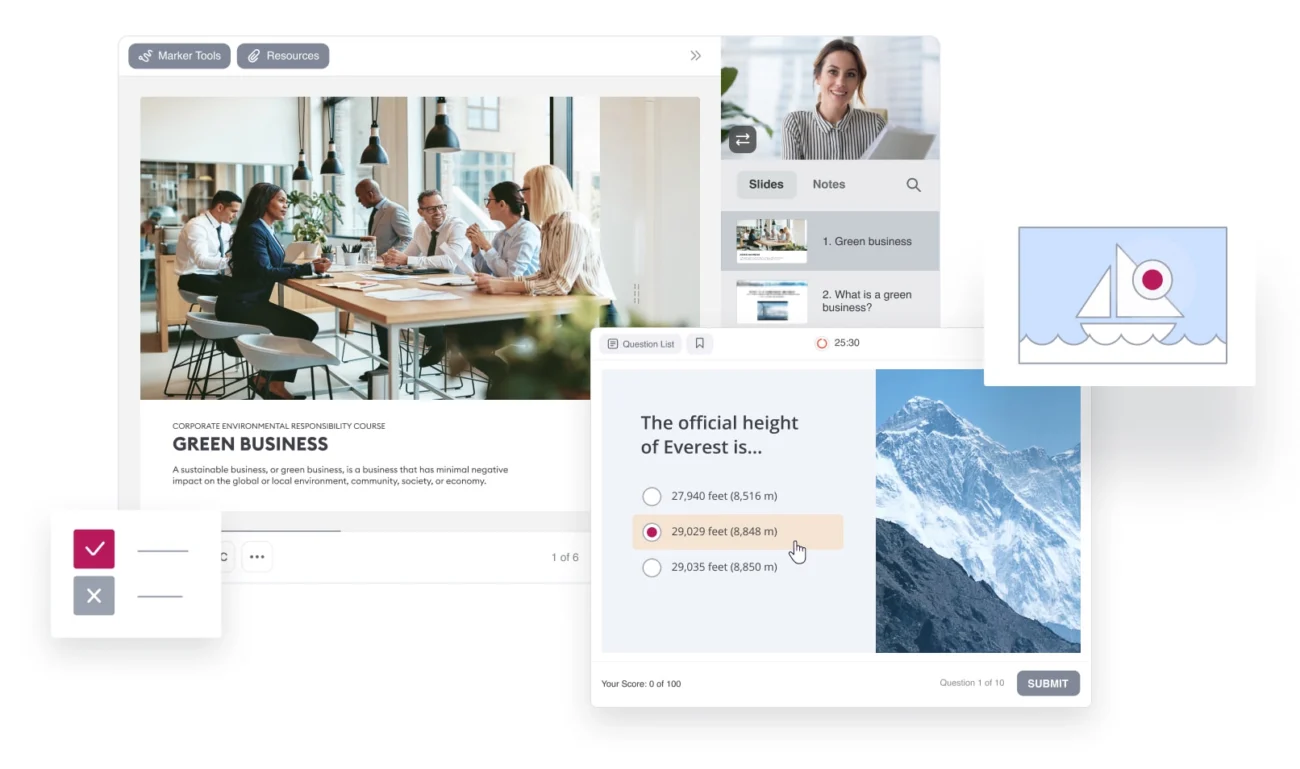
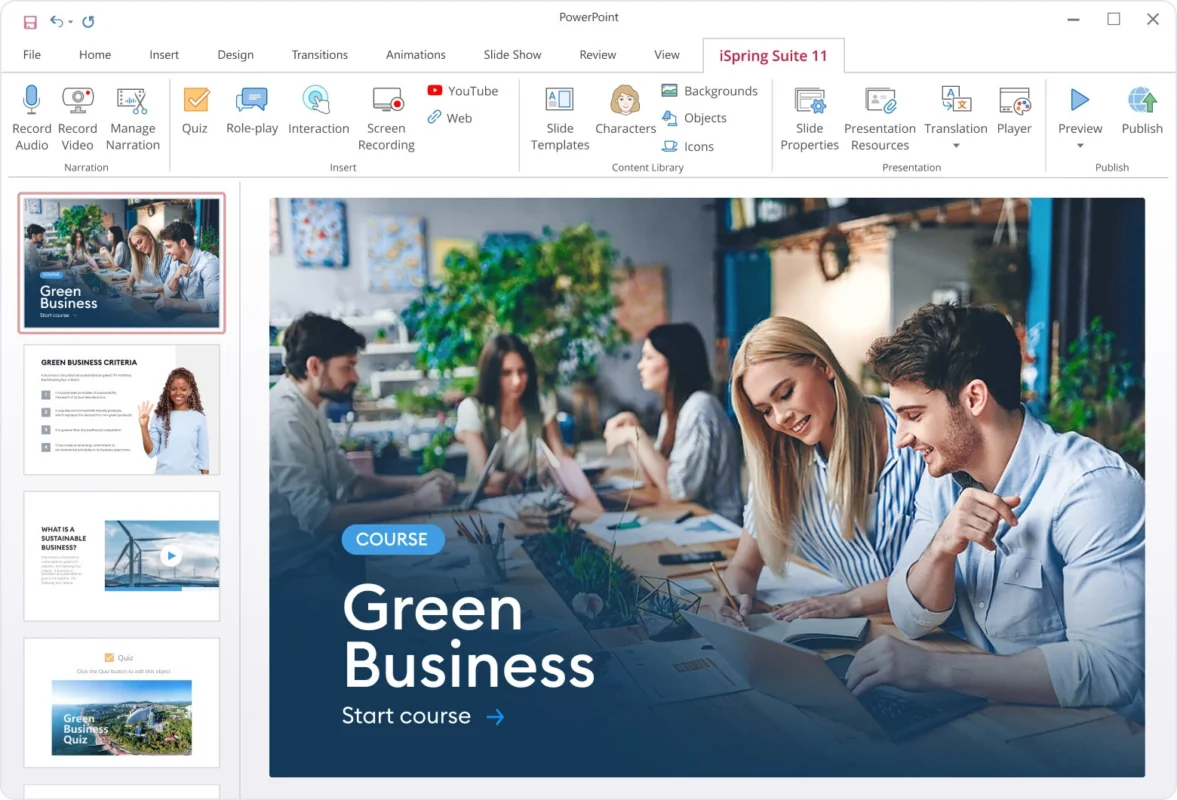
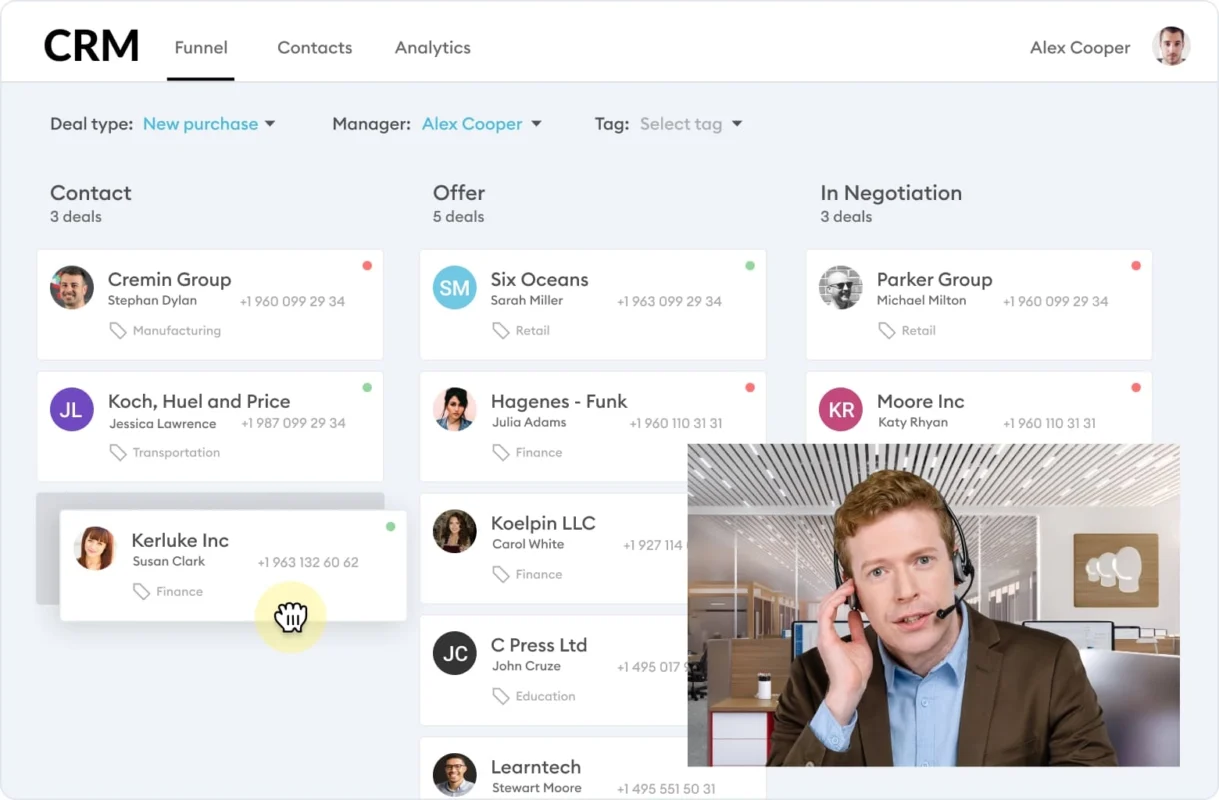
iSpring Suite is made to preserve the original PowerPoint functions and contents and add its own features with it. It is conveniently made and easy to use for beginners and first-time users. It is just as seamless as Microsoft PowerPoint, and can create professional level courses and materials smoothly and effortlessly.
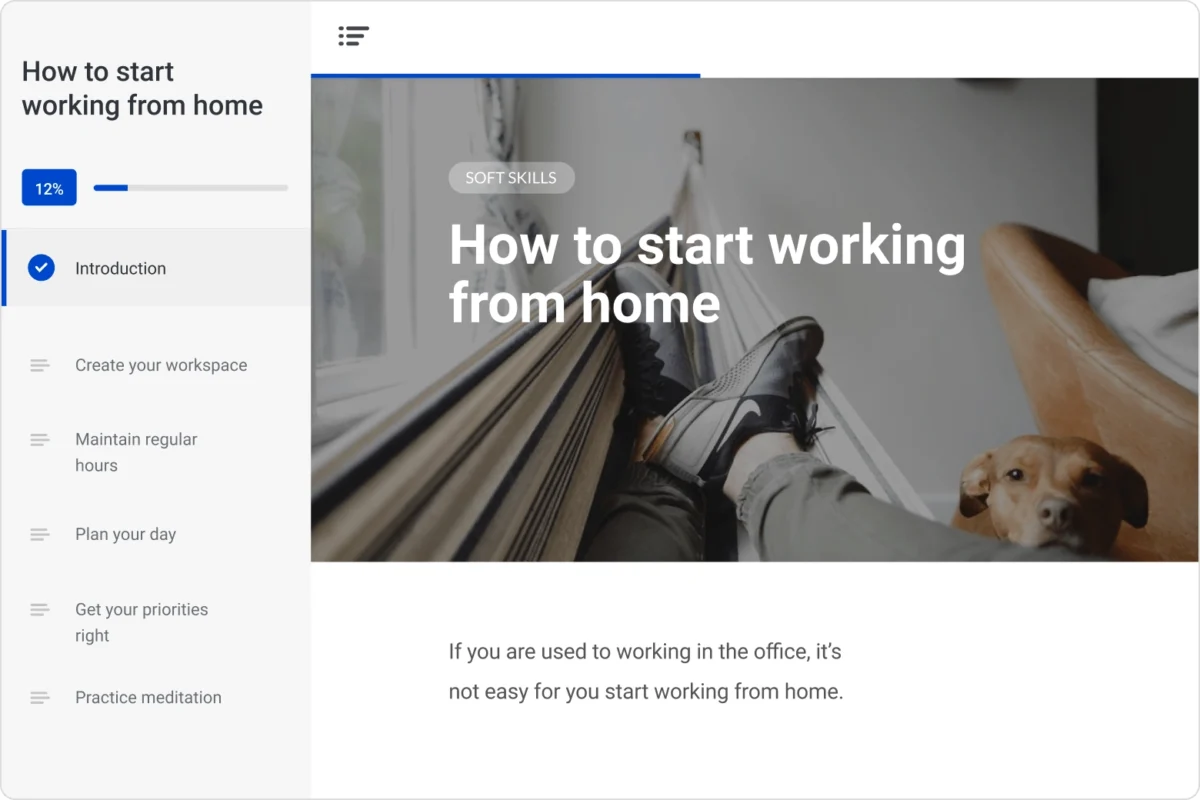
Reuse any of your existing PowerPoint presentations or start from scratch
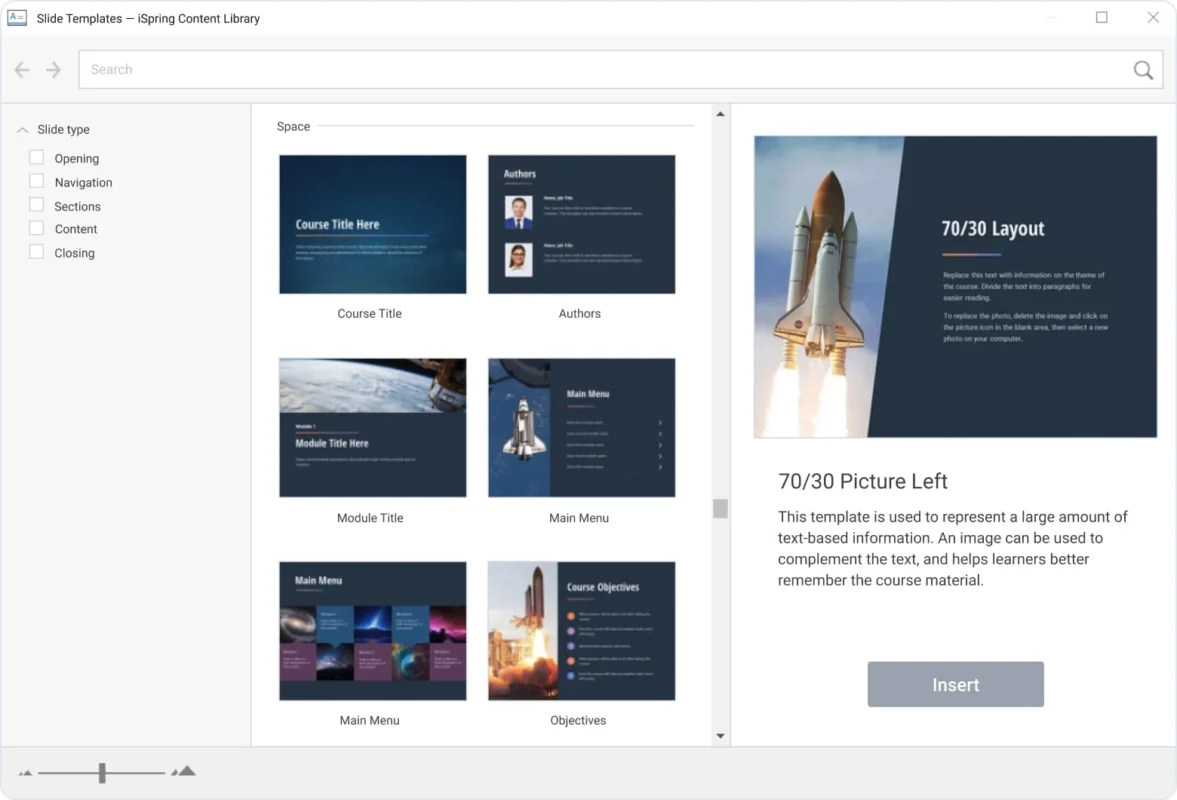
Easily create courses from our premade slide templates
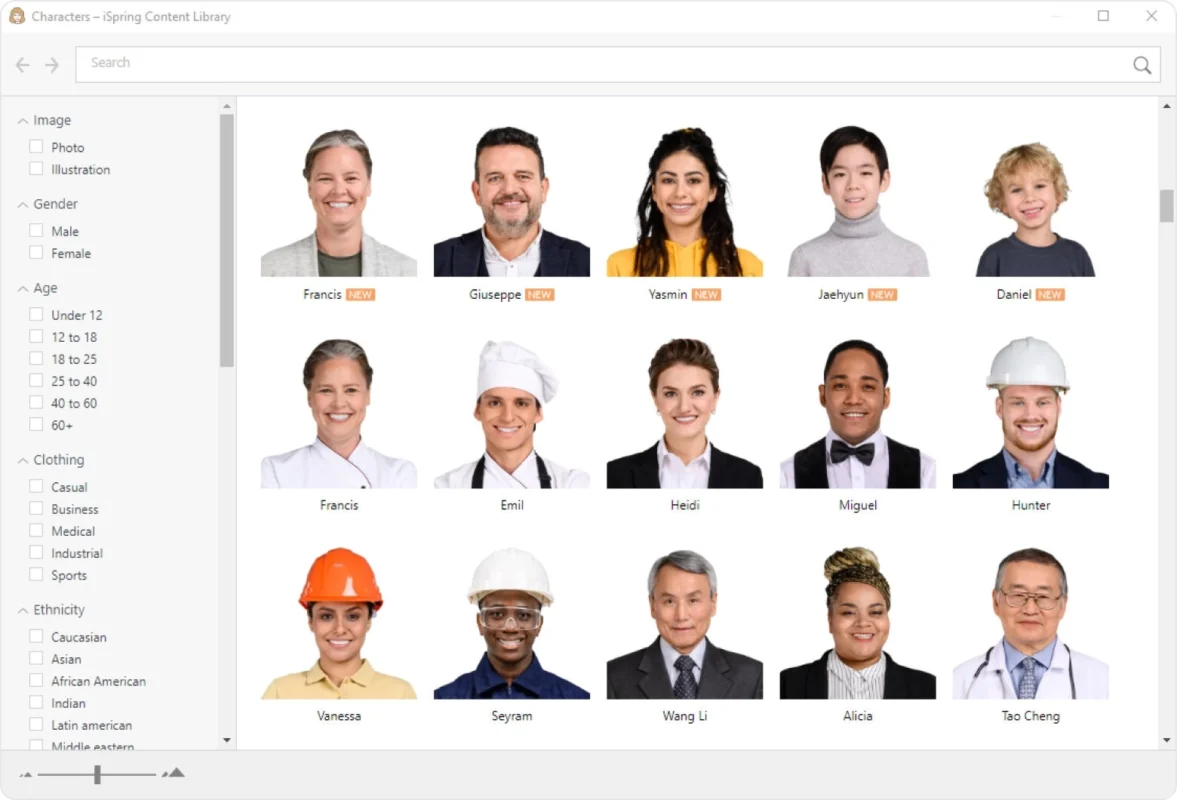
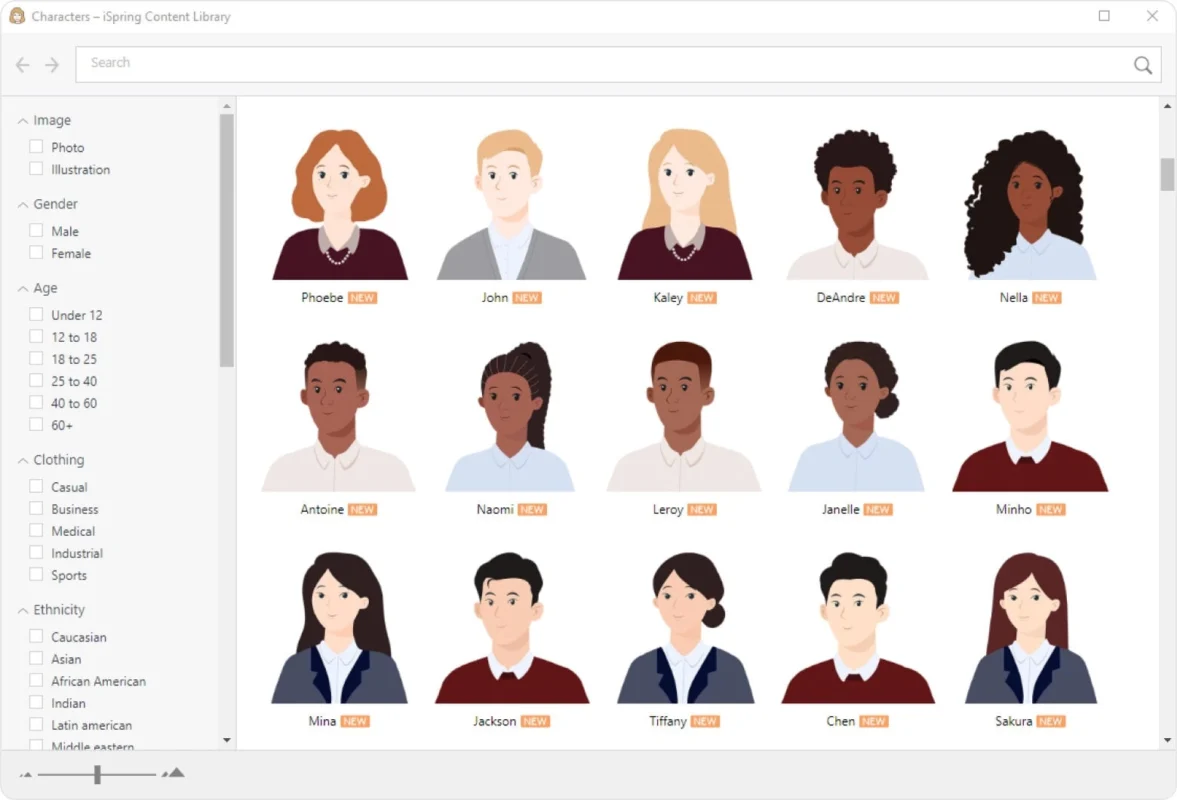
Use characters from the content library to enhance your courses
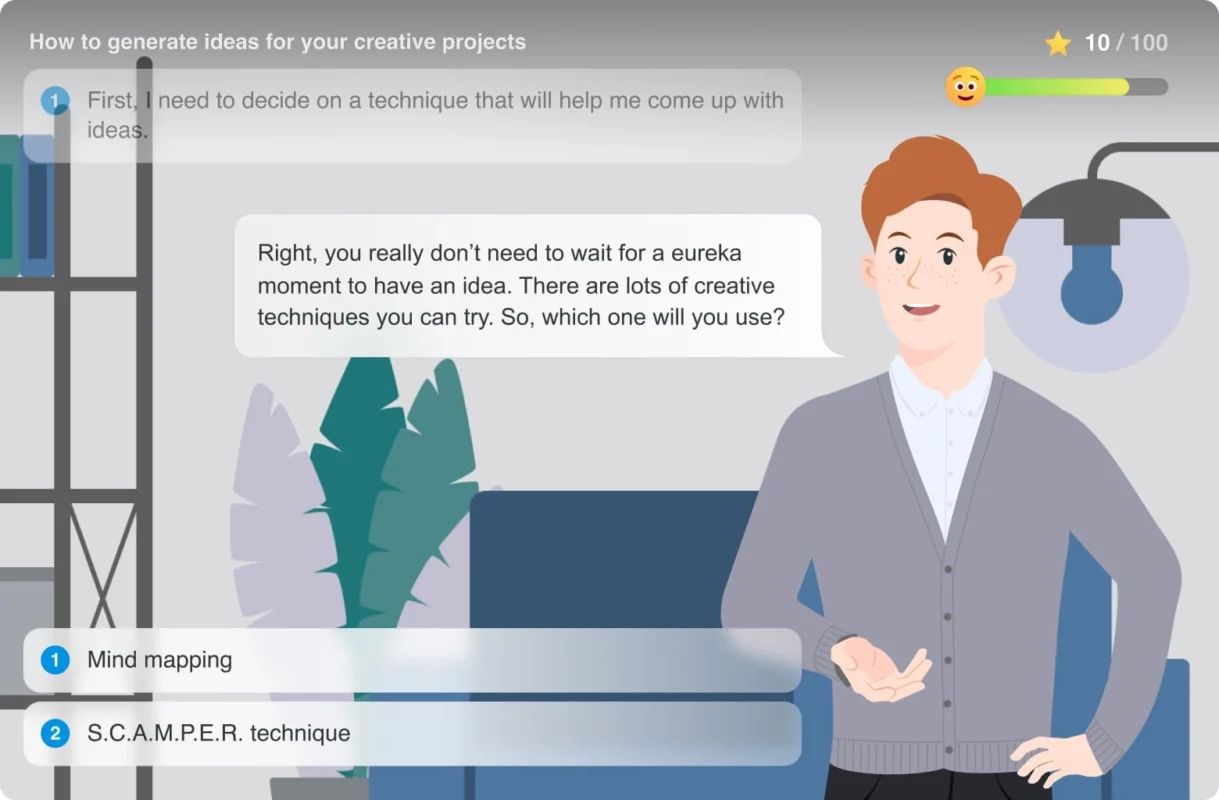
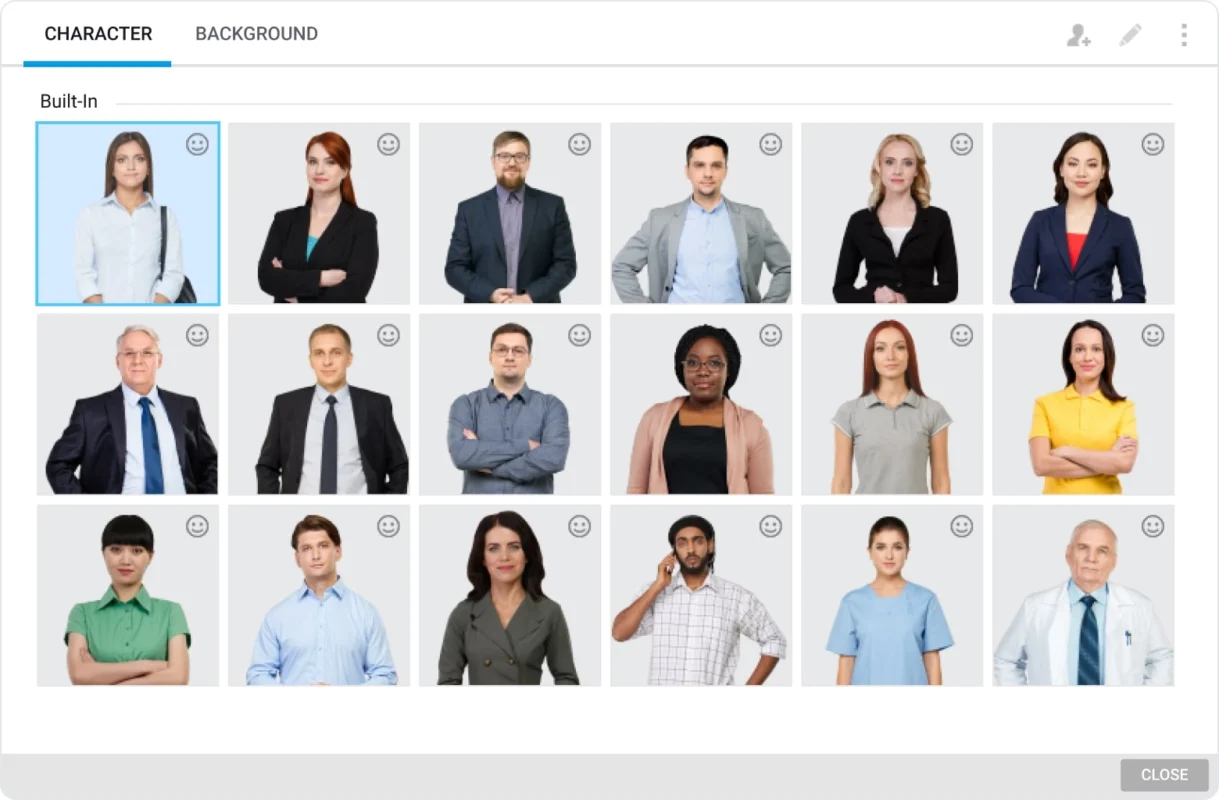
You can choose from 200+ characters in the content library with a variety of expressions and poses
You can also choose from animated characters
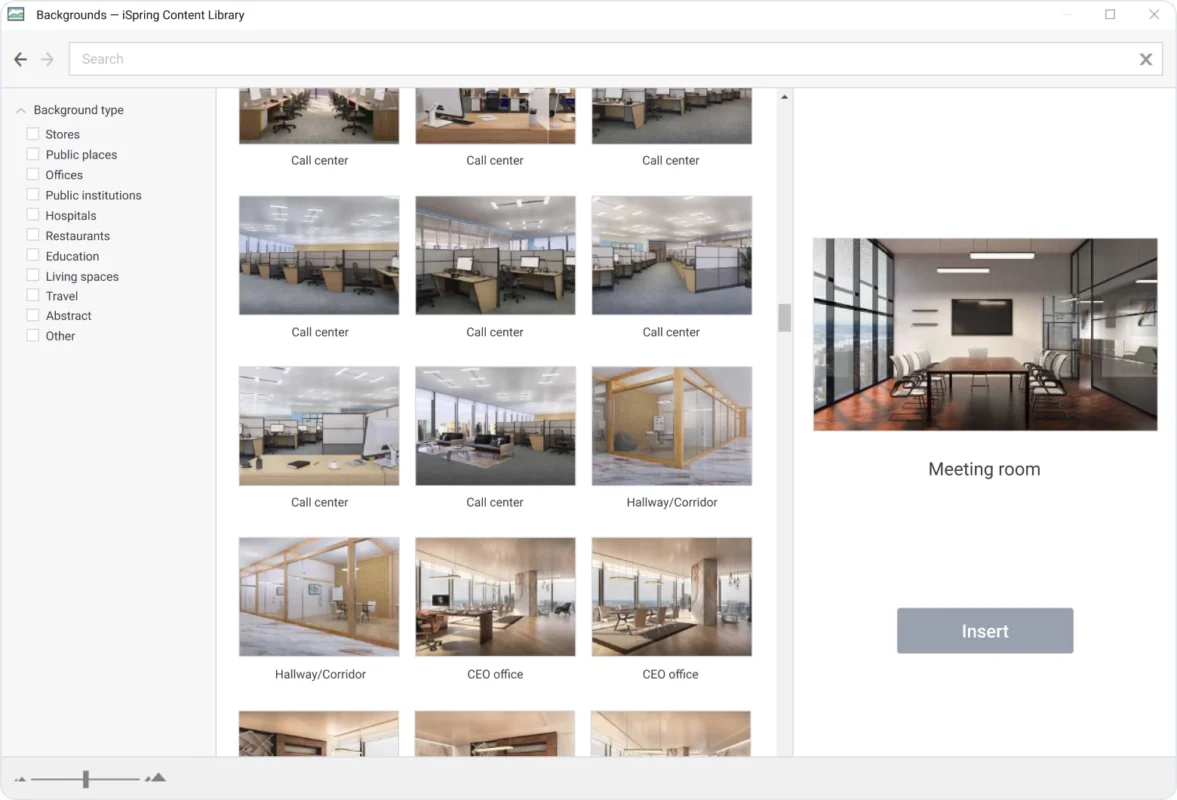
There are 900+ realistic locations you can choose from to create a more immersive experience
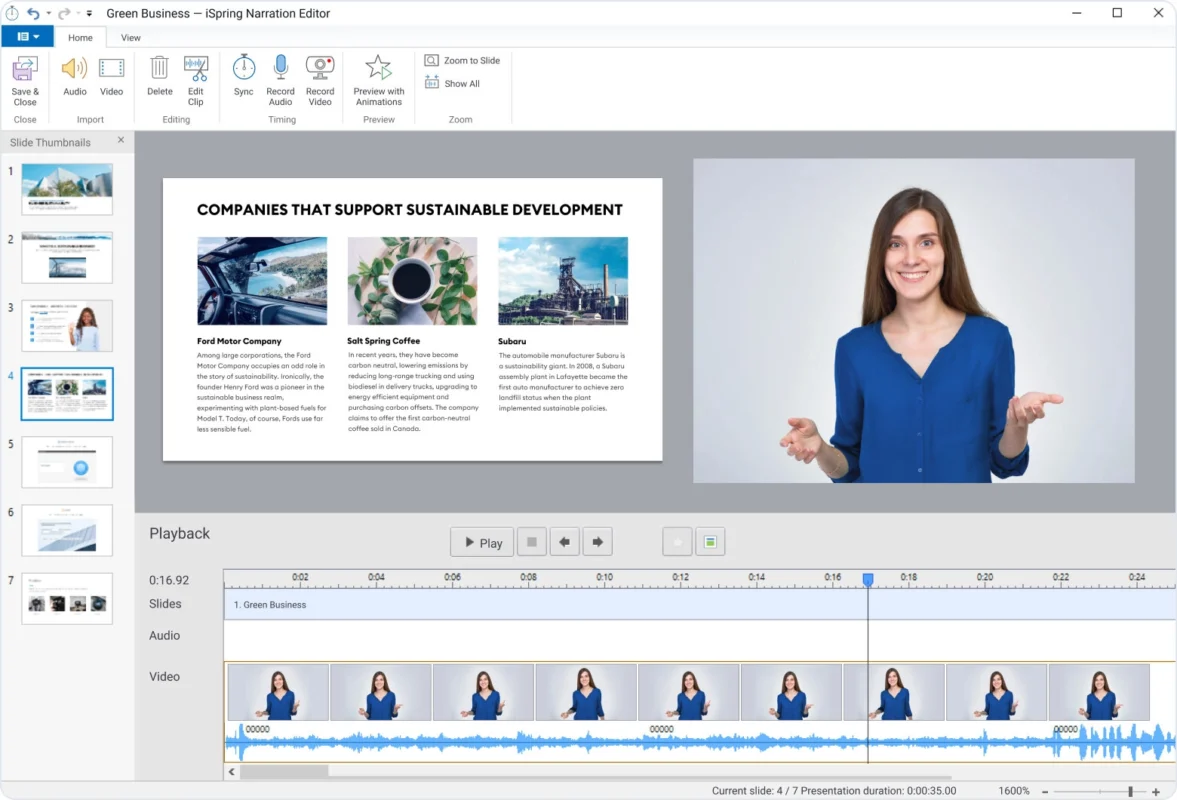
Synchronize your narrations with your slides in PowerPoint
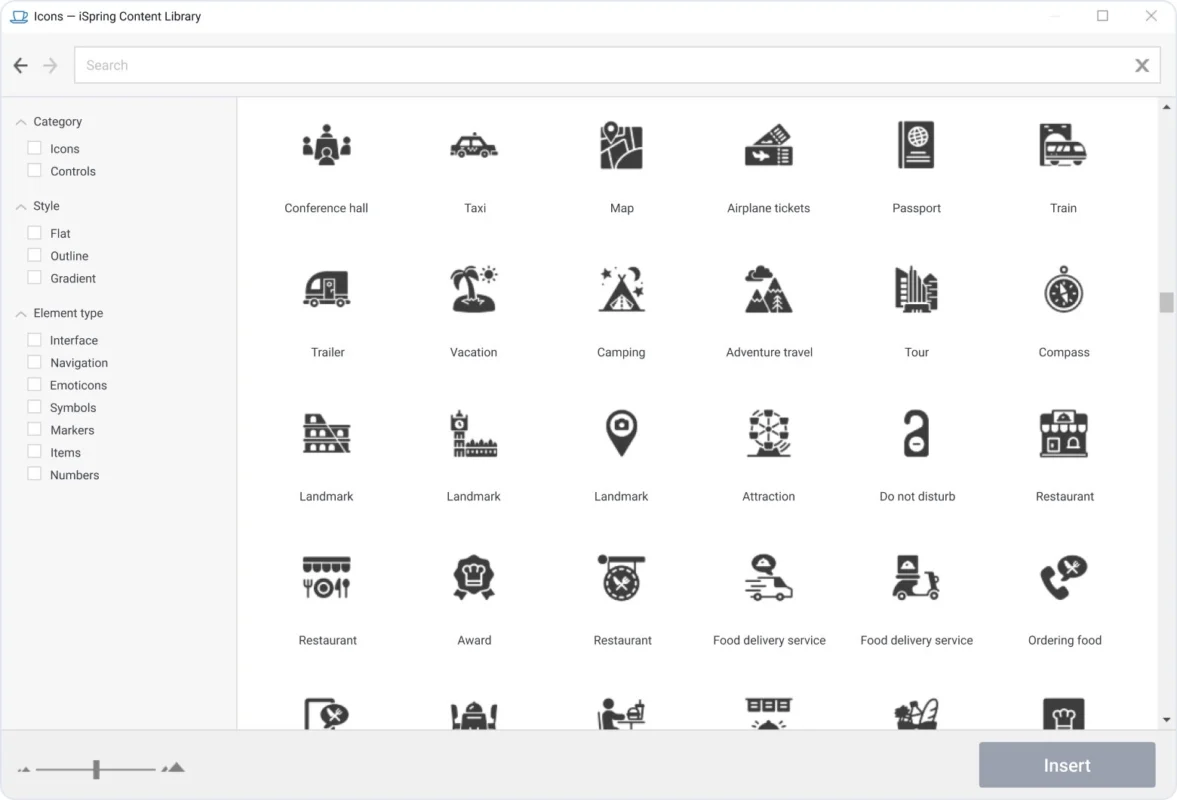
Choose from 3,000+ icons and buttons to help with visuals
Support for PowerPoint Effects
iSpring is made to preserve the original PowerPoint functions and contents so you can use all transitions, hyperlinks, buttons, styles, SmartArt objects, and all 167 animations exactly as they are with no change to it. Learn More →
Narration Editor
With the Narration Editor, you can record voiceovers, audio or video narrations that can be synchronized with your slides. You can also edit your narration to your own desired way by cutting parts of the video or audio, removing unnecessary noise, and adjusting the volume. Learn More →
Course Templates
There are over 2,300 premade templates that are included. To get this just select a title slide, then tables of contents, a timeline, and any other things from the Content Library and add your content inside. Template colors are customizable to match your brand or topic. Learn More →
Characters
There are over 116,000 photos of characters of different ages, ethnic groups, and professions. Each of the avatars have a range of emotions, poses and facial expressions to match scenarios and courses. Learn More →
Realistic Locations
You can create your courses to have a more immersive feel by adding in high quality images of various realistic locations that are included in your iSpring Suite. There are over 2,500 high quality images of beautiful locations. This can be useful for training scenarios or learning courses, also a plus with realistic objects that are also included in your package. Learn More →
Icons and Buttons
To help make your courses designs more appealing there are over 3,600 icons you can choose from and add into your design. These include but are not limited to checkboxes, radio buttons, indicators, sliders, symbols, and other images that go well with your design and aesthetics to give it a cleaner and cohesive look. Learn More →
AI Assistant
Makes working on e-learning content much easier with the help of an assistant on your side. Editing, writing, and formatting can all be done with ease.
Quick Course Development
Build professional standard courses, create e-learning content, formulate assessments, all twice as fast and as effortlessly than before.
Higher Quality Courses
The AI Assistant is there to fix your spelling, simply your sentences, choosing better words, and formatting everything effortlessly.
Quality Aesthetics
Improve the details by automatically highlighting important information, adding headings, building lists, and overall making your content cohesively put together.
Character Builder
Makes working on e-learning content much easier with the help of an assistant on your side. Editing, writing, and formatting can all be done with ease.
Abundance of Diversity
Everyone has different paths of life, and your character should have that too! You can choose from a variety of different backgrounds, cultures and ethnic groups for the best representation.
Personality Features
You can choose from a great variety of poses and expressions for your characters to come to life to fit any scenario.
All are Unique
Personalize each character to have their own unique look from hairstyles to clothing and even accessories to let your envisions come true.
Fit Any Learning Scenario
For any industry you are in and for any course or learning content you create, your characters can perfectly fit the scenario.
Characters on Brand
Your characters can perfectly fit your brand or companies' aesthetics or cultures that captivates and resonates with your audience.
Reduce Costs
You don't need to hire any designers or pay for stock characters. You can easily create your own custom ones effortlessly without wasting resources or time.
Collaborate with your team on courses
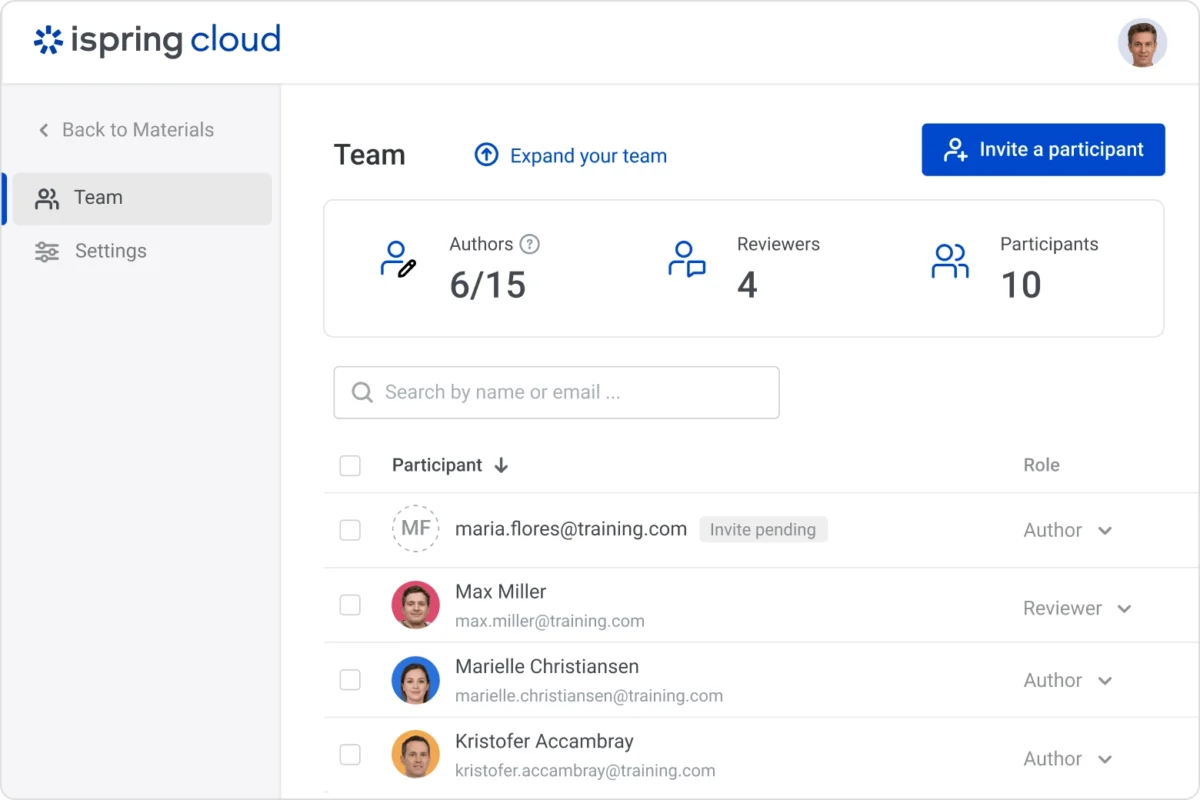
iSpring Cloud is the perfect place to do teamwork and collaborations on your courses. Your team members can easily add their input and edits straight onto the material itself.
Create courses on iSpring Cloud to create courses and let your team contribute
You can create courses in iSpring Cloud to be able to let your team work on their part
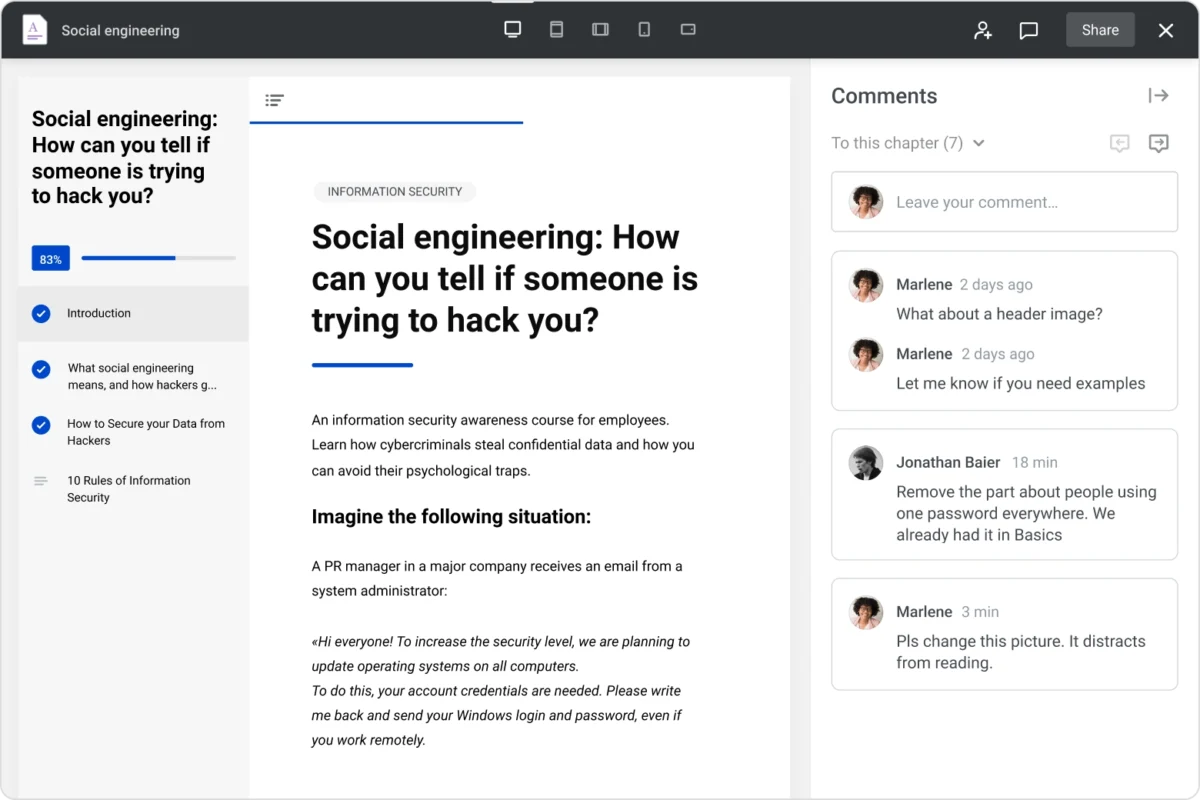
Receive comments from your SME's and reply in real time
Tool for authoring micro-courses
You can create your courses with internet connection, just start adding in your text, images, knowledge checks and other necessary content and you can publish it on SCORM or APIs for your LMS.
Collaboration
You can work with multiple people on one course, simply just upload your course to iSpring Cloud and send the link to your team. They can review the content, edit videos and text, add images and more.
Quick share and approval
Instead of printing out copies or downloading your course, you can easily just send people the link to your course they can look through and add comments from their browser.
Quizzes for training and assessments
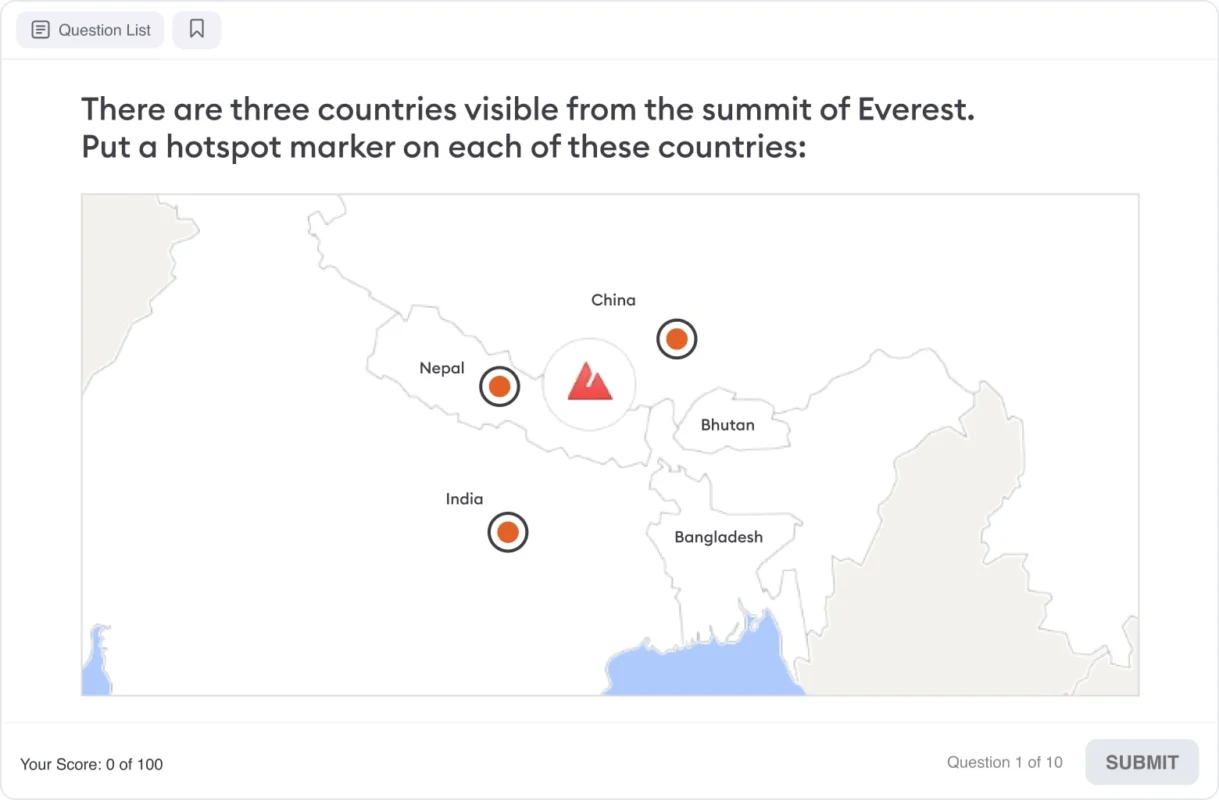
Evaluate individuals progress and gather feedback with interactive quizzes, variety of activities, and surveys.
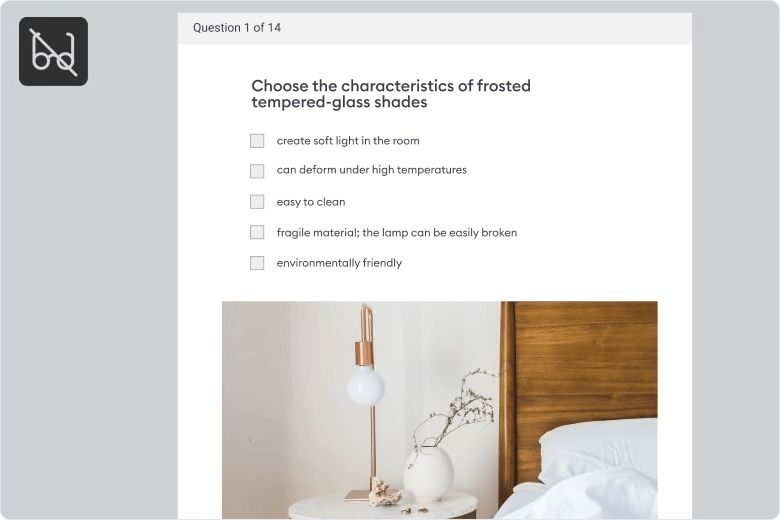
With QuizMaker, you can quickly create interactive, beautifully designed quizzes and surveys
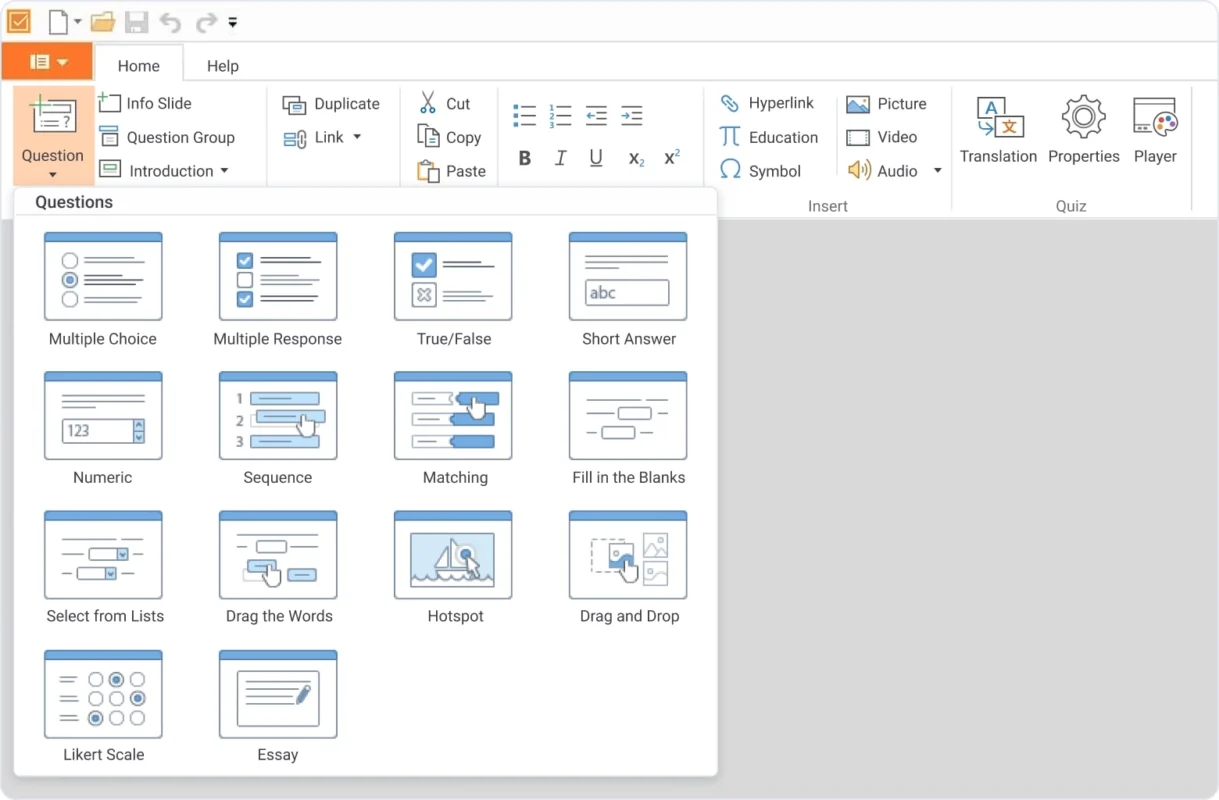
Pick one of the 14 question types to create captivating and effective quizzes
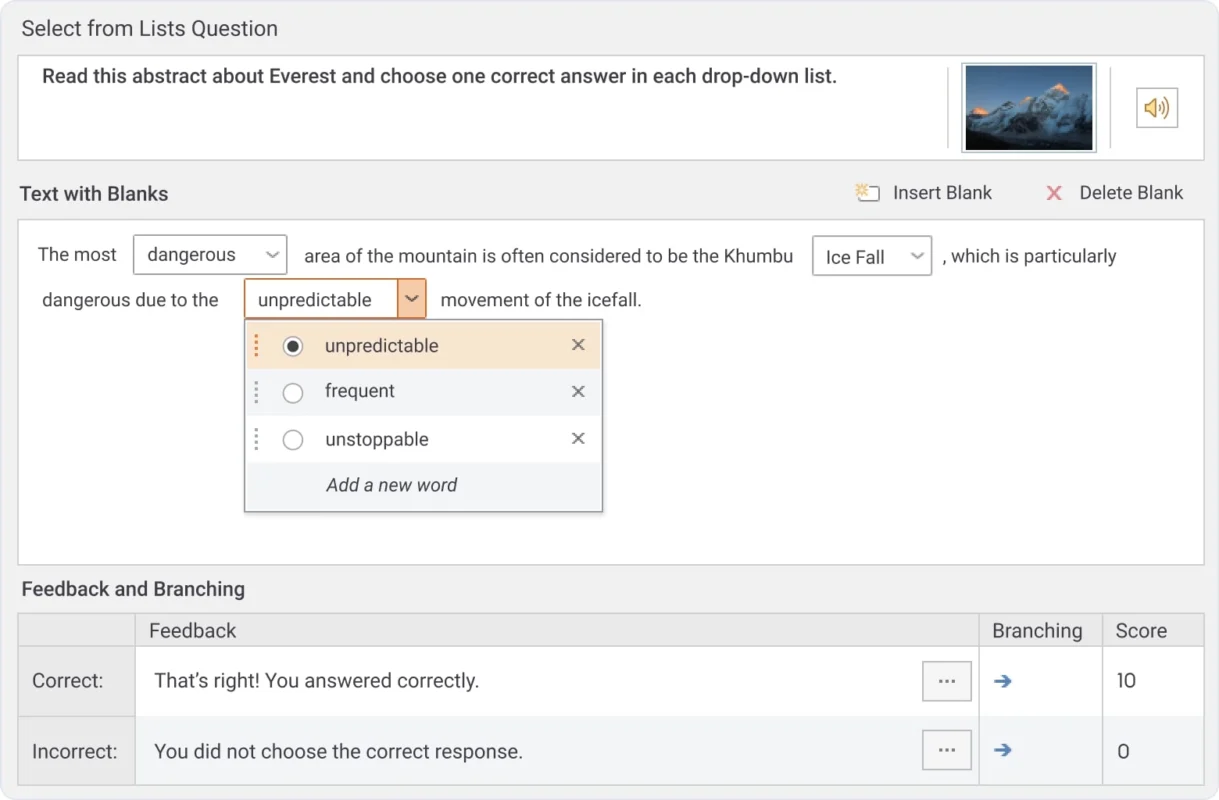
Quickly edit your questions and enhance them with images, audio, or video
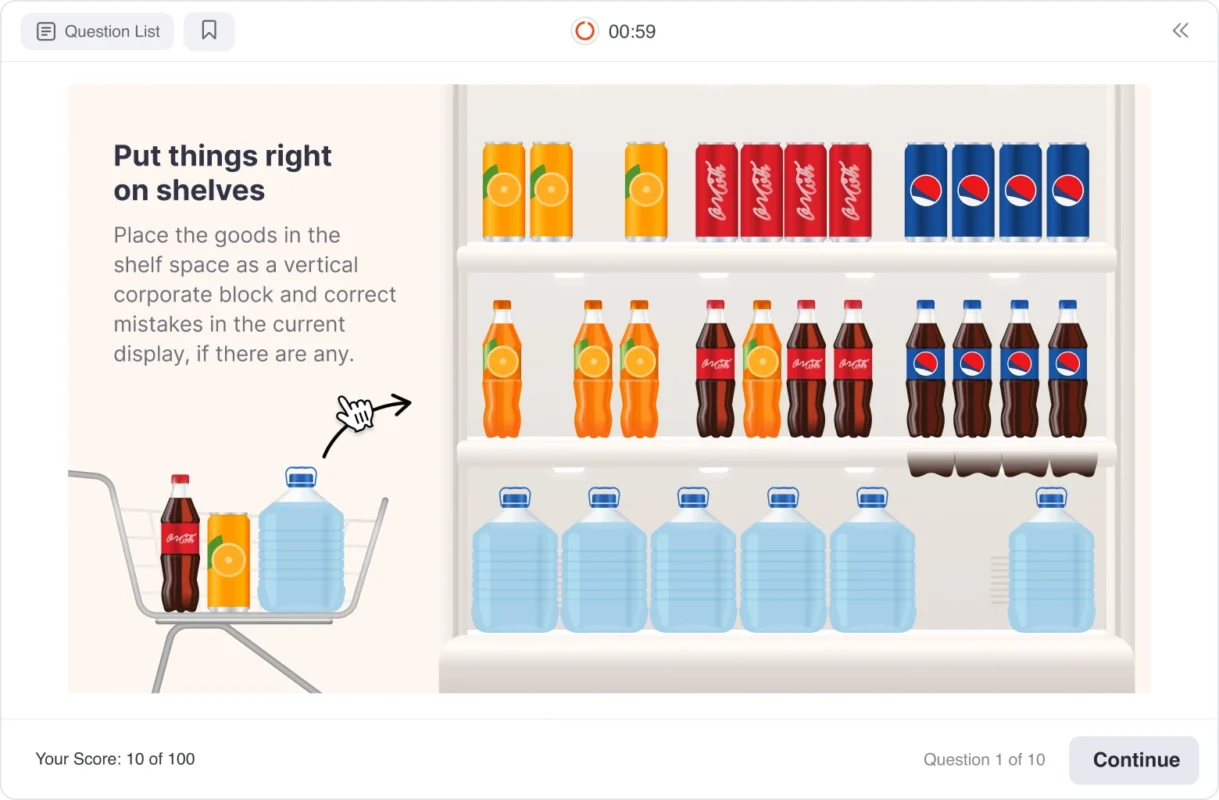
Create interactive drag-and-drop questions to engage your learners
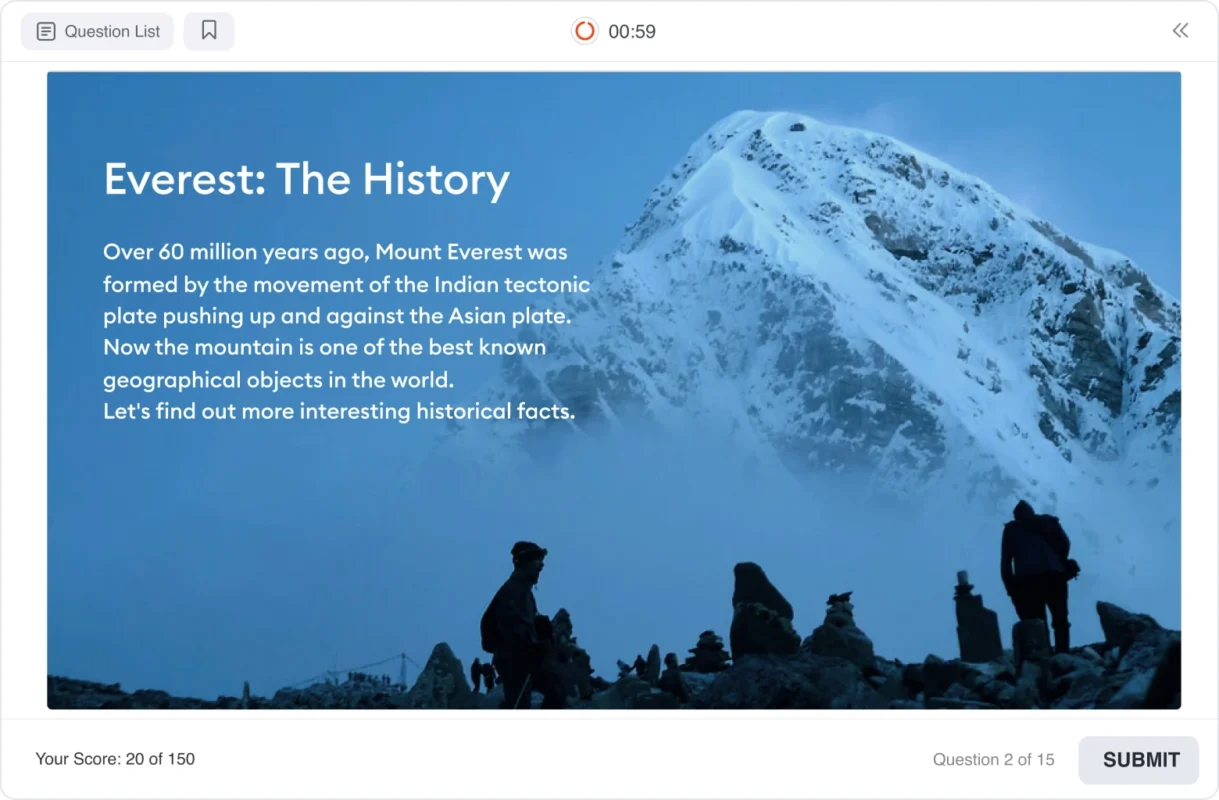
Info slides are perfect if you want to create an attractive intro or provide more details on the topic
Make your quizzes more challenging with branding
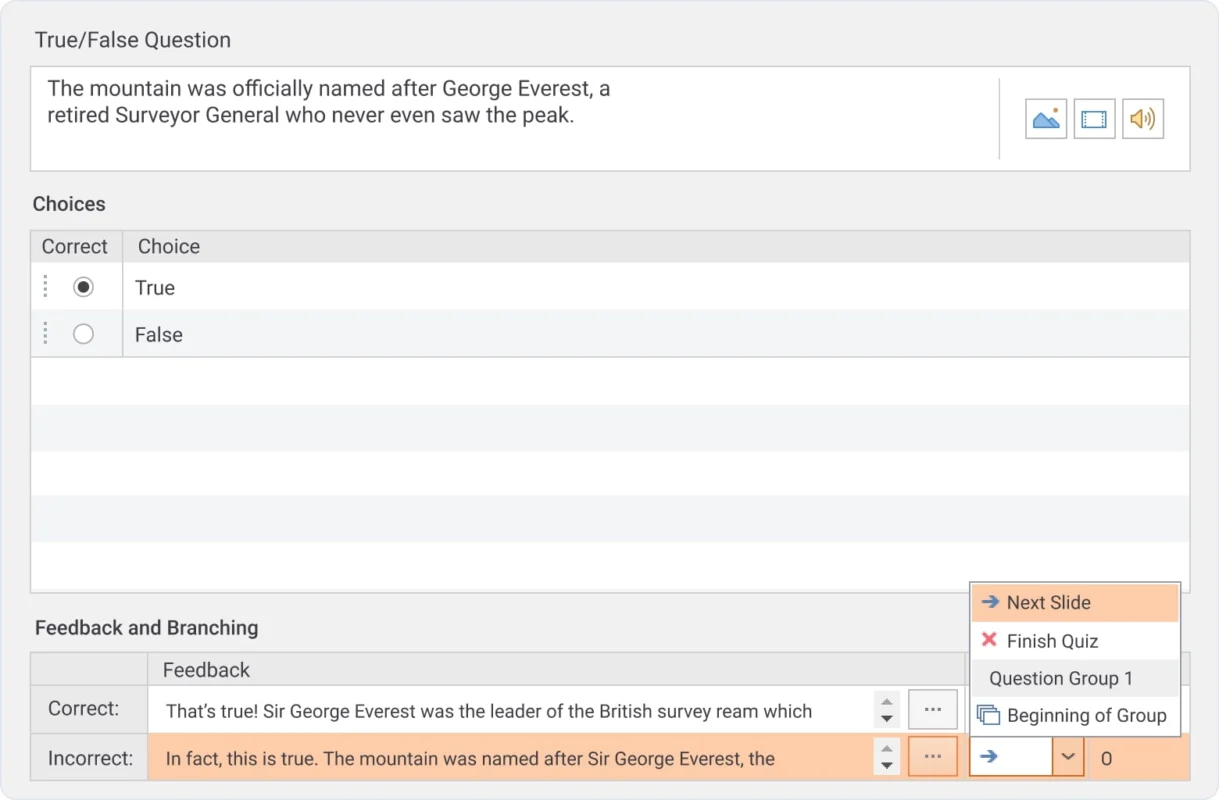
Provide detailed feedback messages to explain each answer in detail
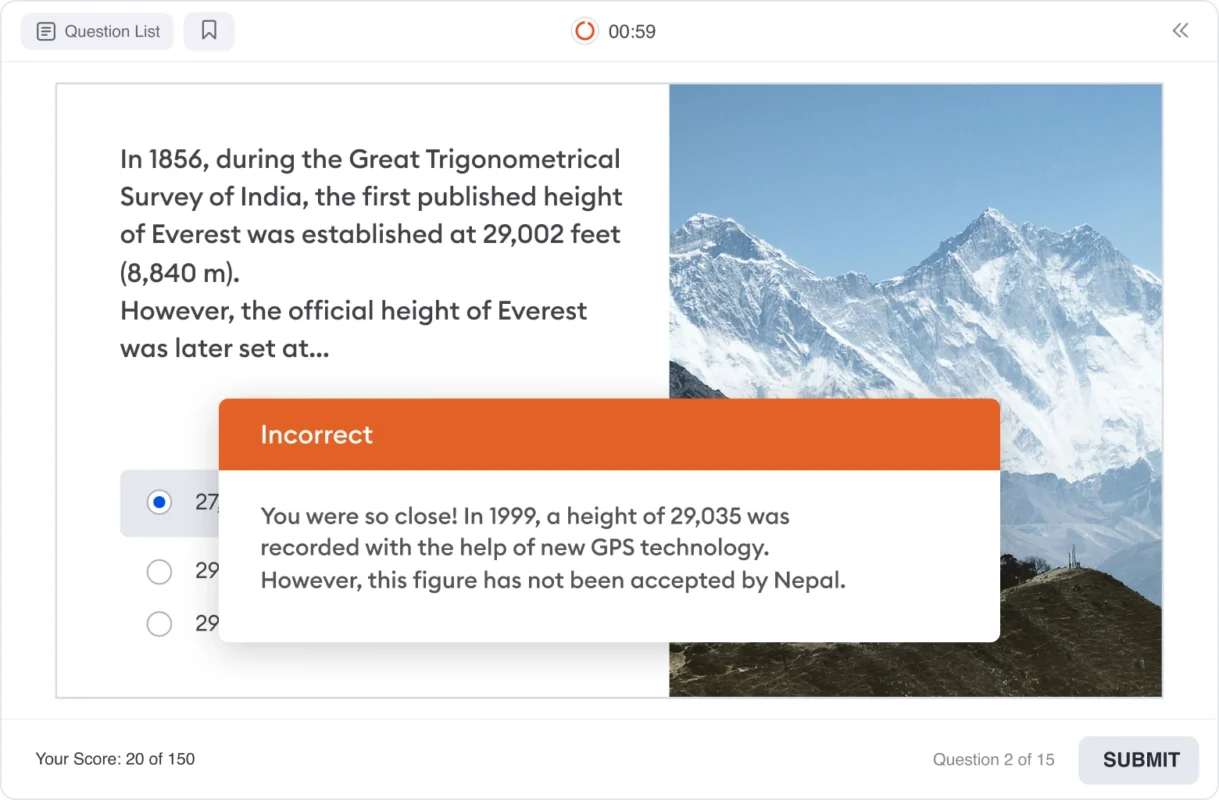
Provide detailed feedback messages to explain each answer in detail
Provide detailed feedback messages to explain each answer in detail
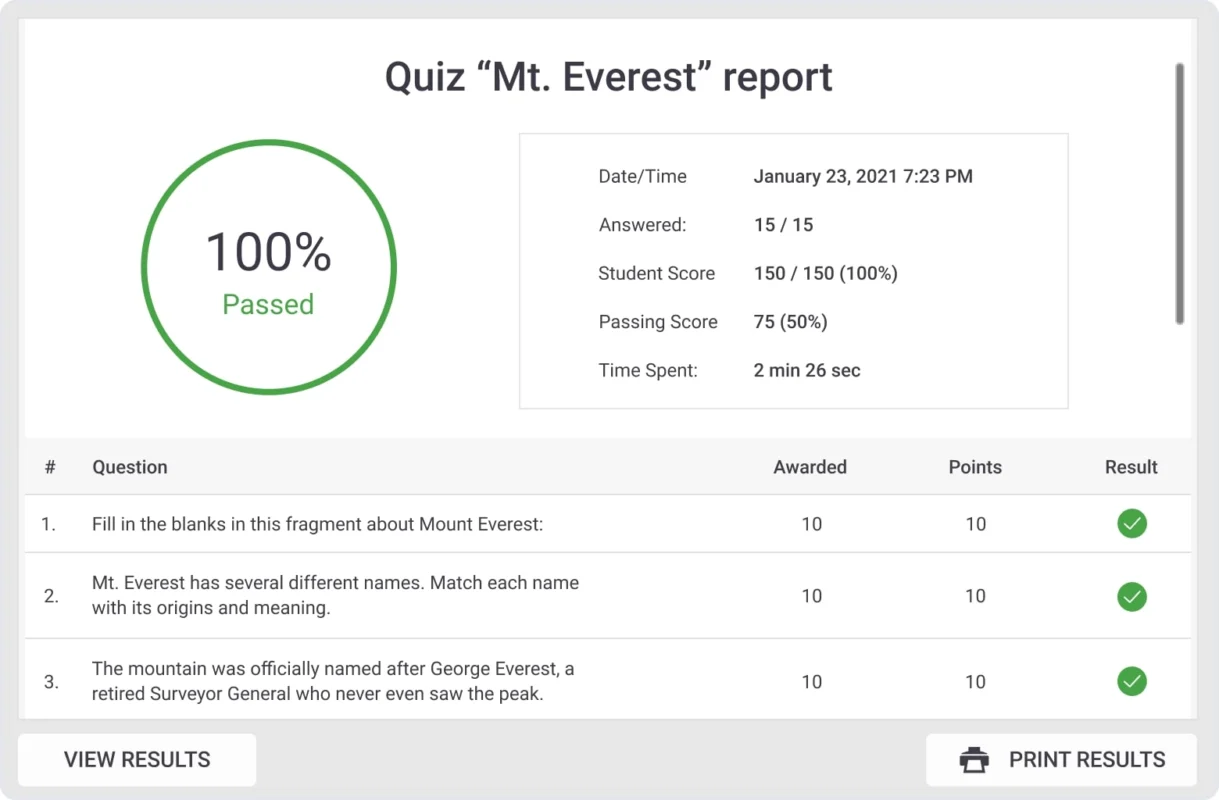
Once the quiz is complete, a detailed quiz report is available for view
14 Question Types
An interactive, highly versatile quiz and assessment creation tool that enhances evaluation and promotes personalized learning tailored to different learning and test-taking styles. Learn More →
Drag and Drop Questions
An engaging way to help learners take quizzes by the drag and drop question type (e.g. the test could be for nurses to be able to place equipment correctly on the table).
Info Slides
Assessments can be more educationally driven by enhancing quizzes with slides that are provided with information about the topic. You can also add photos or videos or even insert entire articles that relate to the topic. Learn More →
Branching
You can also set up branching scenarios, e.g. when the learner gets a question incorrect you can send them to a slide that has information that correlates to the topic. Or to give a challenge to fast learners you can forward them to a more difficult question. Learn More →
Grouping and Randomizing
If the quiz has multiple different topics, it can all be organized into groups. You can also set the quiz to be shuffled within its own group or to randomly select a number of questions from other groups to make unique quizzes. Learn More →
Detailed Feedback
Providing feedback on correct or incorrect answers by creating unified feedback for the whole test or to create specific messages for each question. You can also use formulas or audio to explain things in detail. Learn More →
Testing Rules
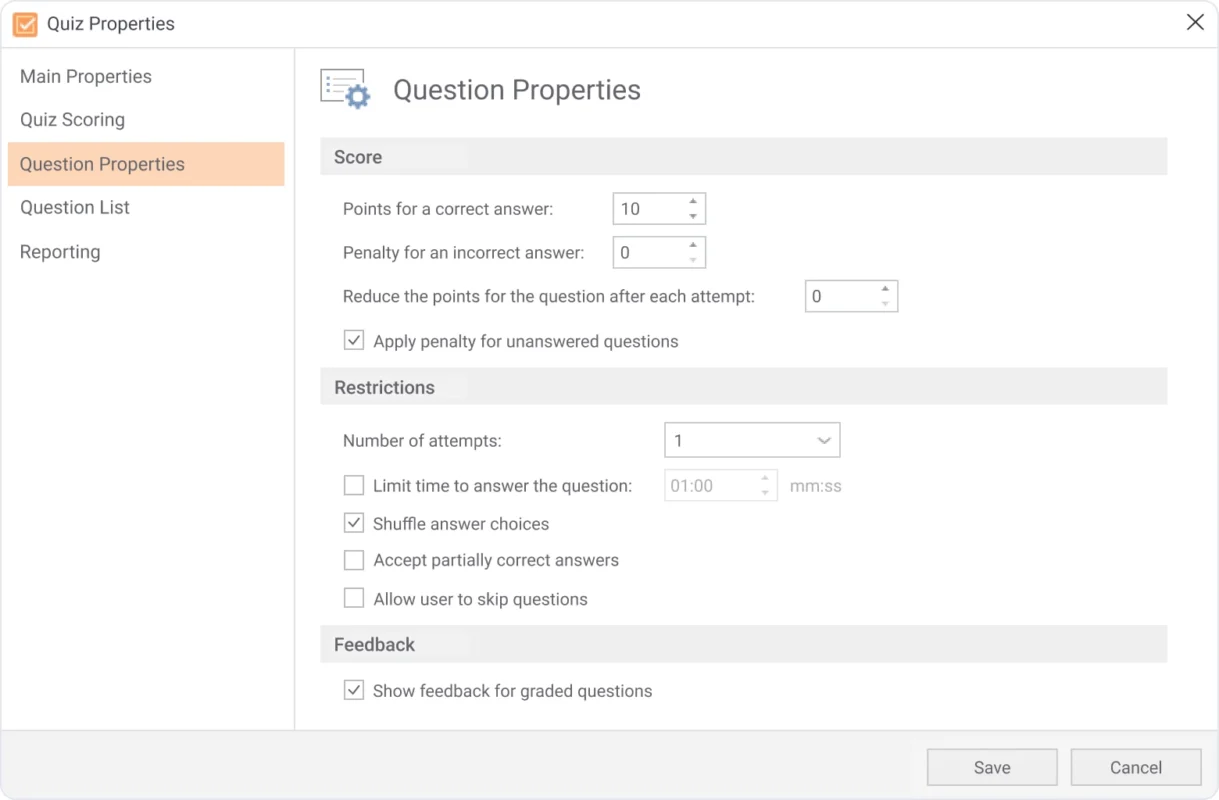
You can customize testing rules, by marking a question wrong/correct, add a time limit, and a number of attempts to make things more challenging. Also adding a general passing score or doing a points system for each question. Learn More →
Quiz Design
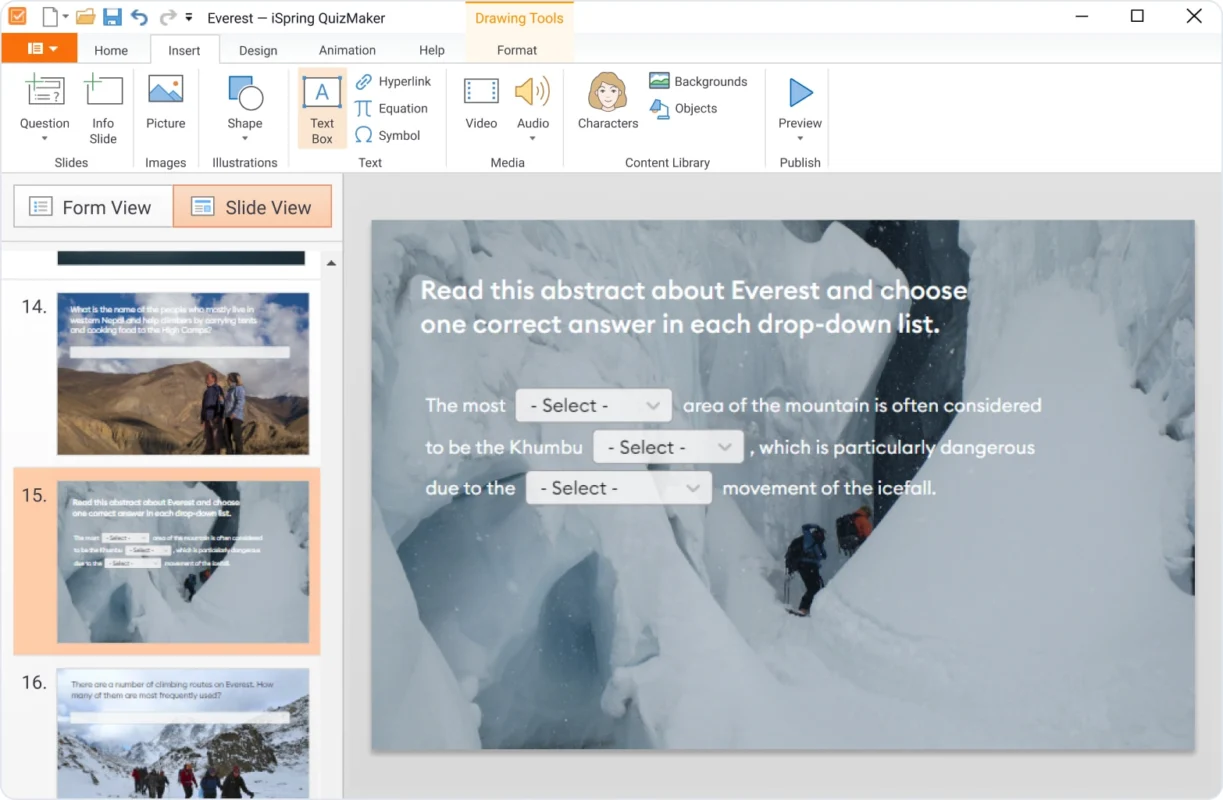
You can change and customize your quiz design by going to the slide view mode. In this mode you can change fonts, layouts, the color scheme for your questions, as well as adding photos, shapes, and text labels – exactly like PowerPoint. Learn More →
Quiz Results
You can enable the quiz results to be automatically sent to an email, server or JavaScript configuration to forward the results to your learning management system. Learn More →
Screencasts and video lessons
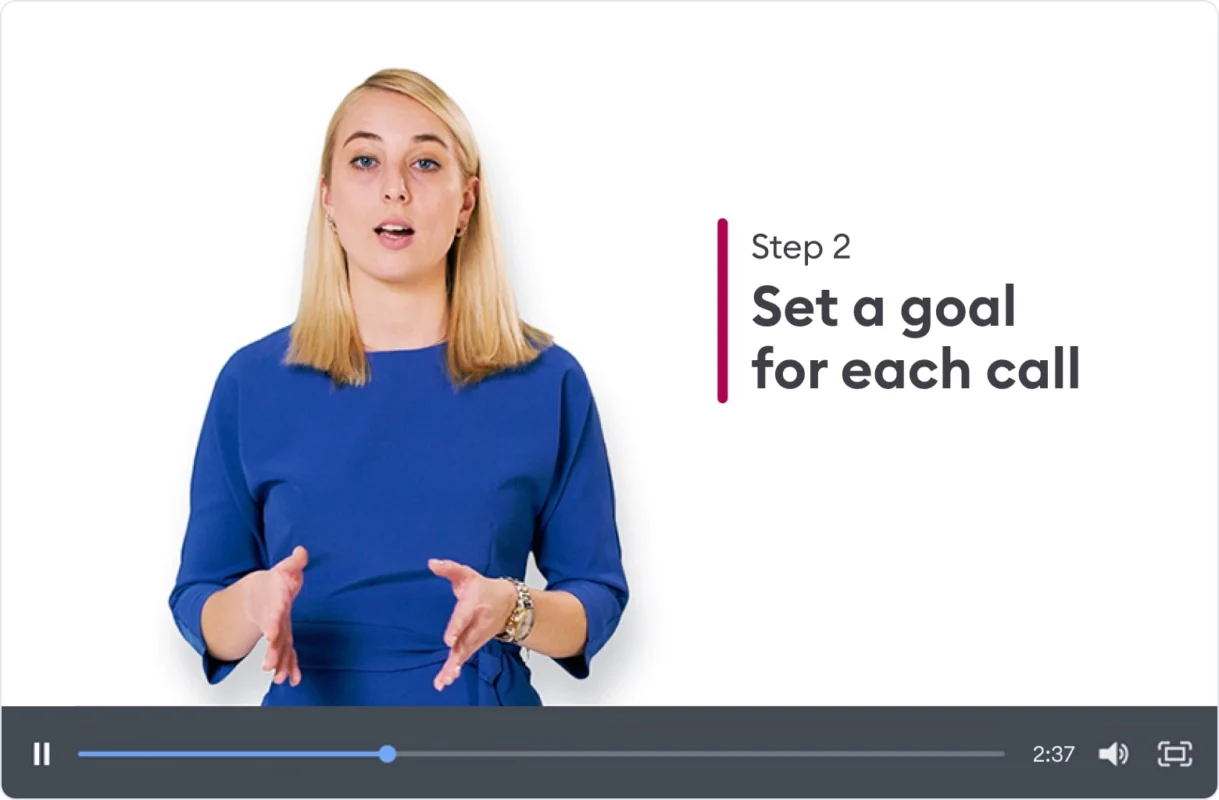
iSpring has a useful video studio tool, where you can create video tutorials with a screencast. You can insert a talking video, annotations, hints, and more. This is a great way to do video lectures, or teaching topics.
iSprings's video studio to quickly create outstanding video lecture, screencasts, tutorials, and more
You can create stunning video lessons with annotations, graphs, and captions
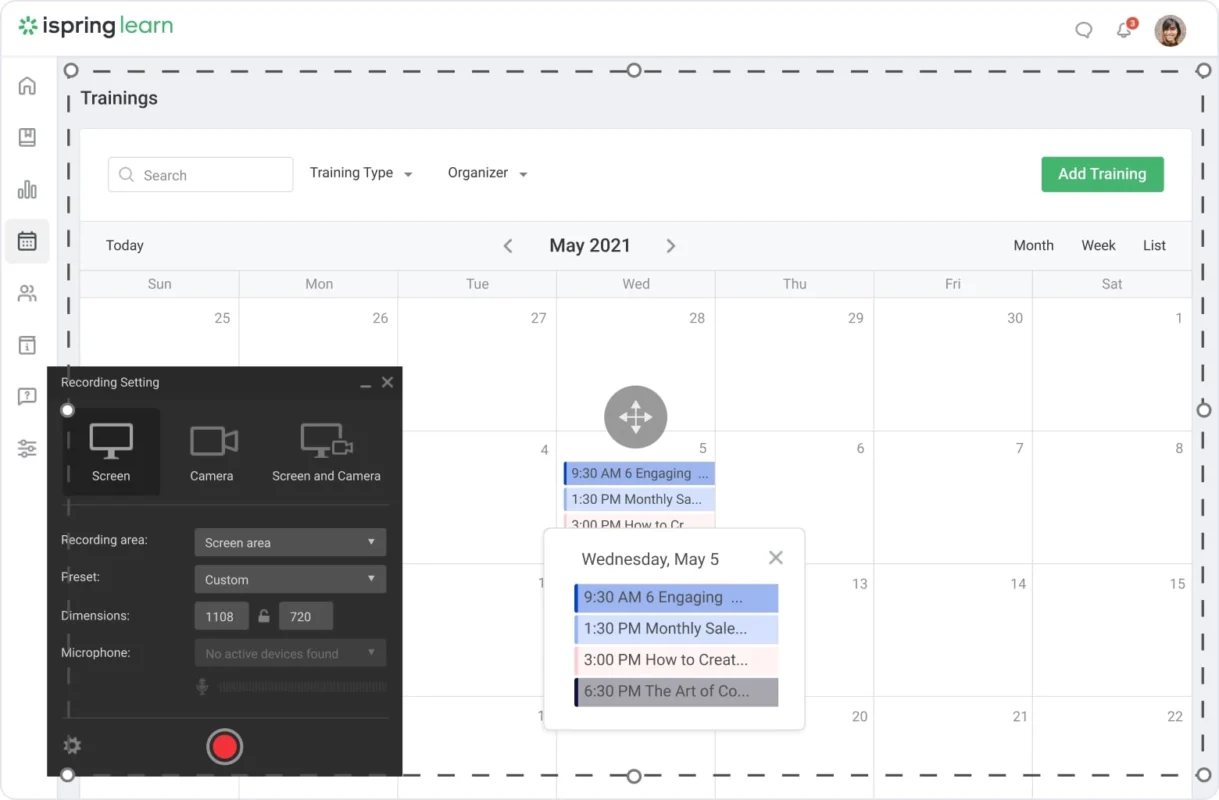
With the screen recording features, you can quickly create narrated step-by-step tutorials for your learners
Ispring Suite automatically highlights your actions during screen recording
Screen Recording
You can enhance your video lecture with screencasts, as well as record an area of your lesson (e.g. full screen or certain application windows). You can even use the microphone to do a voice over narration. Learn More →
Interactive Canvas
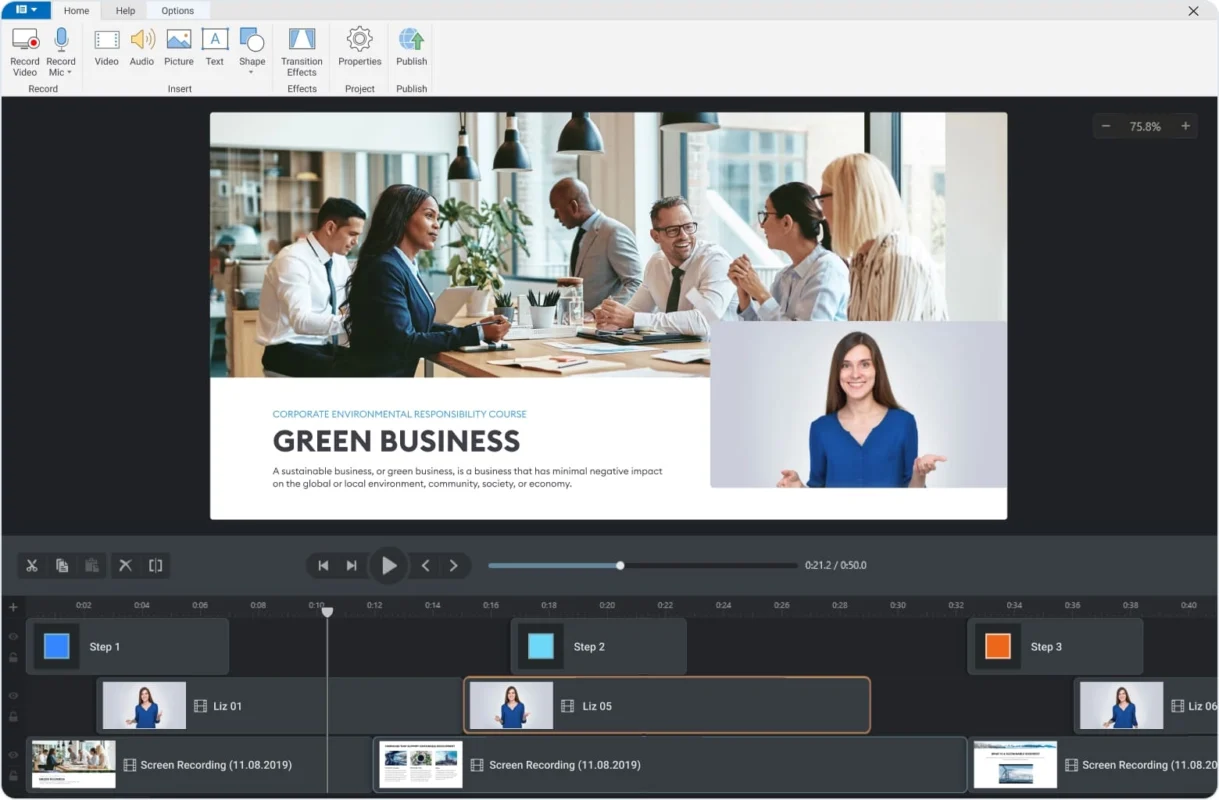
In the video studio you can edit your video on an interactive canvas. With this you can add images, text boxes, shapes and even other video files and edit as you would in PowerPoint.
Multi-track Timeline
There are an unlimited number of tracks, so you can add as many layers as you want. You can also merge videos from multiple tracks, add audio, or even show two videos at the same time.
Title Screens and Annotations
You can make your videos start with an eye-catching intro or add slides to highlight fragments of your video. You can also input pre-made images, create annotations, graphs, and captions in the video editor.
Seamless Scene Transitions
You can make your videos start with an eye-catching intro or add slides to highlight fragments of your video. You can also input pre-made images, create annotations, graphs, and captions in the video editor.
Visual Hints
While screen recording, iSpring can detect hotkeys, adding in text or clicking, and it will automatically add tooltips to the screen. This is great for demonstrating on how to use the software and explaining the meaning of options and buttons.
Picture to Picture
When you record a video on your screen you can simultaneously record your webcam as well, this provides a screencast that has life video comments. You can also show both videos at the same time or switch between the two.
Fast and Slow Motion
When showing a video or content you can put in a slow-motion effect to show things that may be complicated to comprehend in normal speed or things that may be overlooked. You can also accelerate your content to show long processes faster.
Freeze Frame
You can pause a frame for any duration desired and allows you to add in a voiceover or text comments to explain or talk about the contents in that specific frame.
Role-plays
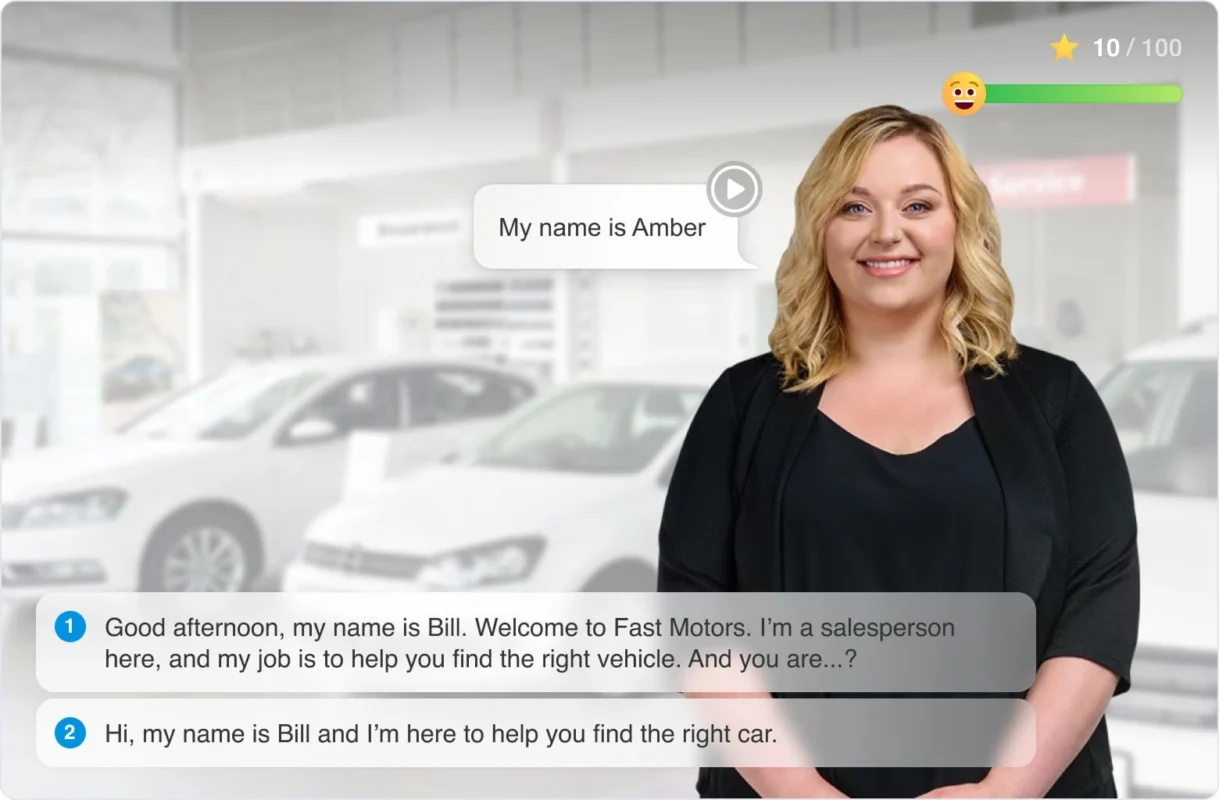
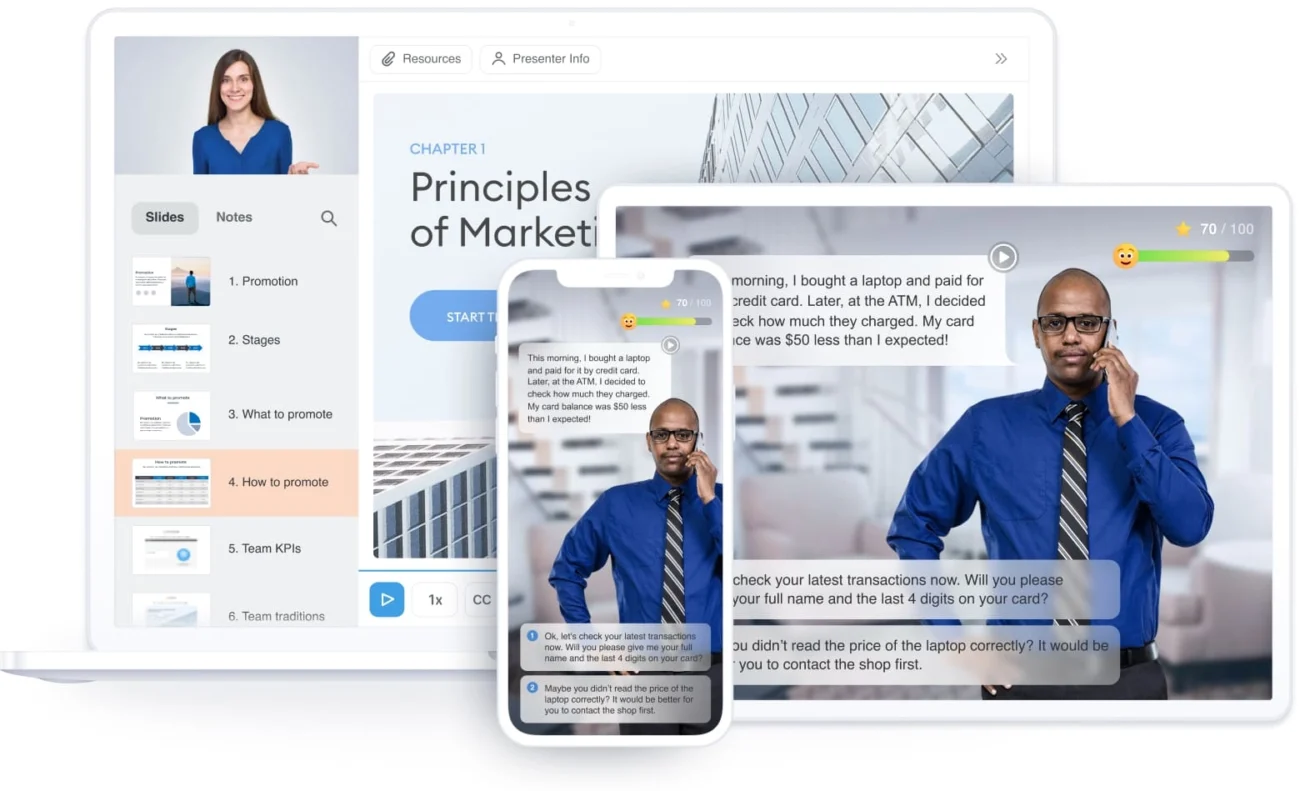
You can create role play scenarios to help employees or learners develop skills (e.g. a sales employee learning skills for conversing with customers).
Interactive role-play simulations are very effective for building communications skills
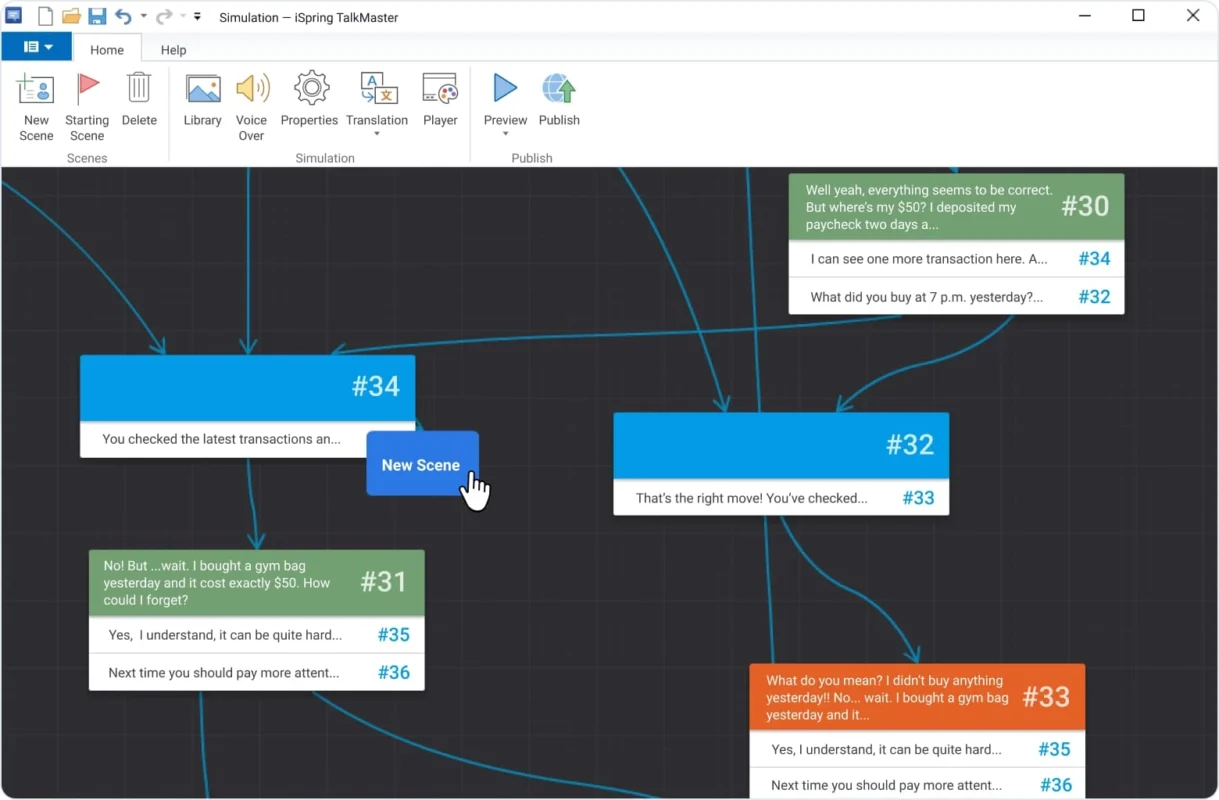
With the user-friendly drag-and-drop editor, creating the scenario is very easy.
You can pick a character and locations from the Content Library, or you can upload your own
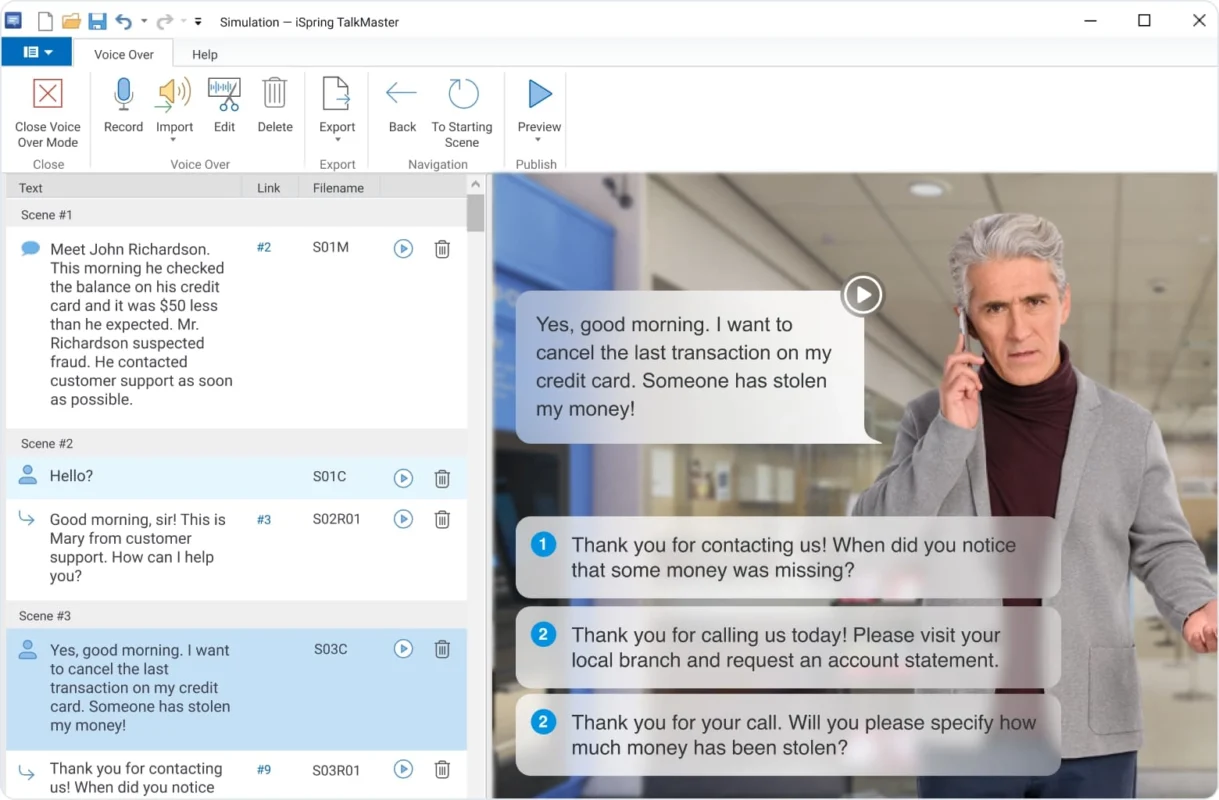
You can record voiceovers for your role-play right in the dialogue editor
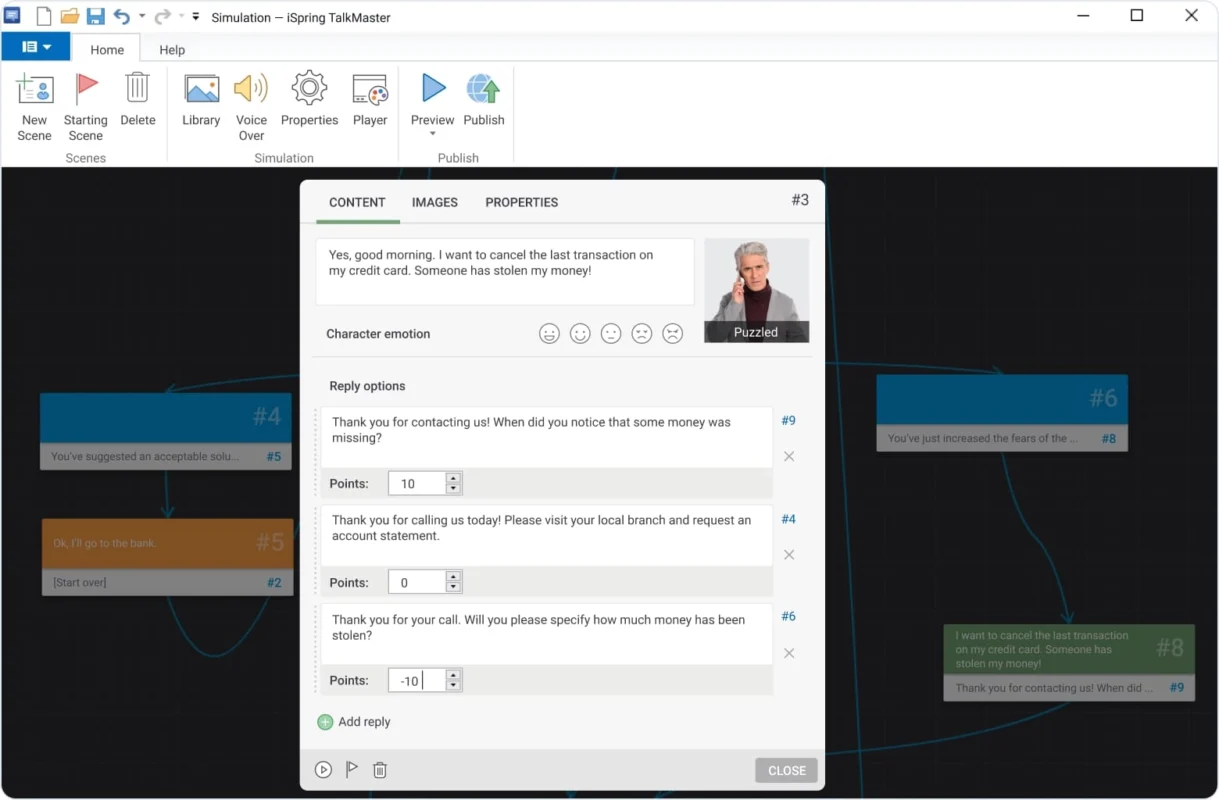
Award points for the right answers and add penalties for mistakes
Branched Scenarios
In the editor you can select the role play function by pressing the tree. From there you can create your first scene and then after you can add branches with drag and drop. You can create your scenario to have multiple outcomes depending on your learners’ answers in each scenario. Learn More →
Backgrounds and Characters
For your scenarios you can pick your character and the location that best matches the situation of your scenario. For each of your scenes you can choose and specify your characters emotions. You can pick and choose your characters and locations in the built-in library or upload your own. Learn More →
Points
You can do a points system by awarding when the learner gets the question correct or they get a penalty when they get it wrong. The points will be added or subtracted from each scene and will have a final score in the end. Learn More →
Voiceover Dialogues
For a real-life simulation effect you can add voiceovers to the characters speech by importing audio or record voiceovers right in the editor. Learn More →
Feedback Messages
You can add in feedback messages to let the learner know why their answer was incorrect, and you can also input links to materials and helpful resources that correlate to the topic.
Interactive Features
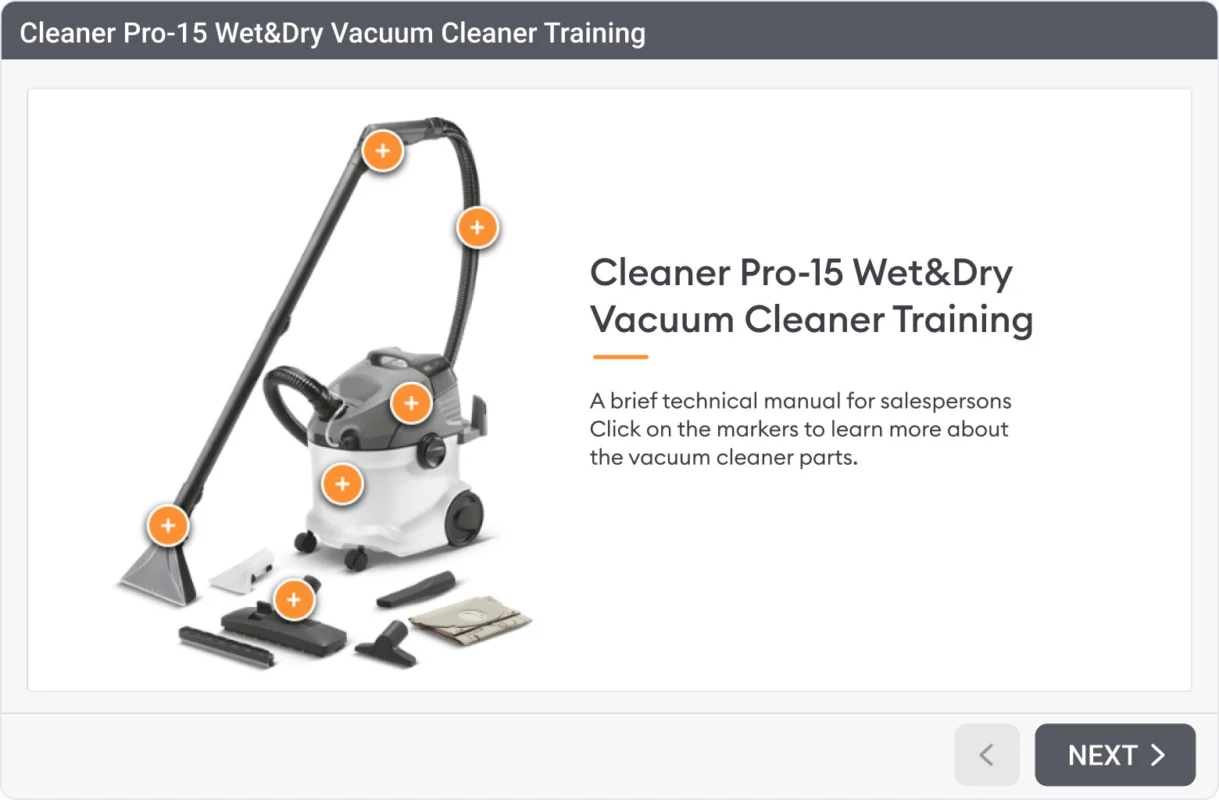
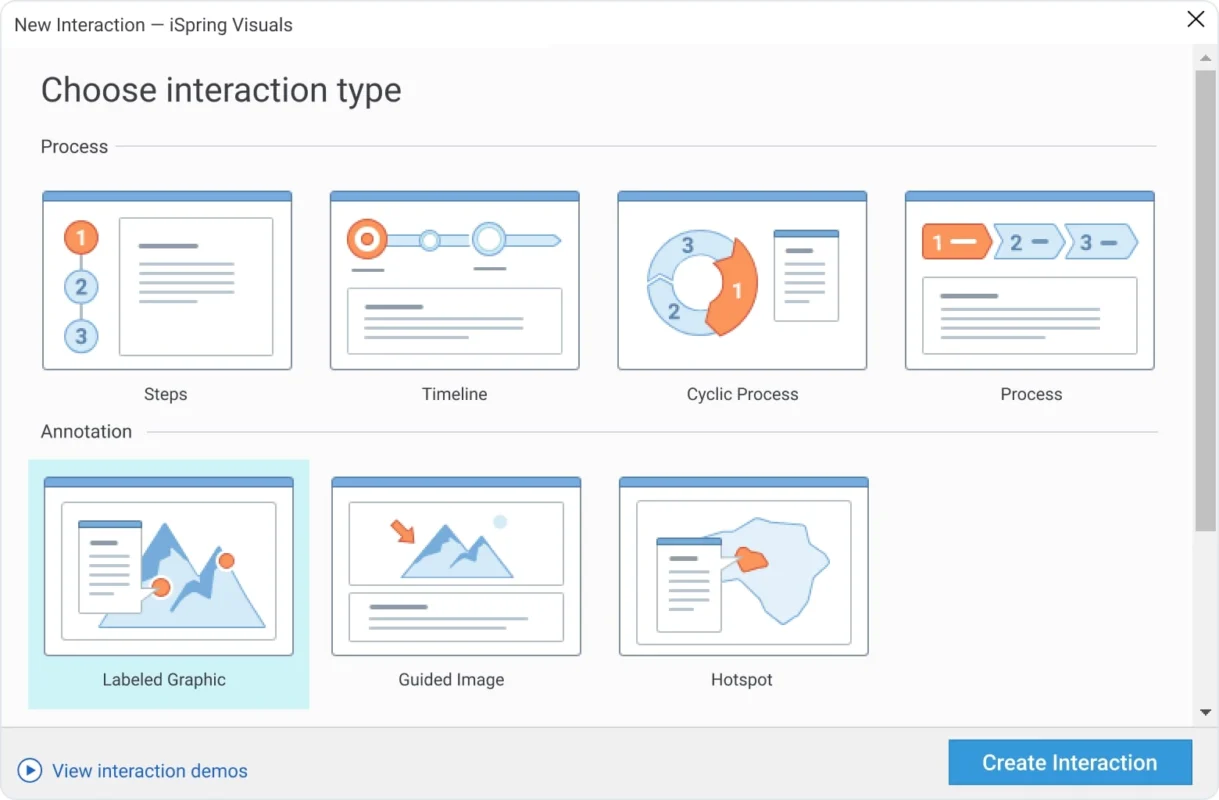
For slides that need to have more information, it can be presented in a way that is interactive and less cluttered.
Fully grab your learner's attention with clutter free interactions
Choose from 14 ready-made interaction templates
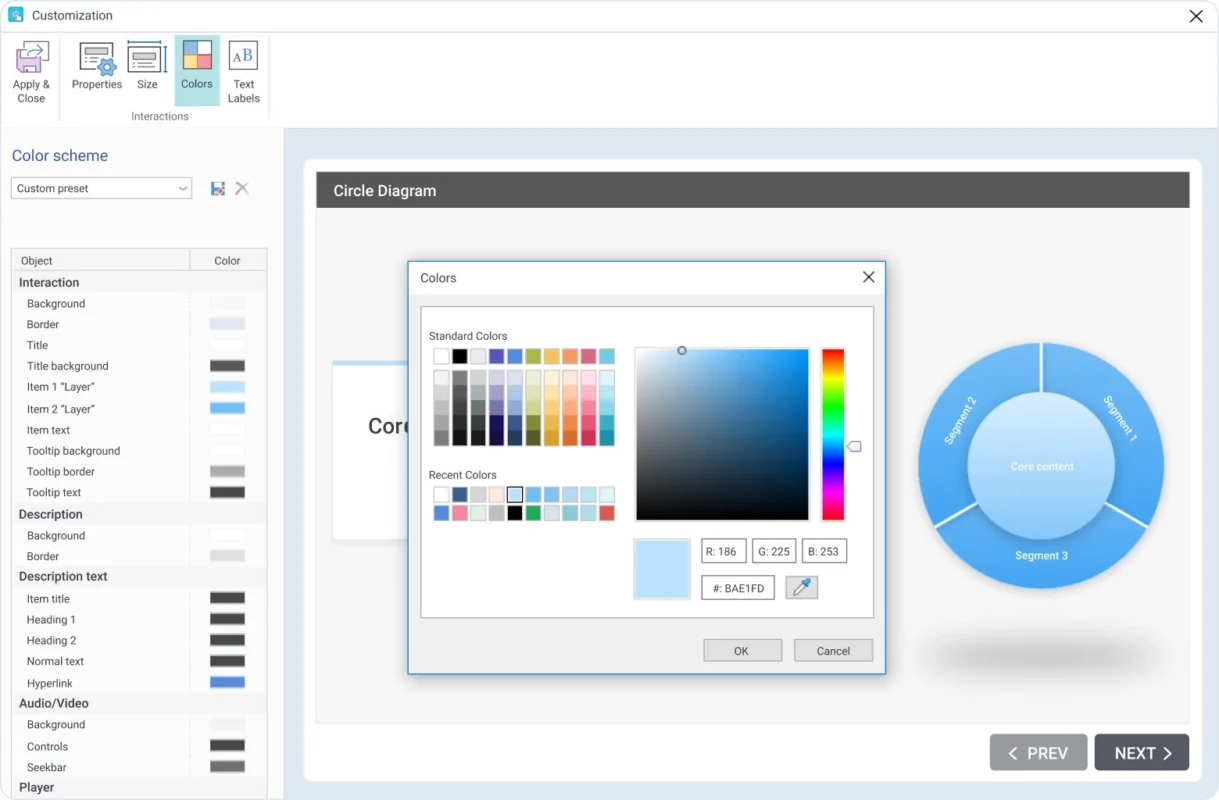
Easily customize labels and colors
14 Premade Templates
There are 14 designed templates where you can create interactive timelines, diagrams, graphics, catalogs, FAQs and more. Learn More →
Voiceover Interactions
You can also add voiceovers and turn it into an interactive live session, you can upload it or record in iSpring. Learn More →
Color Scheme Adjustments
Adjusting the color scheme is also possible for buttons, controls, texts, shapes, and players. Learn More →
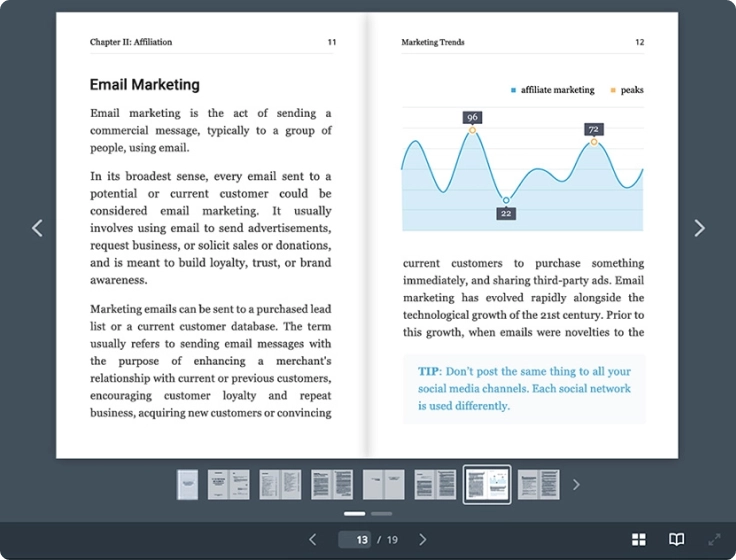
Flip Books
Convert original Word, PDF, and PPT files into ebooks with vivid pageflip animations. You’ll get a responsive book that opens both on desktops and mobile devices. Upload the book to your LMS, share it with your learners, and get detailed statistics on how they read.
Navigation and Playback
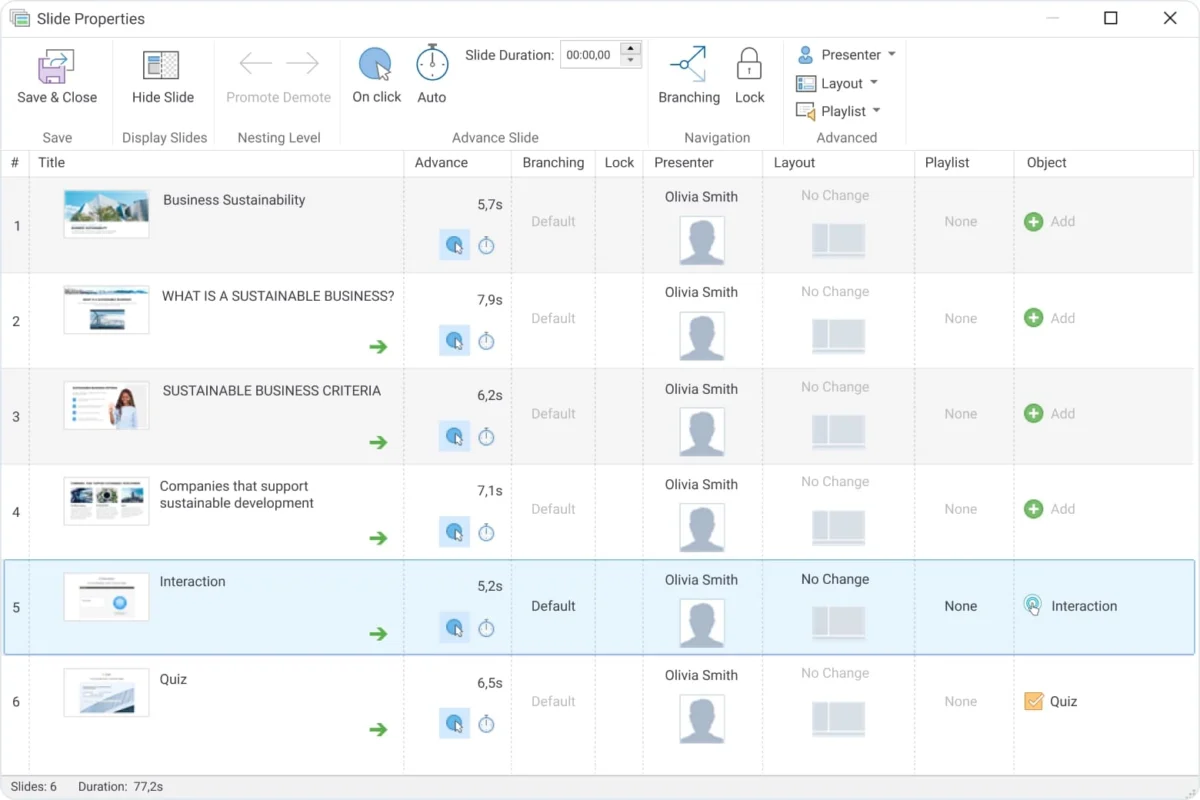
A helpful feature for managing course structure and resources. You can also edit it to have specific presenters assigned for each slide, restricting the navigation and utilize the branching feature.
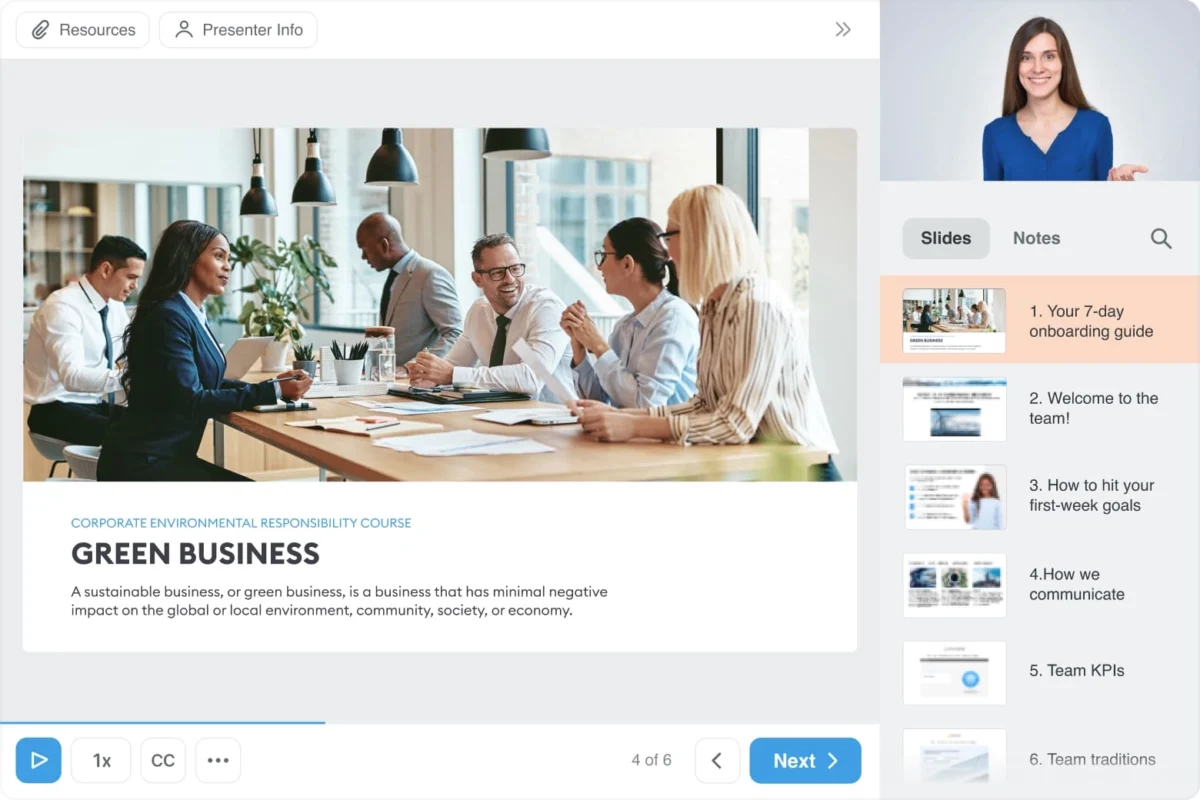
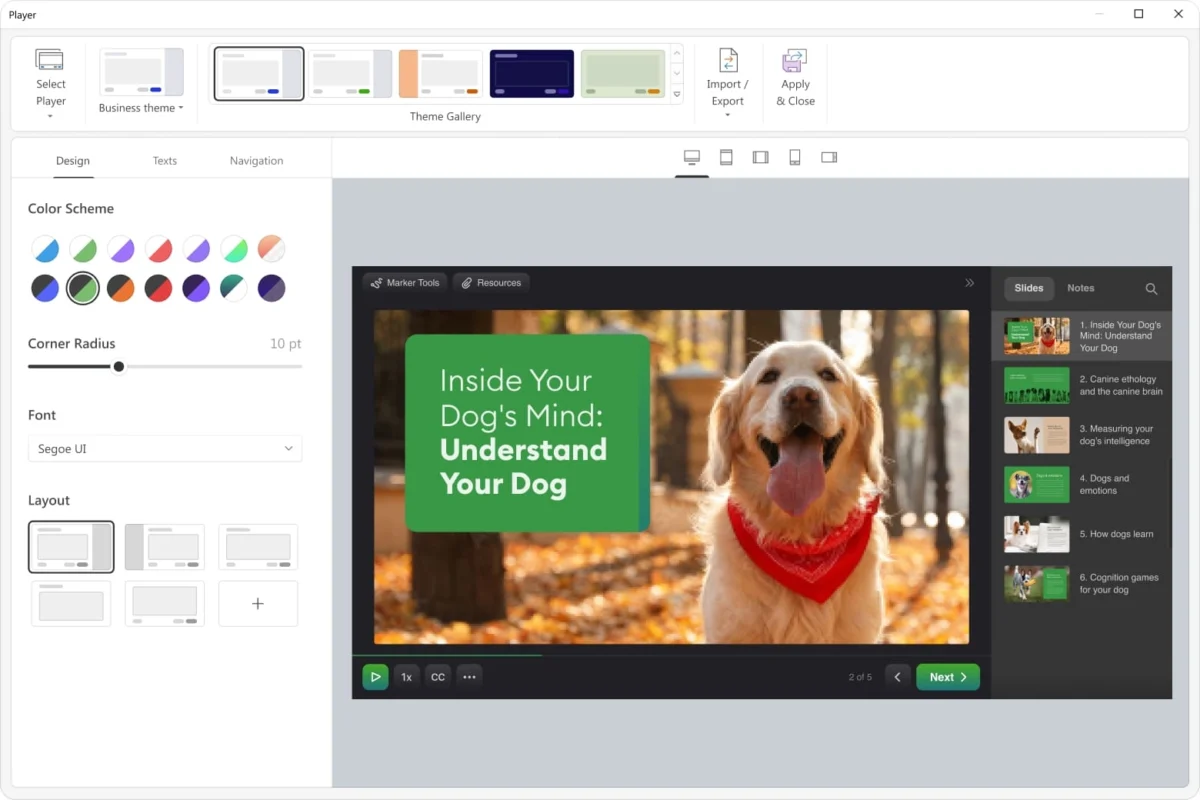
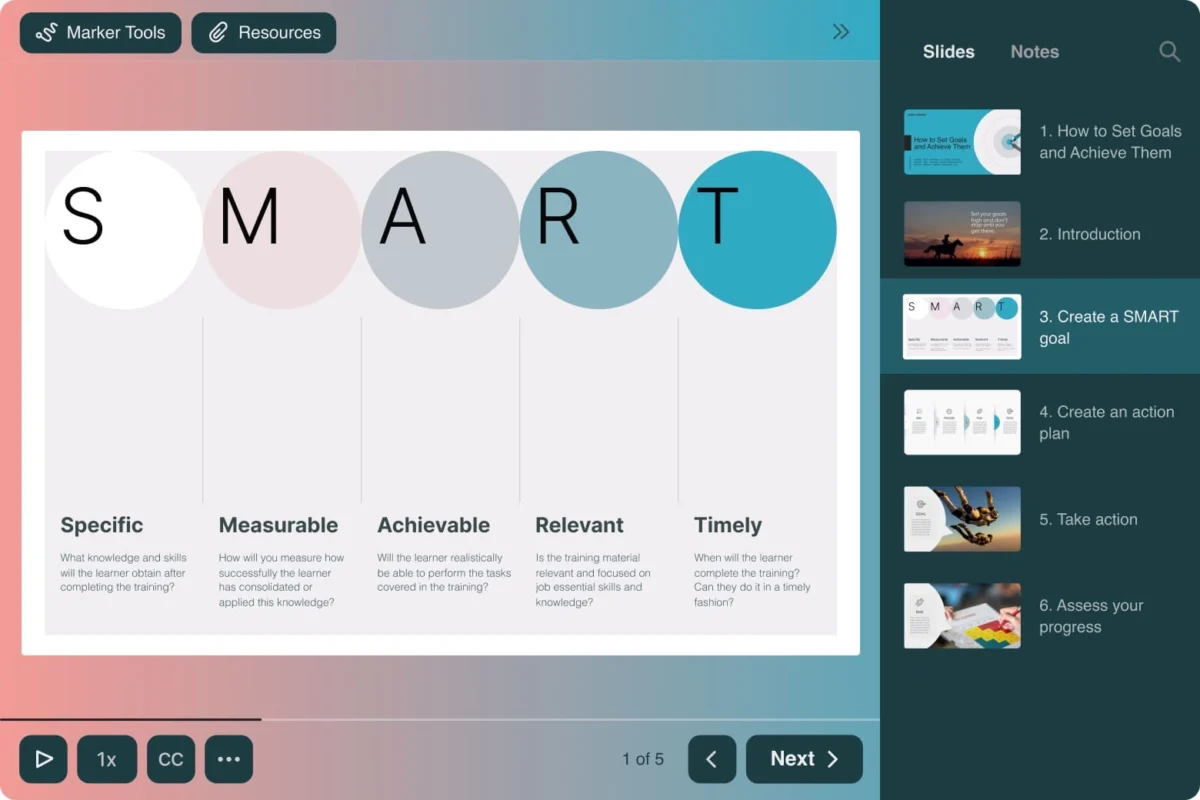
iSpring's fully customizable course player
Adjust player layout, colors and text labels
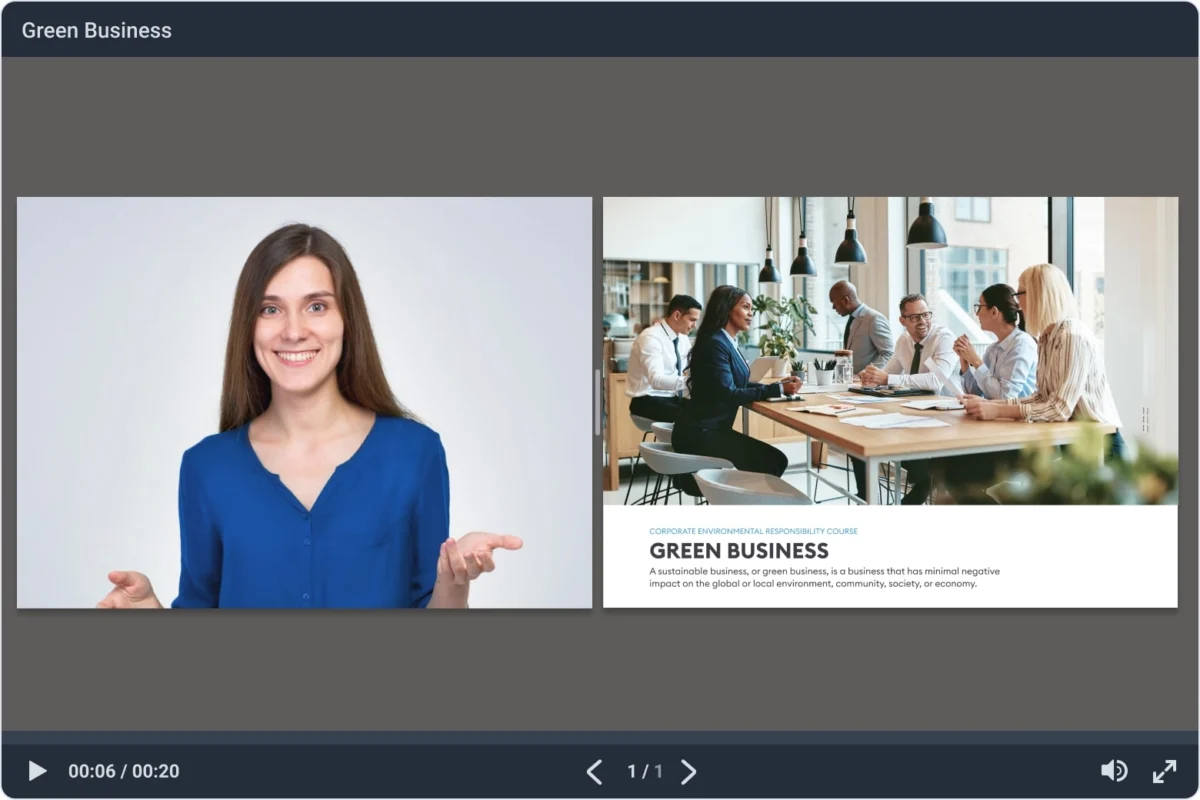
to highlight both video and slides, use the 50/50 video lecture player
Set up navigation, branching and other slide properties in one place
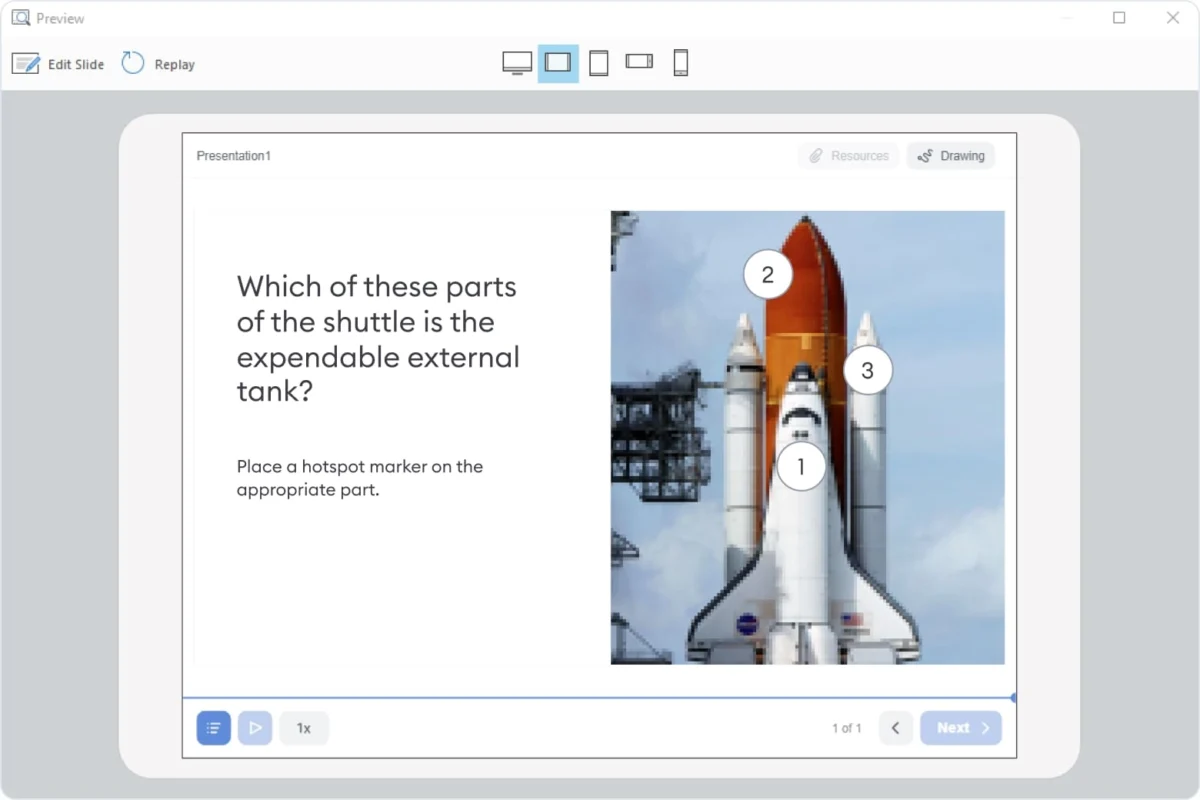
Preview how your course will look on different devices
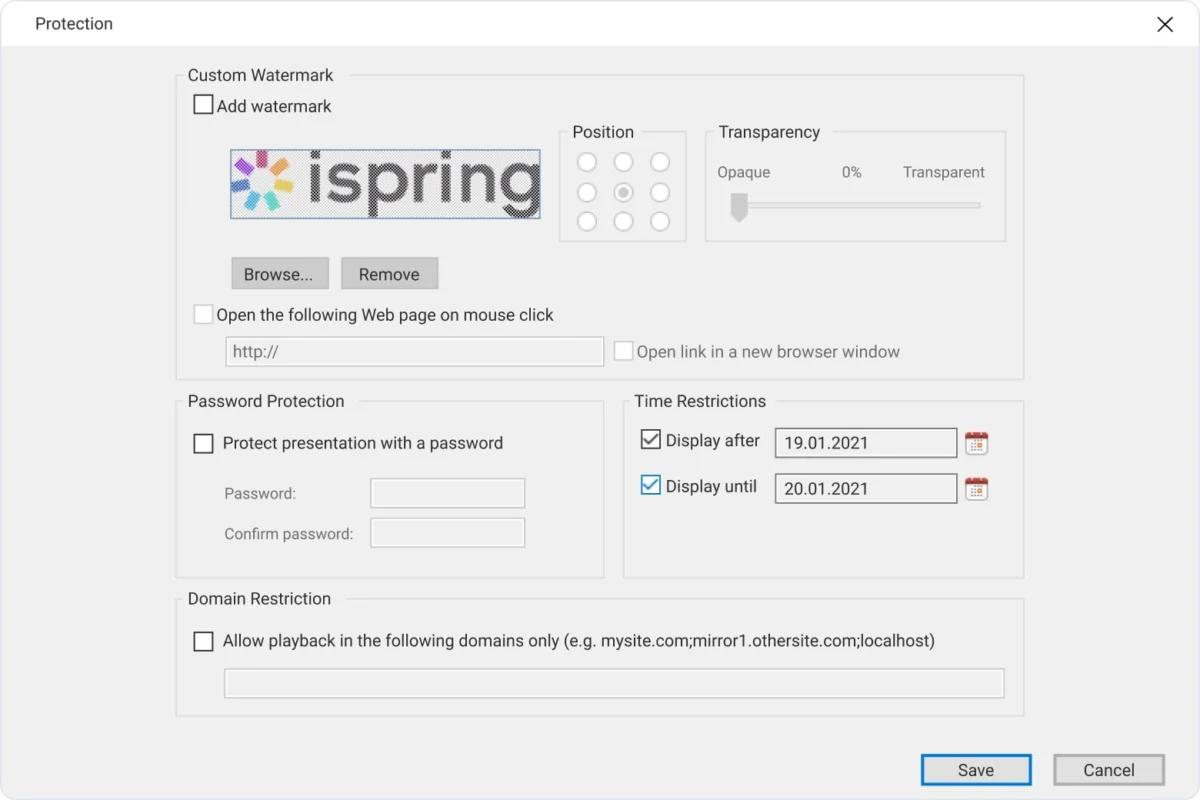
Set up course protection
Choose Player Layout
The player that displays your course is fully customizable. You can choose your layout, colors, panels, text labels etc. If your course is mainly made up of videos, we recommend using the 50/50 player where your video and content will be displayed side by side. Learn More →
Navigation and Branching Settings
Use branching and navigation to set your learners path. For navigation you can set it up so you cannot go back to the previous question. For branching you can set the path to be a different outcome depending on the learner's answers. Learn More →
Add Resources
Add presenters’ info, your company logo, and links to extra resources to your presentation. You can also attach files on the topic of the course, e.g., instructions, articles, and videos. Learn More →
Preview Course
Before publishing your course or content you can use preview mode to look it over and see what it looks like on different devices. Learn More →
Protect Content
You can password protect your content, grant access to specific domains it can be opened on, limit access time and add a watermark. Learn More →
Voiceovers and Localization
iSpring has a powerful feature where you can create realistic AI voiceover narrations for your courses, also the ability to localize content with ease.
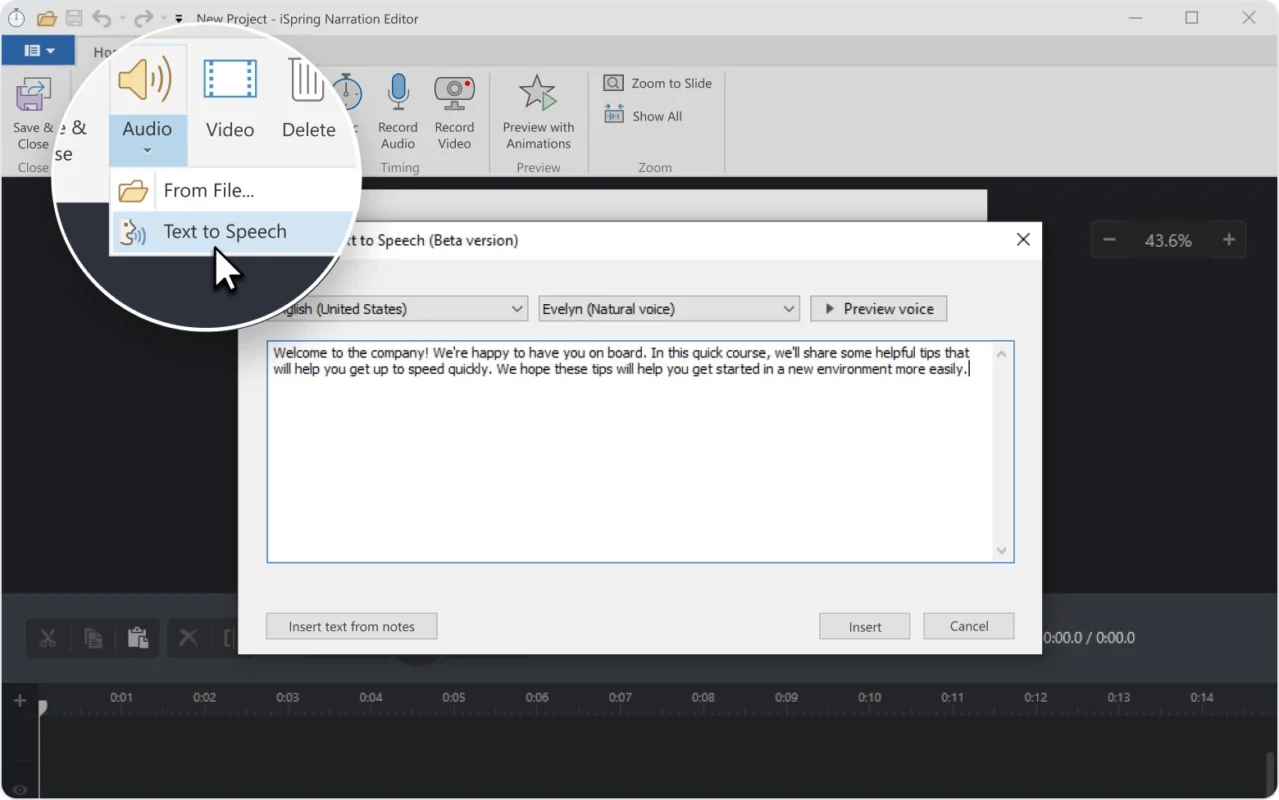
Select the language, speaker, and type of voice for your narration
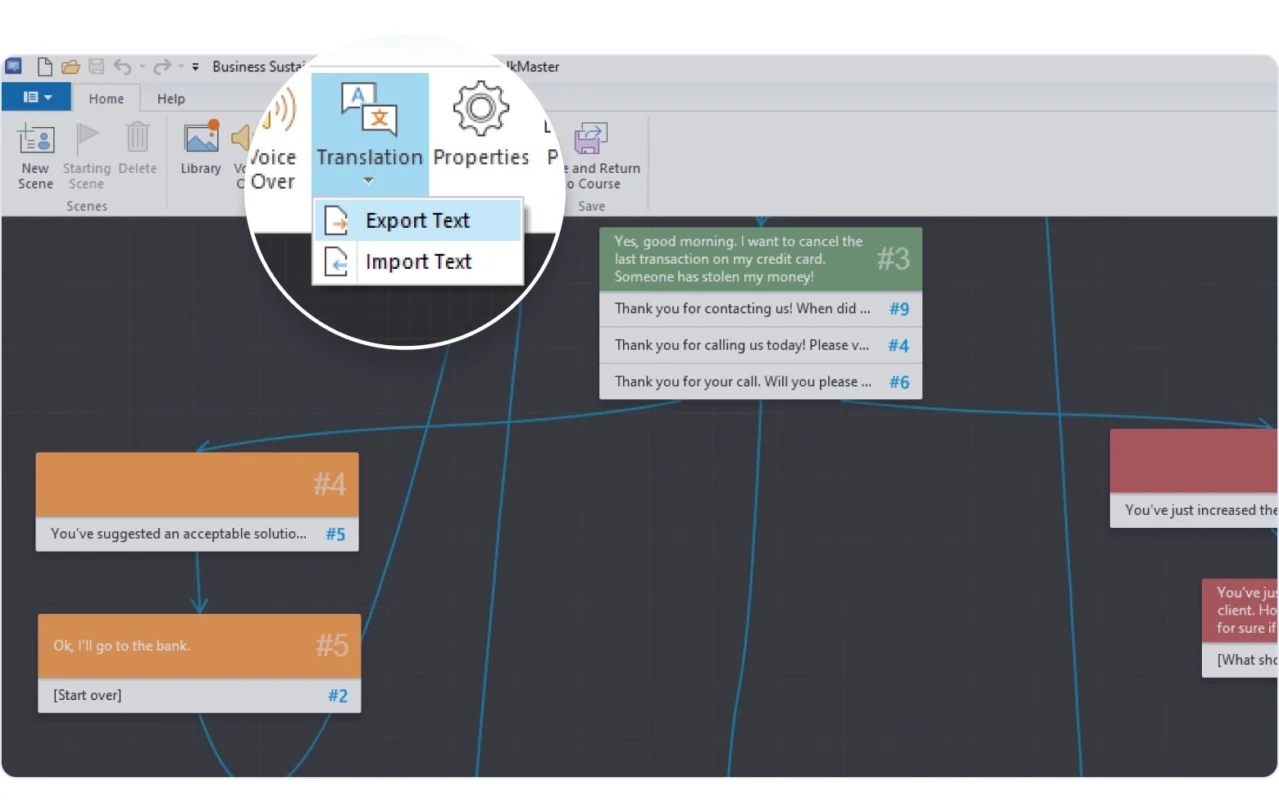
After you translate the text, the design and settings of your course will remain the same
Multi Language Support
The latest version of iSpring has 7 different languages available, those of which are: English, French, Spanish, German, Russian, Italian, and Portuguese. Fully localized so you can focus on the learning material.
Text-to-speech in Multiple Languages
You can create voiceovers with Ai and localize your content for different countries with the text to speech translation feature and pick from one of the 52 language selections.
Quick Content Translation
If you have learners in different countries, you can translate quizzes, interactions, and dialogue simulations into multiple languages. Just export all the texts into a single document, translate them, and import them back into iSpring Suite.
Section 508 and WCAG 2.1 AA Compliant Content
Create online courses, quizzes, dialogue simulations, interactions, and e-books that users with disabilities can take with ease. You don’t need to make a special copy for this - learners can switch to accessible viewing mode with a single click.
Legible Texts
Clear fonts and high color contrasts allows your learners to interact with the content easily. Learn More →
Minimalistic Layout
Courses include only the most necessary elements, which keeps the interface clear of distractions.
Screen Reader Support
The content is recognized by the most popular screen readers: JAWS, VoiceOver, and NVDA.
Fast Delivery and Tracking
iSpring has a powerful feature where you can create realistic AI voiceover narrations for your courses, also the ability to localize content with ease.
Published courses will play perfectly on all devices
Publish your course in HTML5 format to make it available online
Package your course for uploading to any LMS
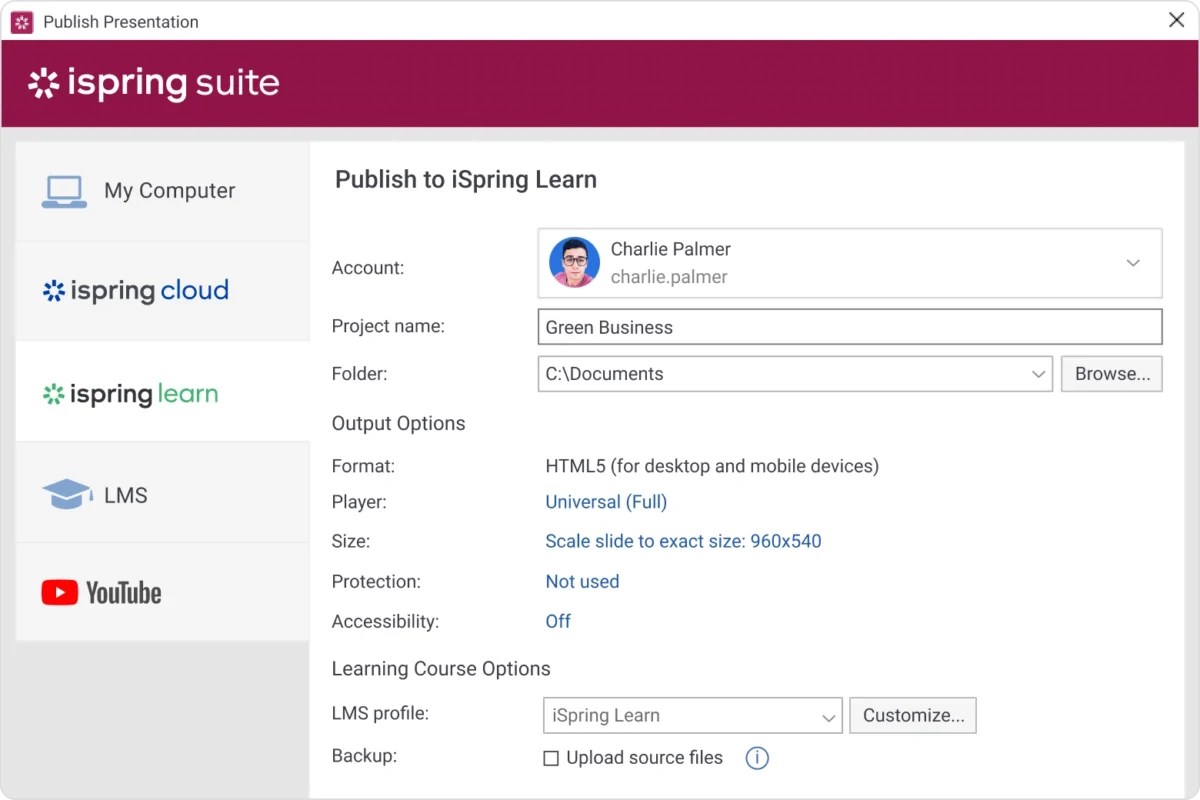
Publish courses straight to the iSpring Learn LMS with a single click
Publish for Web
Publish courses in HTML5 format so you can also post it on your website, blog, or intranet. Or save it in MP4 video format to upload it to YouTube directly from iSpring Suite. Learn More →
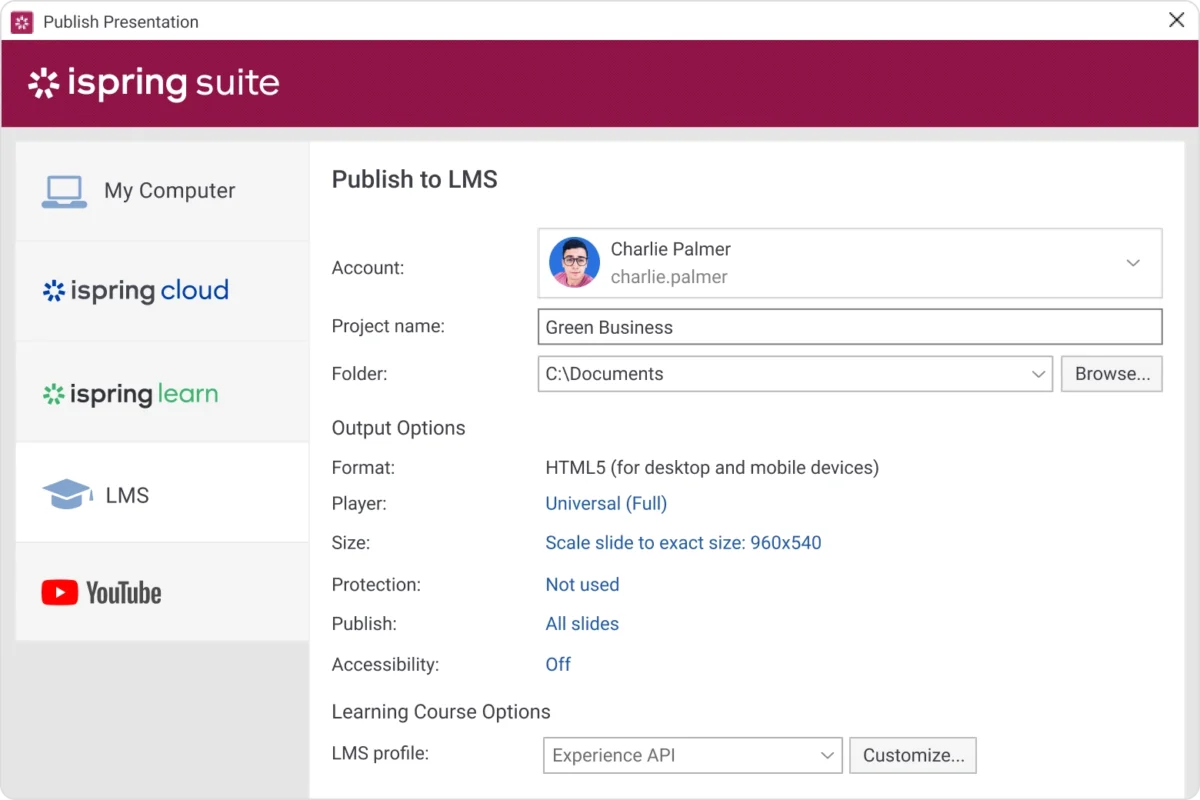
Publish to LMS
You can package your course for uploading to any LMS. iSpring courses meet all the modern eLearning standards: cmi5, xAPI (Tin Can), SCORM 2004, SCORM 1.2, and AICC. Learn More →
Publish to iSpring Learn
Simply log into your iSpring Learn LMS account from iSpring Suite, and publish courses to the LMS in just one click. Learn More →
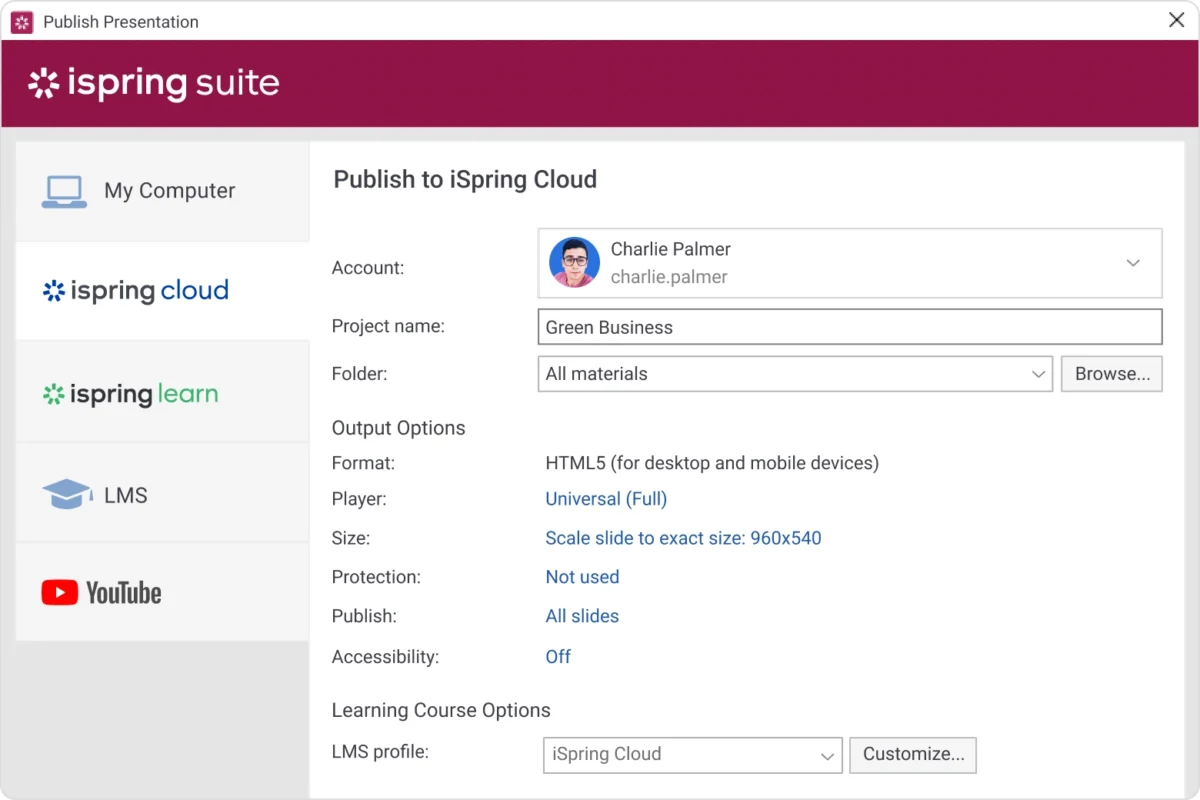
Publish to iSpring Cloud
Publish your courses directly to iSpring Cloud. Share a shortlink with stakeholders so they can review your content and give feedback. Other authors can download your draft course, make edits in their iSpring Suite, and reupload it to iSpring Cloud Learn More →
Play on Mobile Devices
iSpring courses work perfectly on iOS, Android, and Windows Phone. Content, buttons, controls, and course panels adapt to any screen size. Learners can use gestures to tap, swipe, or zoom course elements.
Get Started with iSpring Suite Today!
Create courses and content effortlessly - even with no experience or tech skills.
This website uses cookies to improve user convenience. For more details, please see our Privacy Policy.By continuing to use this site, you are consenting to our use of cookies.