iSpring QuizMaker is an easy quiz making tool with a collection of questions that you can use for learning, knowledge checks, and skill practice. Choose the appropriate templates and quickly create a quiz for your learners.
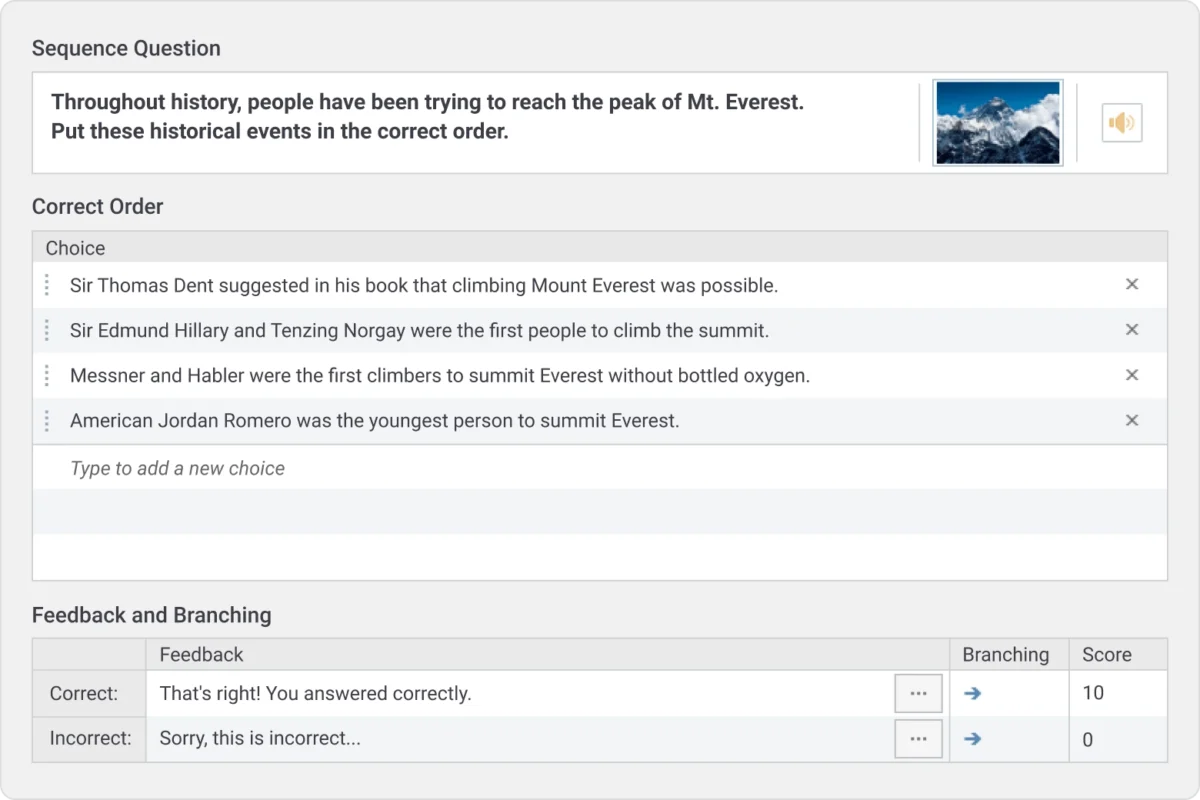
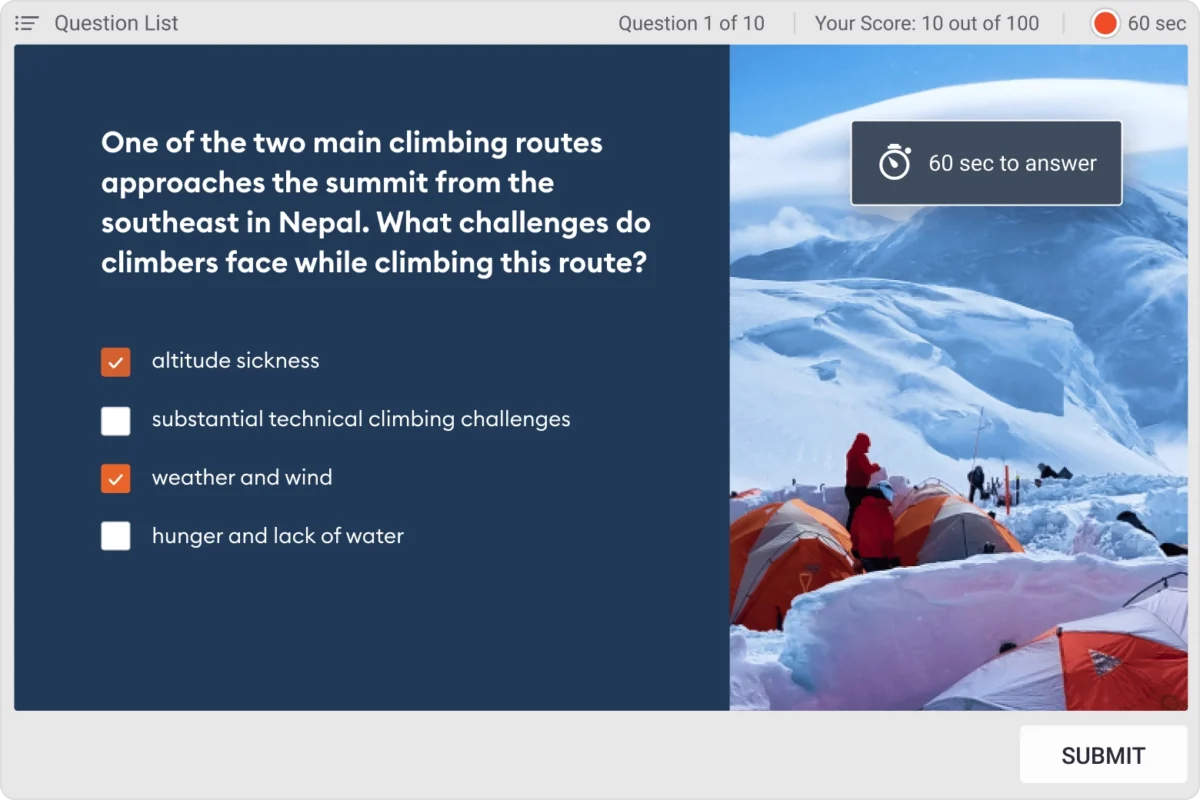
A sample question made from QuizMaker
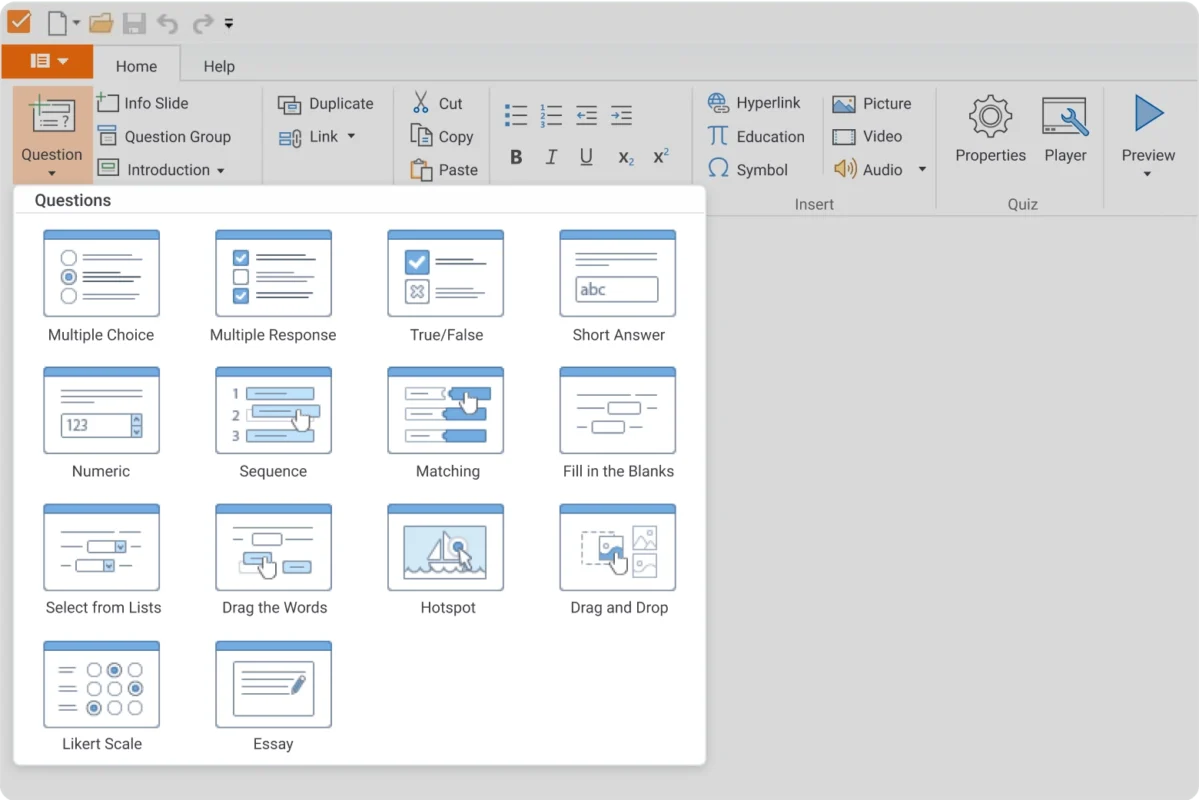
14 Question Types
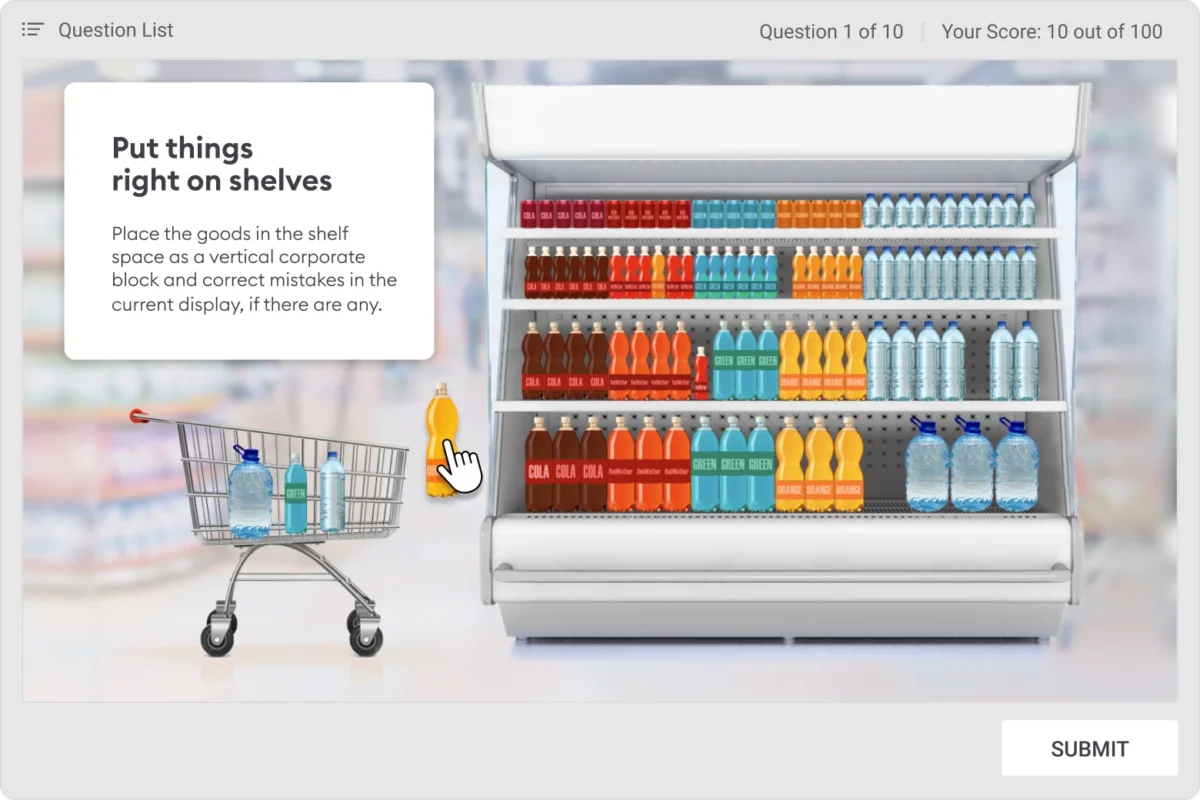
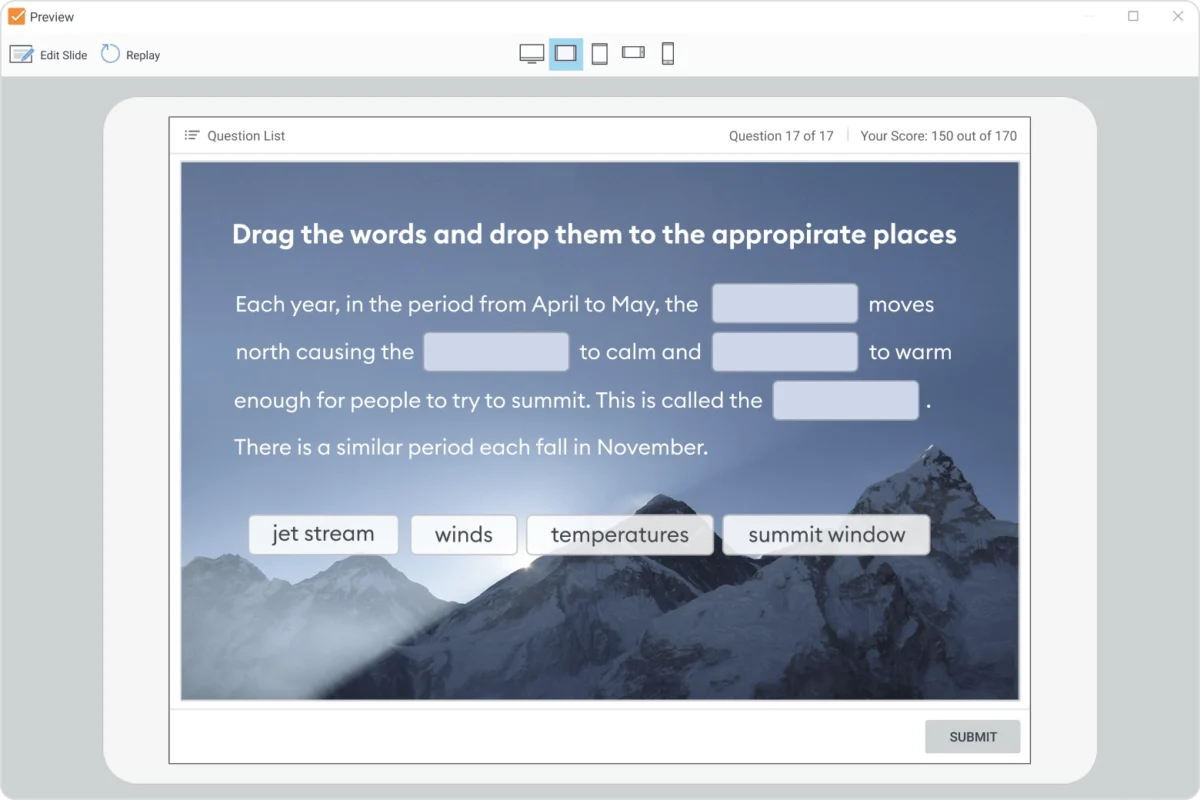
Interactive drag and drop activity for engaging your learner
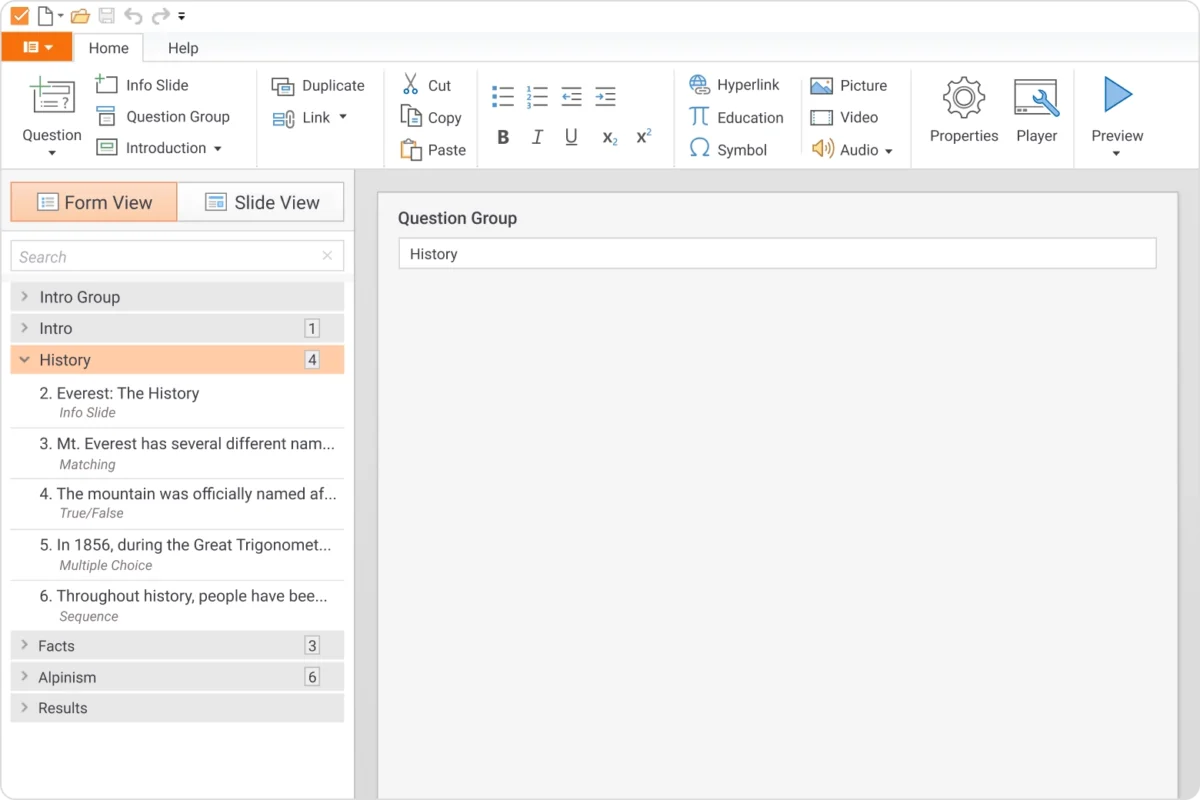
Group your questions by topic
Info slides to provide more details about the question or topic
Intro slides for your quizzes
Quiz or Survey
Choose between graded and survey questions, or use both types in your quiz. Create an unlimited number of quizzes and surveys to assess and collect feedback.
Perform knowledge checks with versatile question types: from simple multiple-choice and matching to more advanced questions like drag-and-drop and hotspot.
If your quiz contains questions on different topics, they can be arranged into groups. You can set the quiz to shuffle questions within a group or to randomly include a set number of questions from each group.
Choose from Intro Slide, User Info Slide, and Instruction Slide, or add all of them to welcome learners and give them more understanding about what comes next.
If you already have a list of questions in an Excel spreadsheet, just add them to QuizMaker using a template. You can also import questions from another quiz that was made in iSpring QuizMaker and edit them.
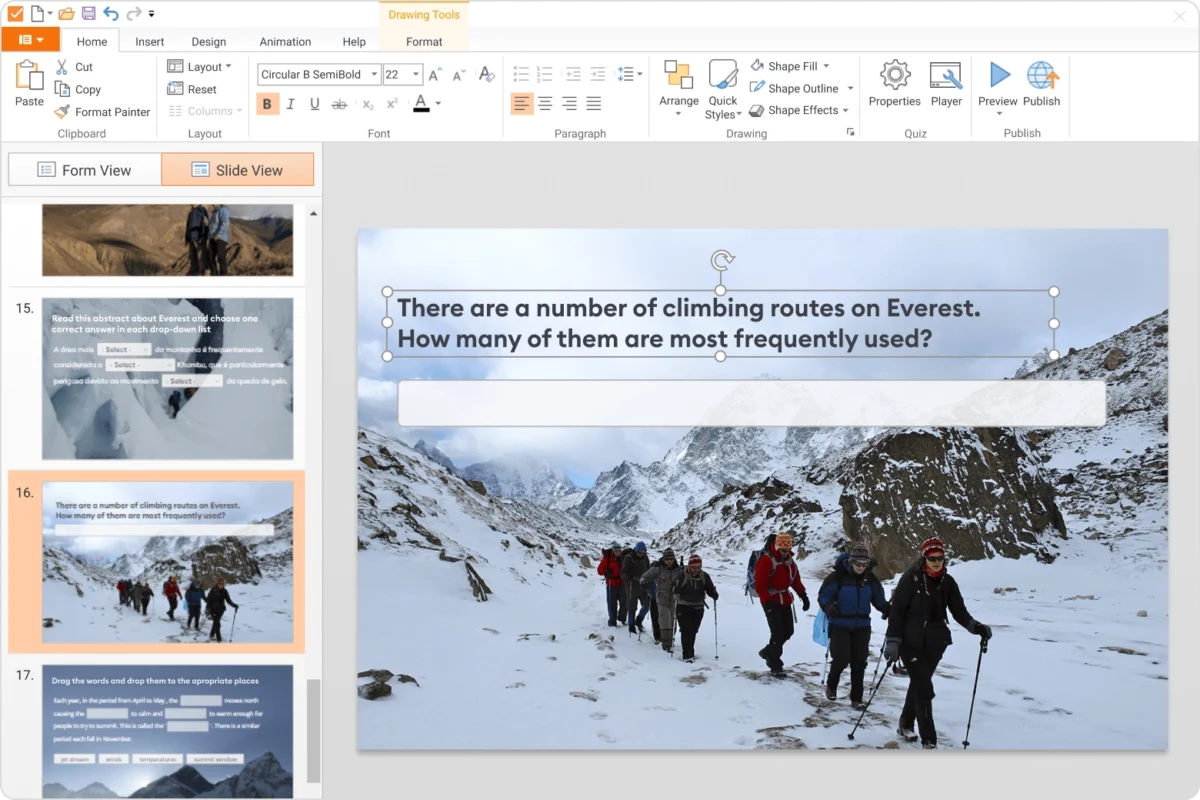
Customize quiz design for a more personal experience with iSpring QuizMaker. Brand your quizzes with colors and style, experiment with layouts, add texts and visuals.
Design View Mode
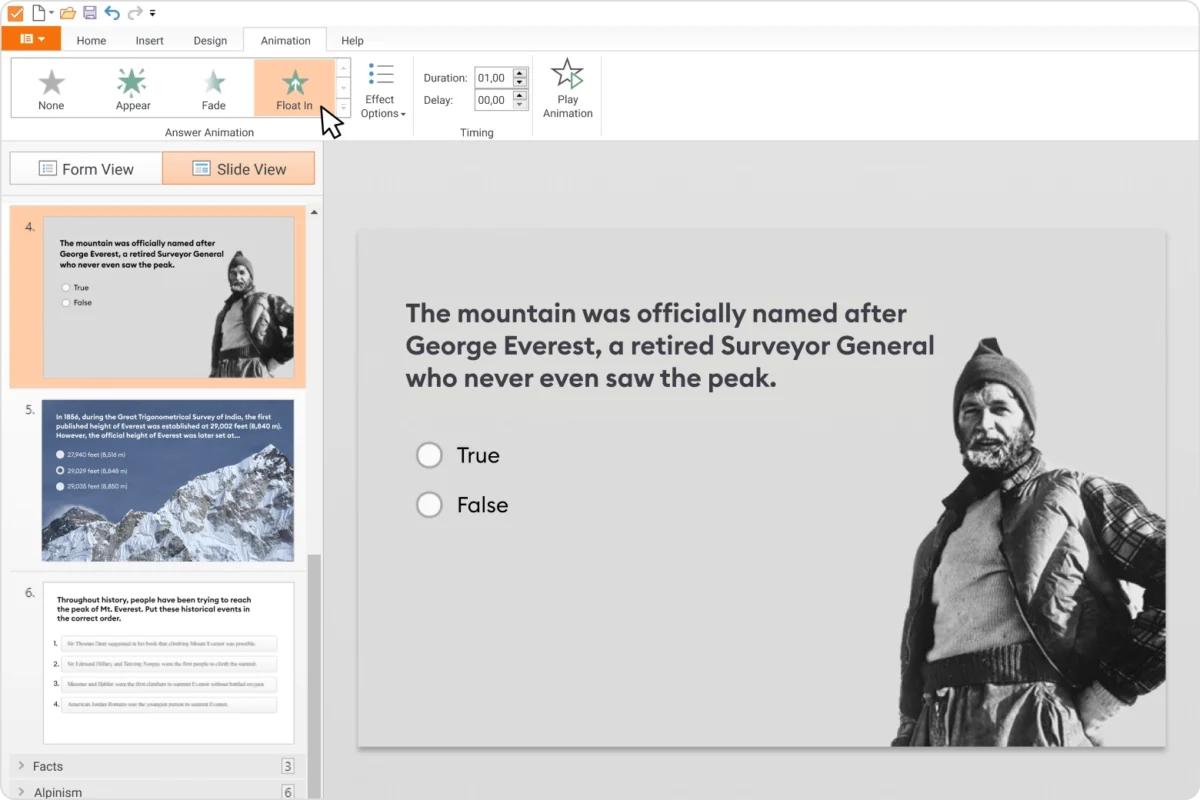
Adding animation effects
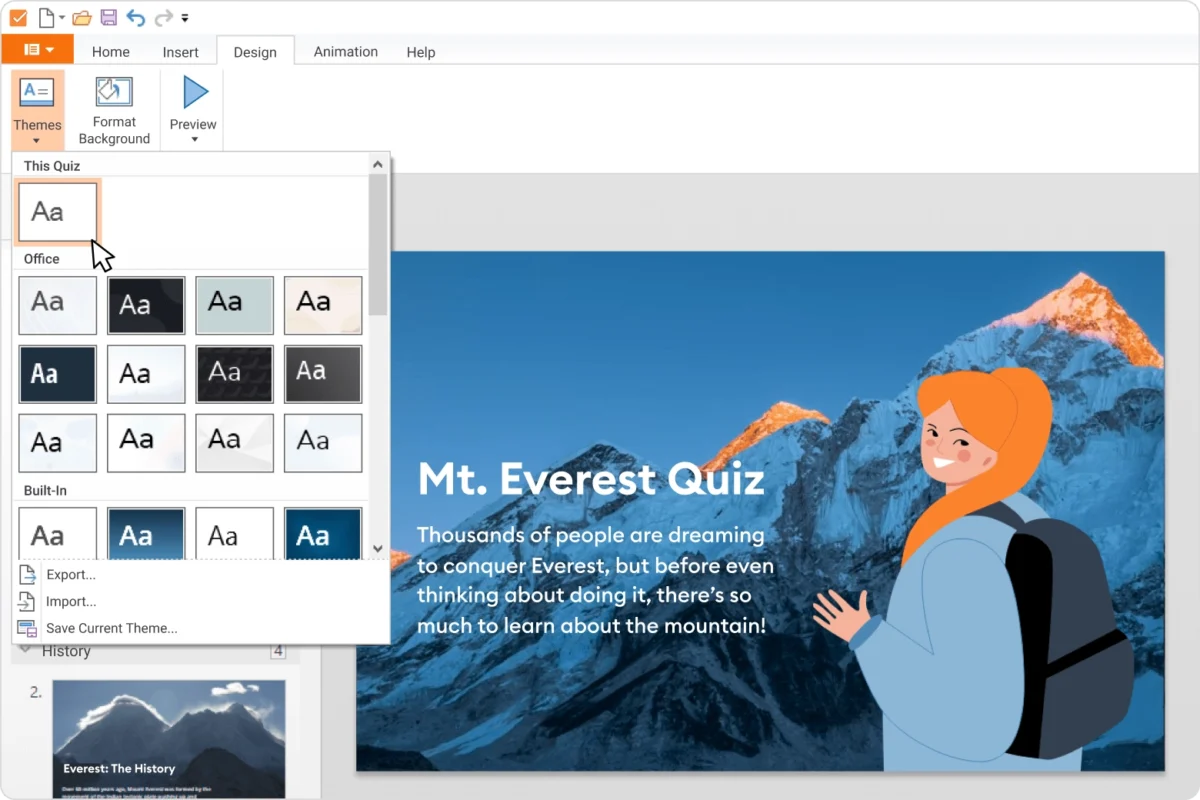
Built in themes or customise your own
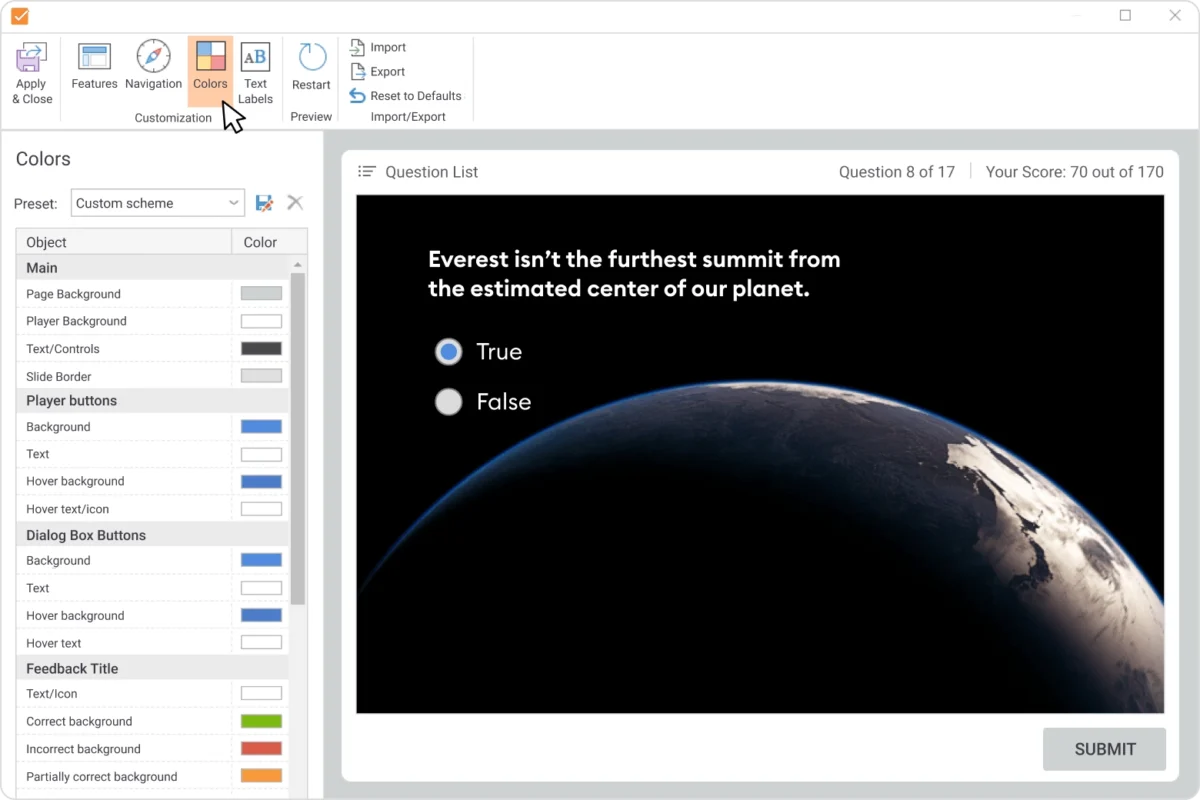
customize your player with colors, layout, and labels
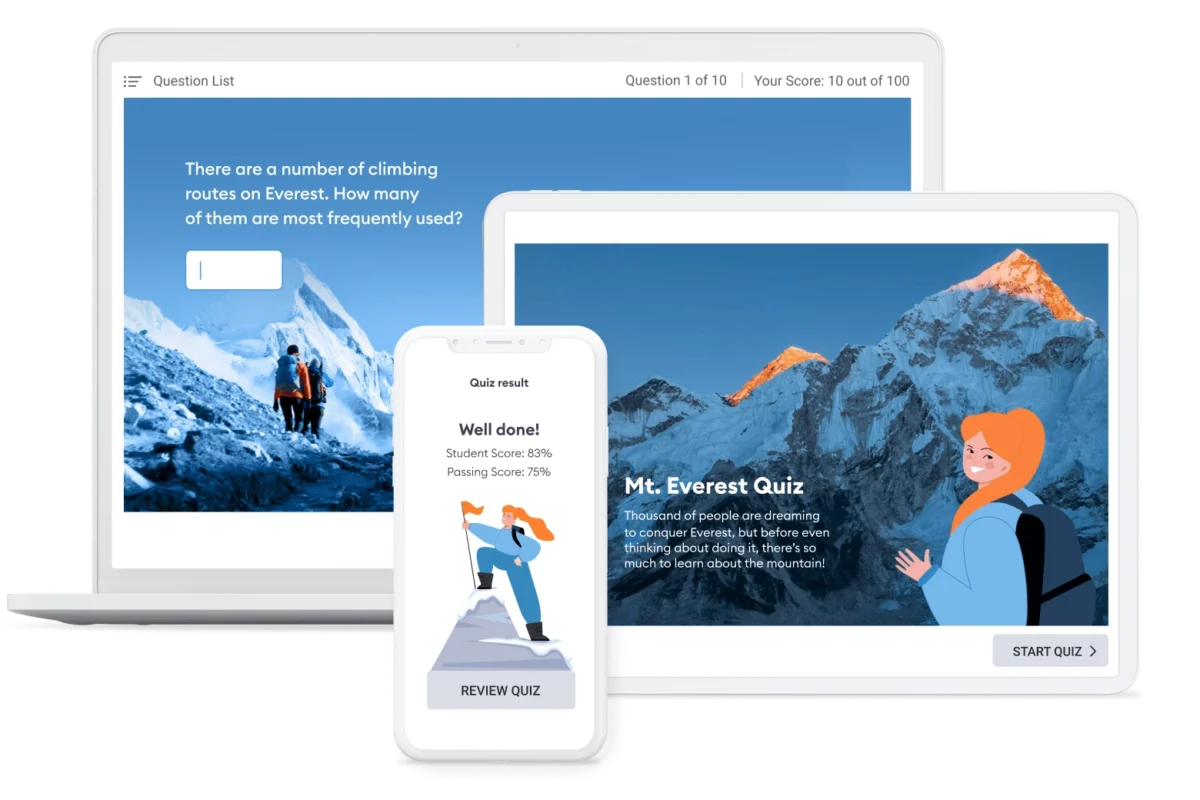
Preview your quiz layout from different devices
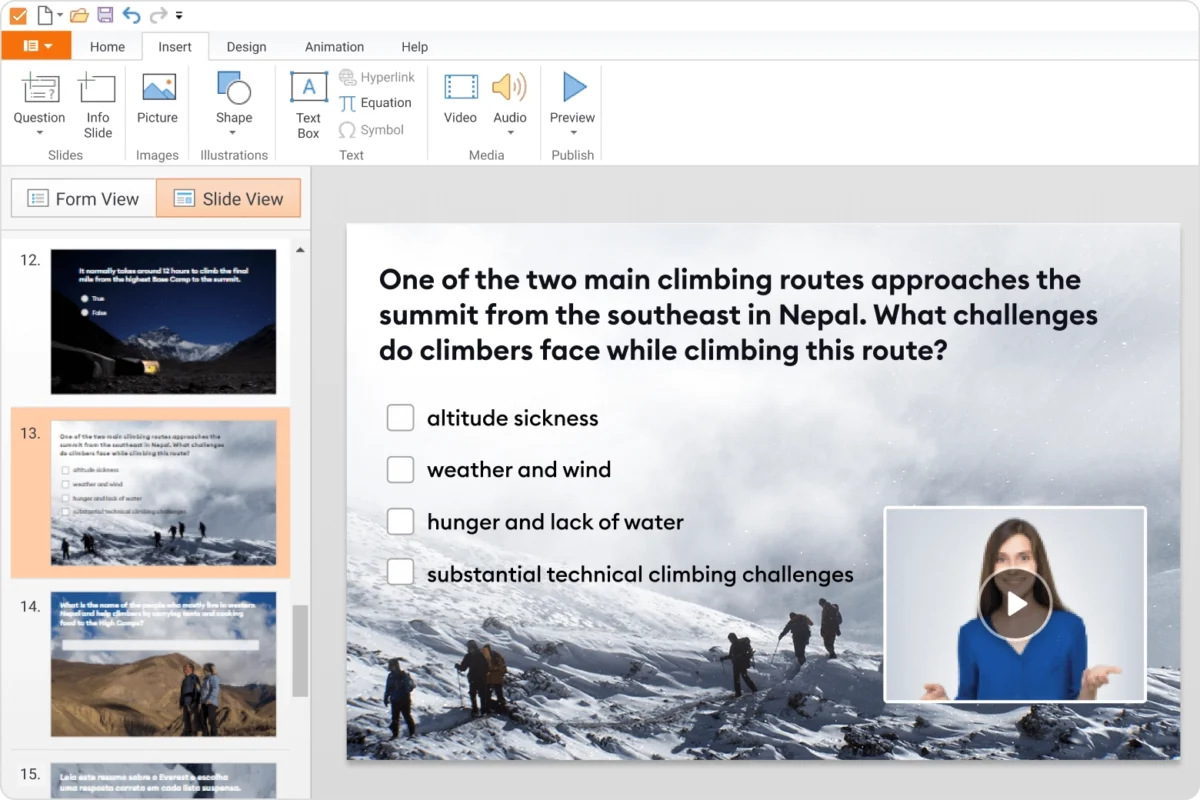
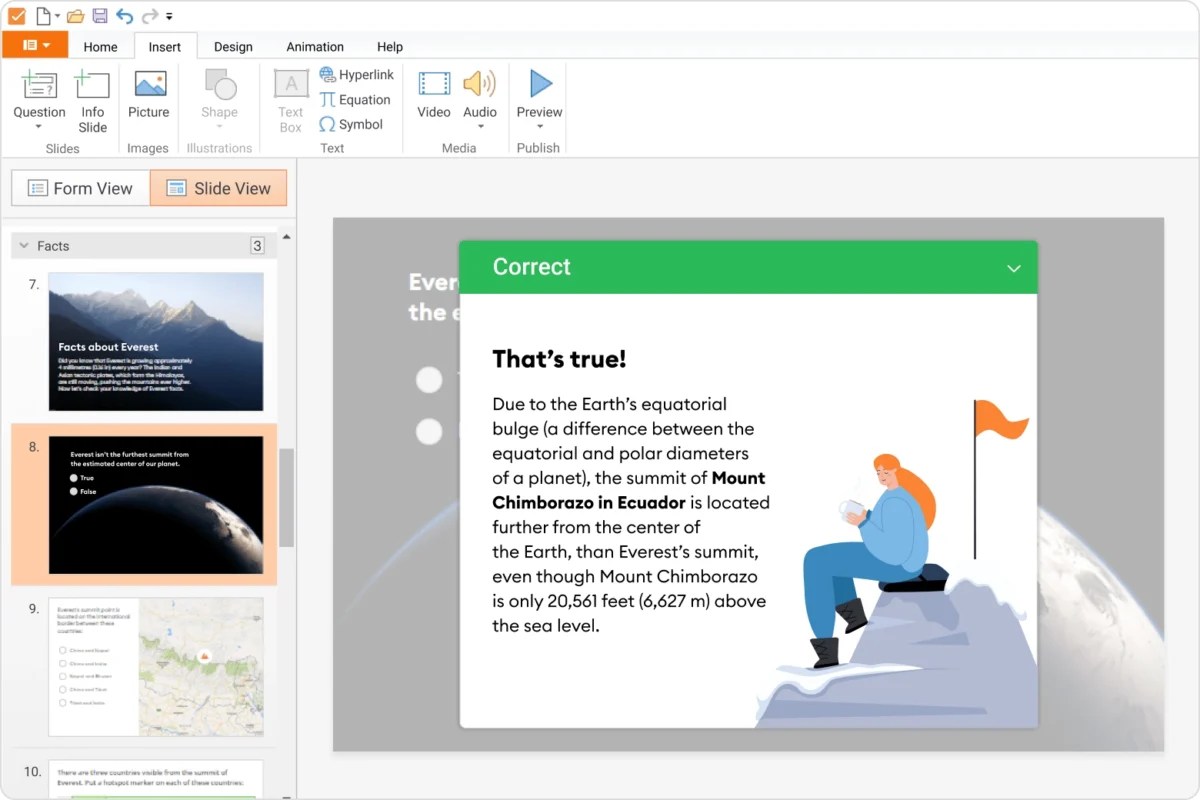
Enhance your slides by adding audio, images, videos, equations, and hyperlinks
Animation
Engage your audience by adding animations to a quiz. iSpring QuizMaker features versatile animation effects, and you can set timings and other options just as you would in a PowerPoint presentation.
Easily preview the entire quiz or survey to see how it will appear to quiz takers on desktops, tablets, or phones in both landscape and portrait orientations.You can also preview a specific question or a question group.
Make your quiz more engaging questions with audio, video, images, or equations. Edit images and videos right in iSpring QuizMaker, add ready-made audio files, or record your own.
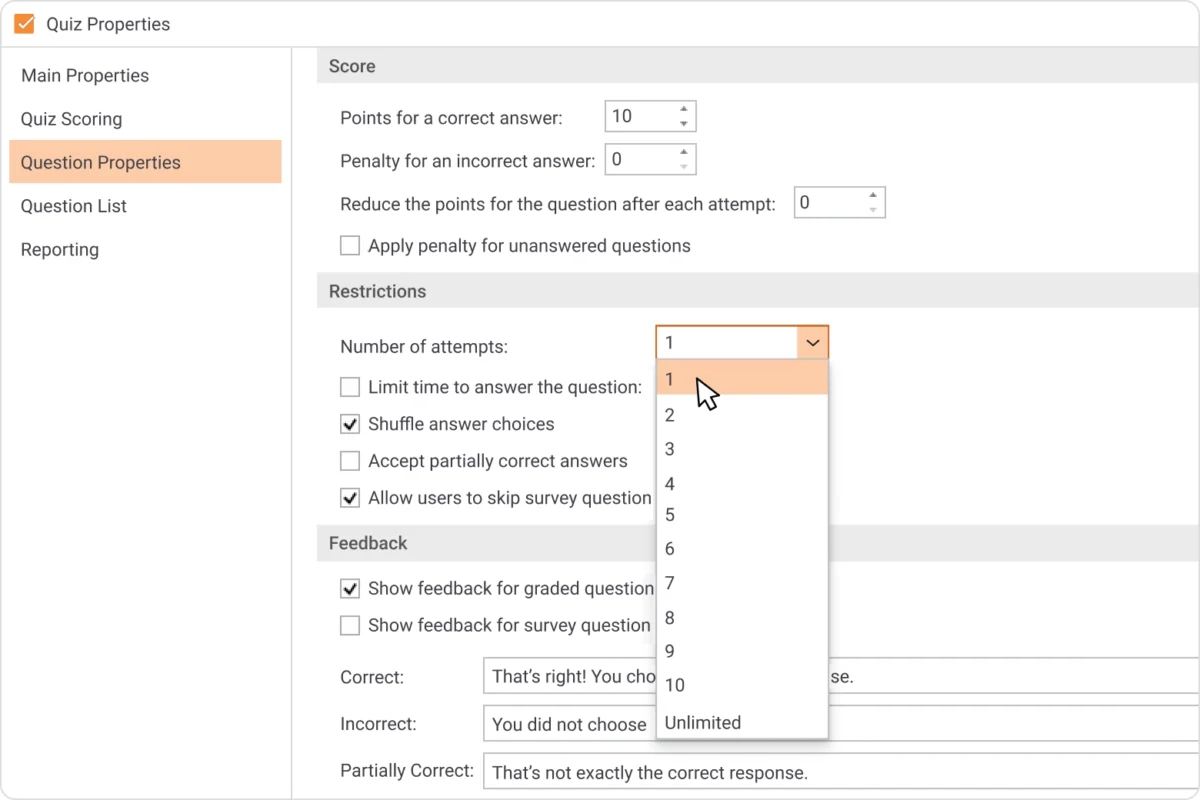
Assess learners according to the rules that you set. iSpring QuizMaker allows you to assign custom points and penalties, or give limited time and attempts to answer each question.
Create timed and scored quizzes
Set custom scoring points for when the question is correct or incorrect
Set a time limit for the quiz and number of attempts
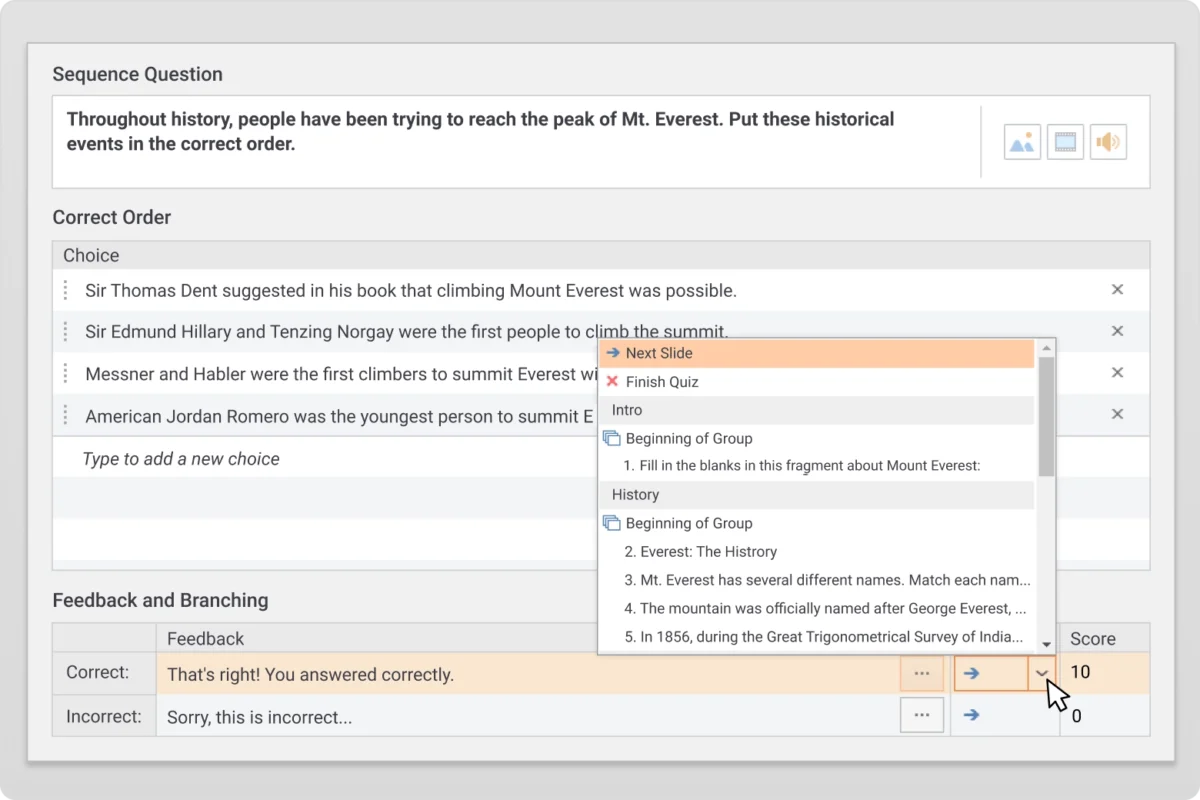
Personlize your quiz with branching
Provide feedback on questions that were incorrect
Scoring
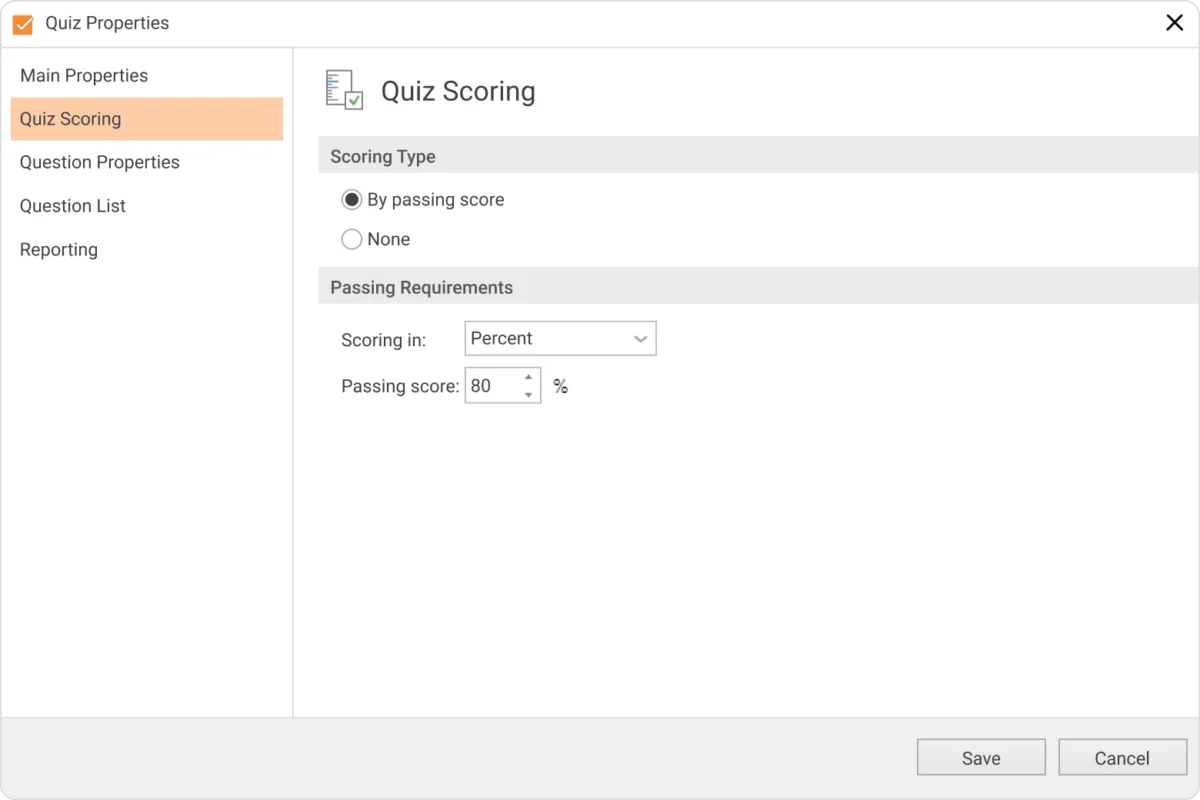
You can set a general passing score or grant custom points for each question and subtract points for incorrect answers for more accurate quizzing. You can also accept partially correct answers and set scoring and branching for this.
You can allow quiz takers to answer the question or pass a whole quiz several times, depending on teacher requirements and quiz type. You can also permit an unlimited number of attempts.
Time Limits
To prevent your learners from cheating, add a timer to your tests. You can set a general time limit and time limits for each quiz question.
Branching Scenarios
Set up branching scenarios to personalize your quizzes. For example, when a learner answers incorrectly, you can send them to a slide with additional information on the subject. If a learner answers correctly, you can forward them to a more challenging question.
Provide feedback for correct and incorrect answers. You can use uniform feedback messages for the entire test, or create a specific feedback for each question. Use images, formulas, and audio to explain the feedback in detail.
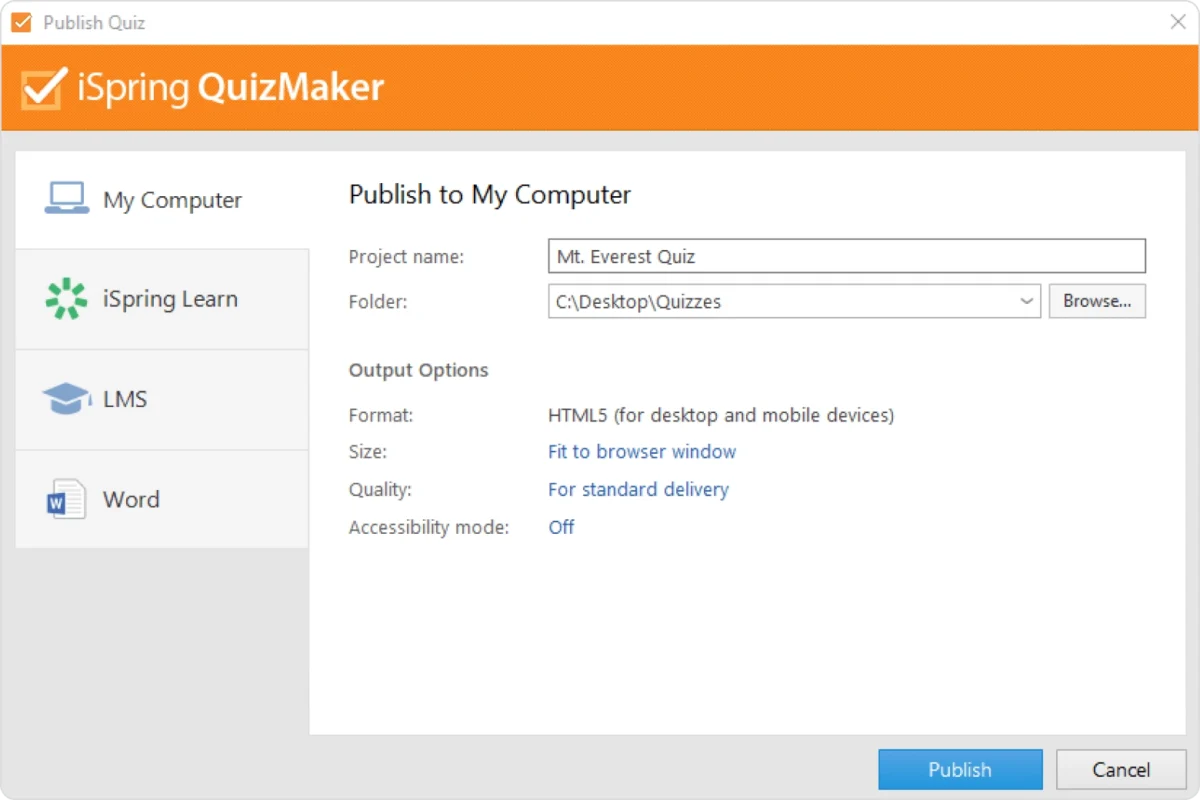
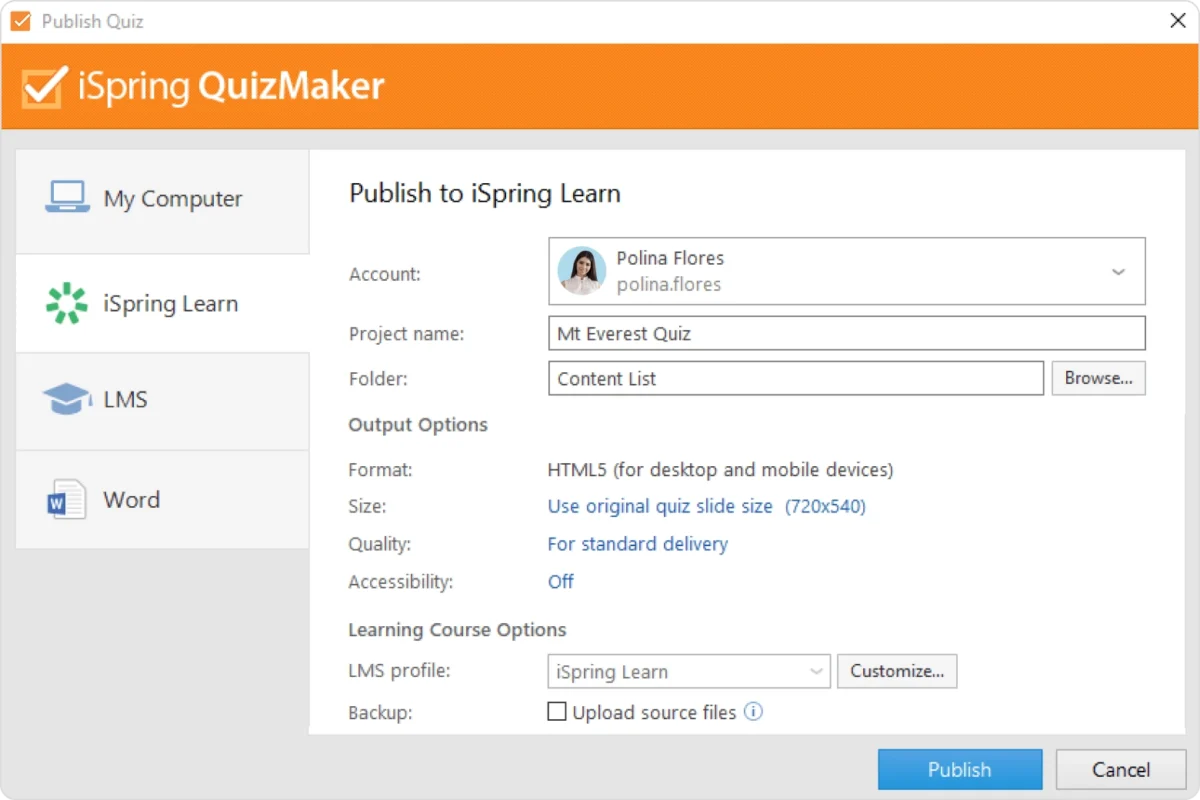
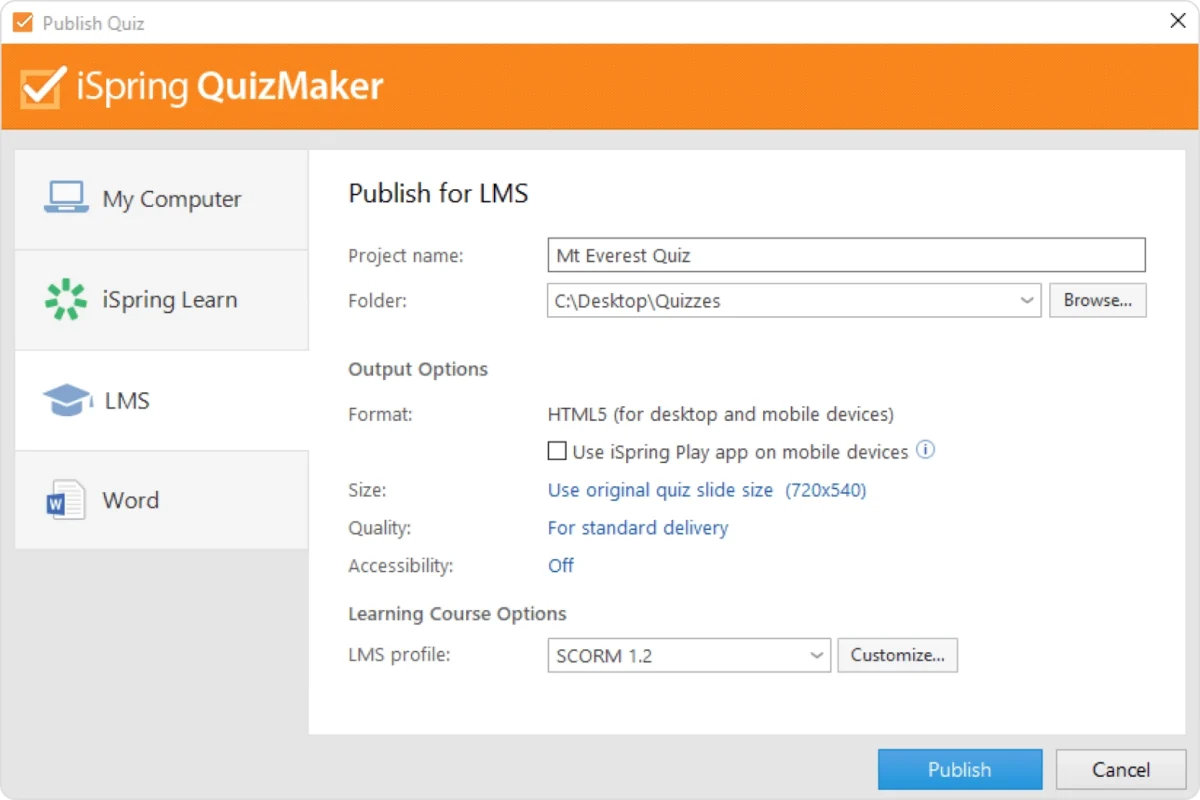
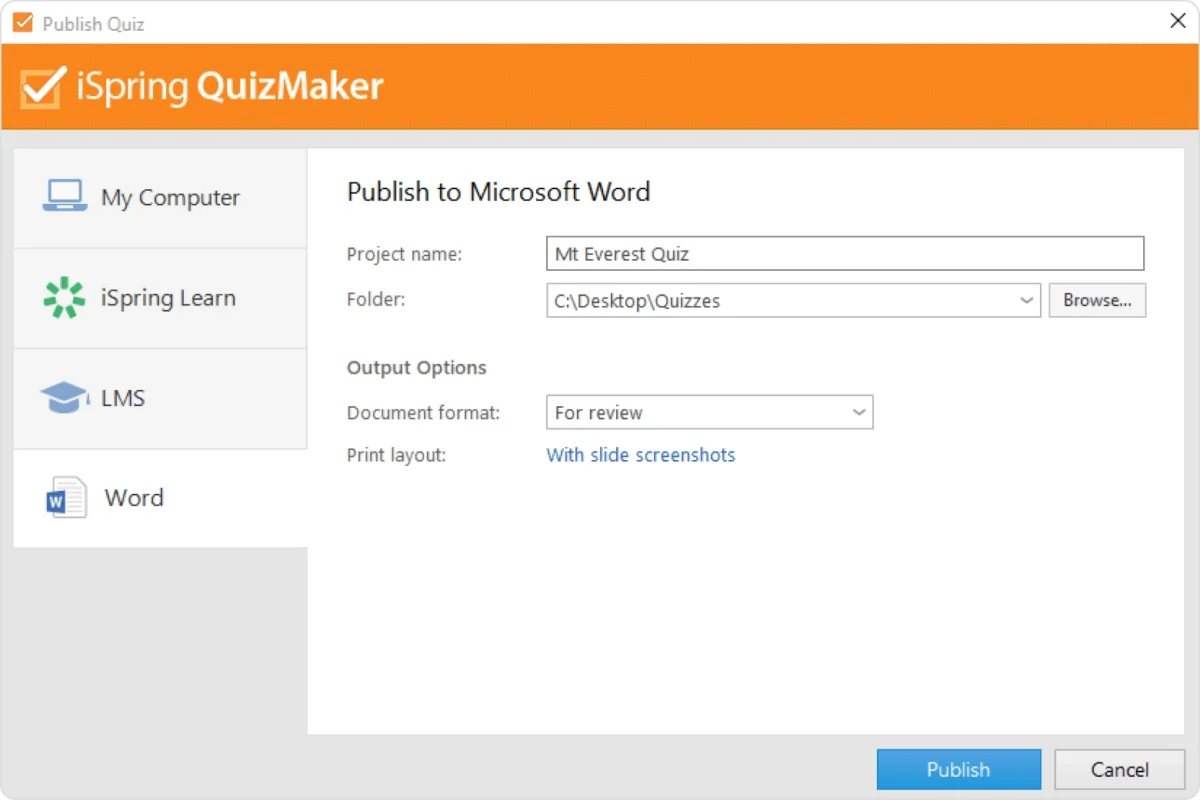
iSpring QuizMaker makes it quick and easy to publish a quiz to a web-friendly format and upload it to your website or LMS. And quizzes made with iSpring can be played on all devices.
Quizzes can be taken on all devices with perfect display
Publish your quiz in HTML5 format to be available online
Publish your quiz directly onto iSpring LMS
Upload your quiz to any LMS
Publish your quiz in Word to have a printable test
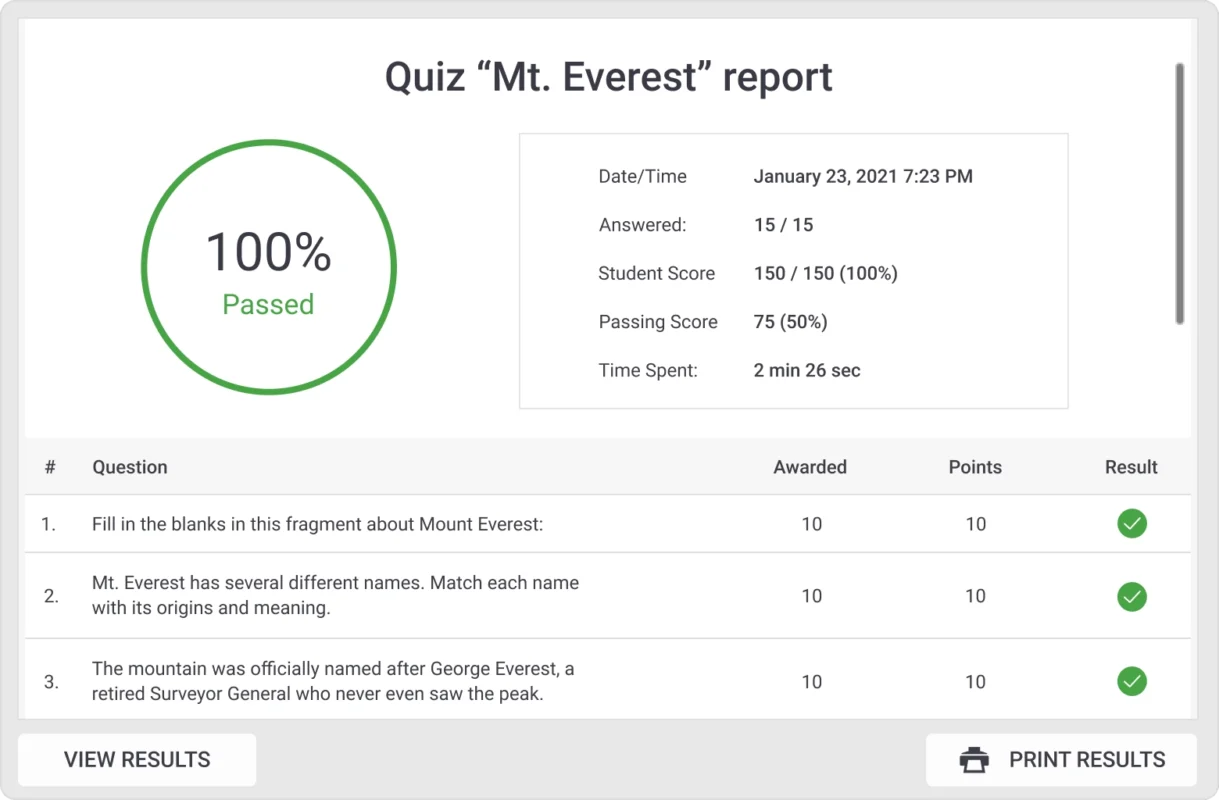
Full review of quiz results
Compatible for All Devices
With iSpring QuizMaker, quizzes work perfectly and look great on any device. Content, buttons, and controls adapt to any screen size and orienation. Learners can use gestures to tap, swipe, or zoom quiz elements.
Web Format
Publish quizzes in HTML5 format to embed them in a website or blog and make them available from any device: PC, laptop, tablet, or smartphone.
This website uses cookies to improve user convenience. For more details, please see our Privacy Policy.By continuing to use this site, you are consenting to our use of cookies.